How to Change Brush Size in Photoshop Using Shortcuts

How to Change Brush Size in Photoshop

Changing the brush size and hardness quickly can significantly enhance your workflow in Photoshop.

Using shortcuts allows you to adjust these settings without interrupting your creative process.

Additionally, Photoshop brushes are often saved in .abr file formats, which contain custom brushes that you can import and use for your projects.

In this tutorial, we’ll walk you through the most effective methods to change brush size and hardness using shortcuts.

(Insert an image showcasing the brush tool in Photoshop)

Changing Brush Size and Hardness: Normal Methods

Before we dive into shortcuts, let’s look at the traditional methods of changing brush size and hardness.

Access the Brush Panel: Click on the brush icon in the toolbar or press B to select the brush tool.

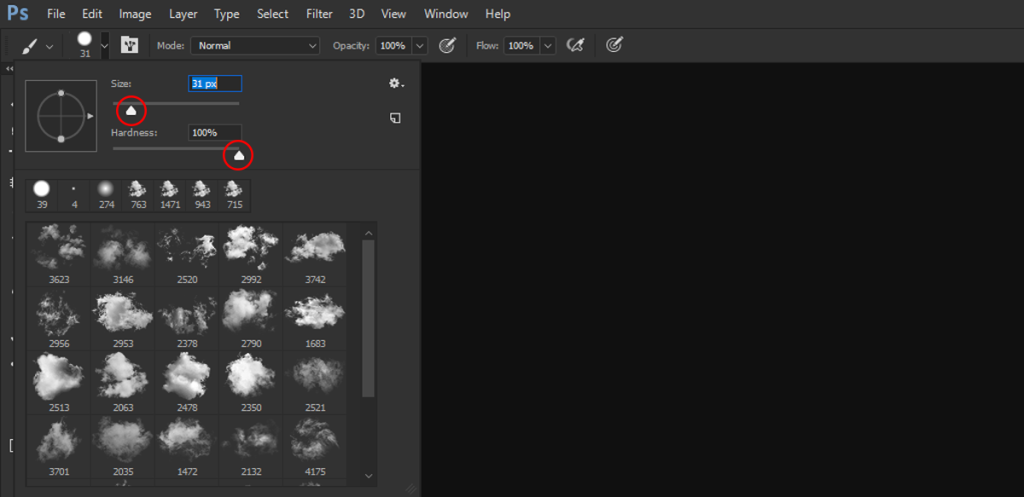
Now you can change the brush size manually in two ways: by dragging the slider, or by typing the number.
How to Change Brush Size in Photoshop

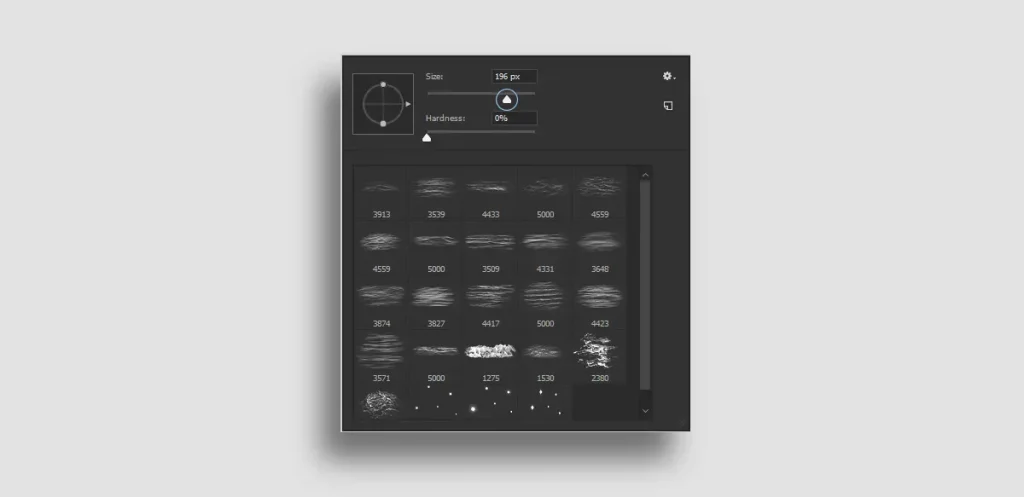
Open Brush Settings: Click on the dropdown menu next to the brush icon in the options bar at the top.

You can also change the brush size the same way in the Brushes panel.
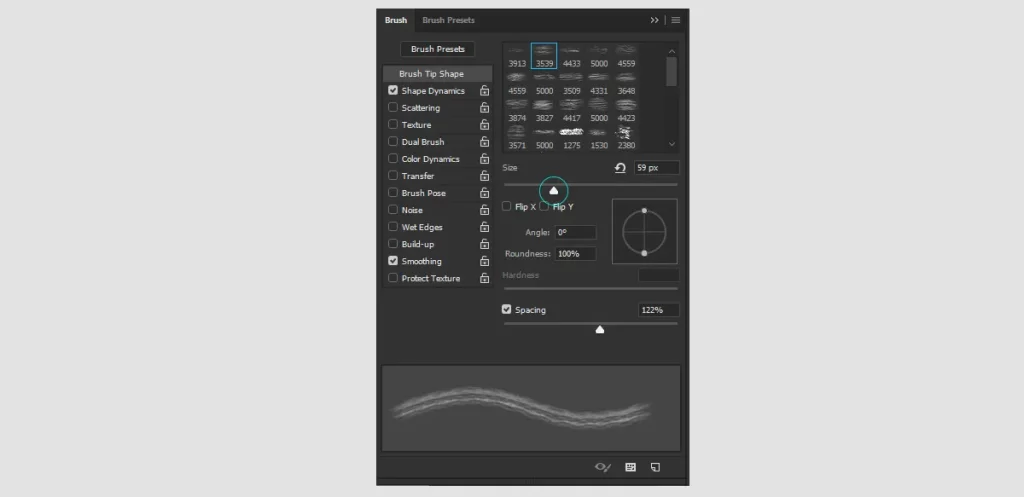
Adjust Brush Size: Use the slider under “Size” to increase or decrease the brush size.

Adjust Brush Hardness: Use the slider under “Hardness” to control the softness or hardness of the brush edges.
Method 1: Using Bracket Keys

How to Change Brush Size in Photoshop using shortcuts.

The simplest way to adjust your brush size is by using the bracket keys on your keyboard.

  • Increase Brush Size: Press the right bracket key ] to make your brush larger.
  • Decrease Brush Size: Press the left bracket key [ to make your brush smaller.
How to Change Brush Size in Photoshop

Method 2: Using the Mouse or Trackpad (HUD)

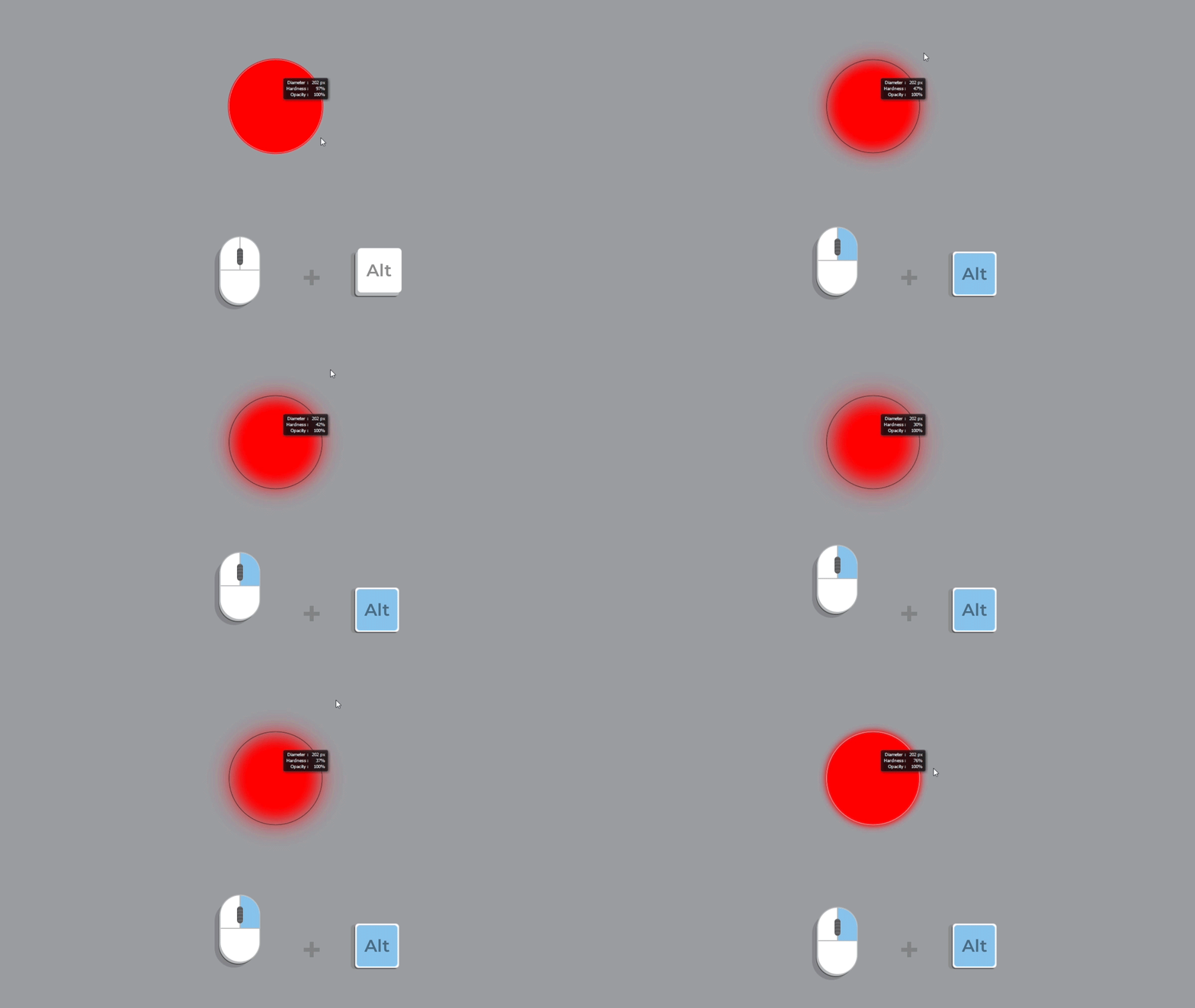
Photoshop also offers a heads-up display (HUD) for changing brush size with a mouse or trackpad.

  1. Activate the Brush Tool: Press B to select the brush tool.
  2. HUD Controls:
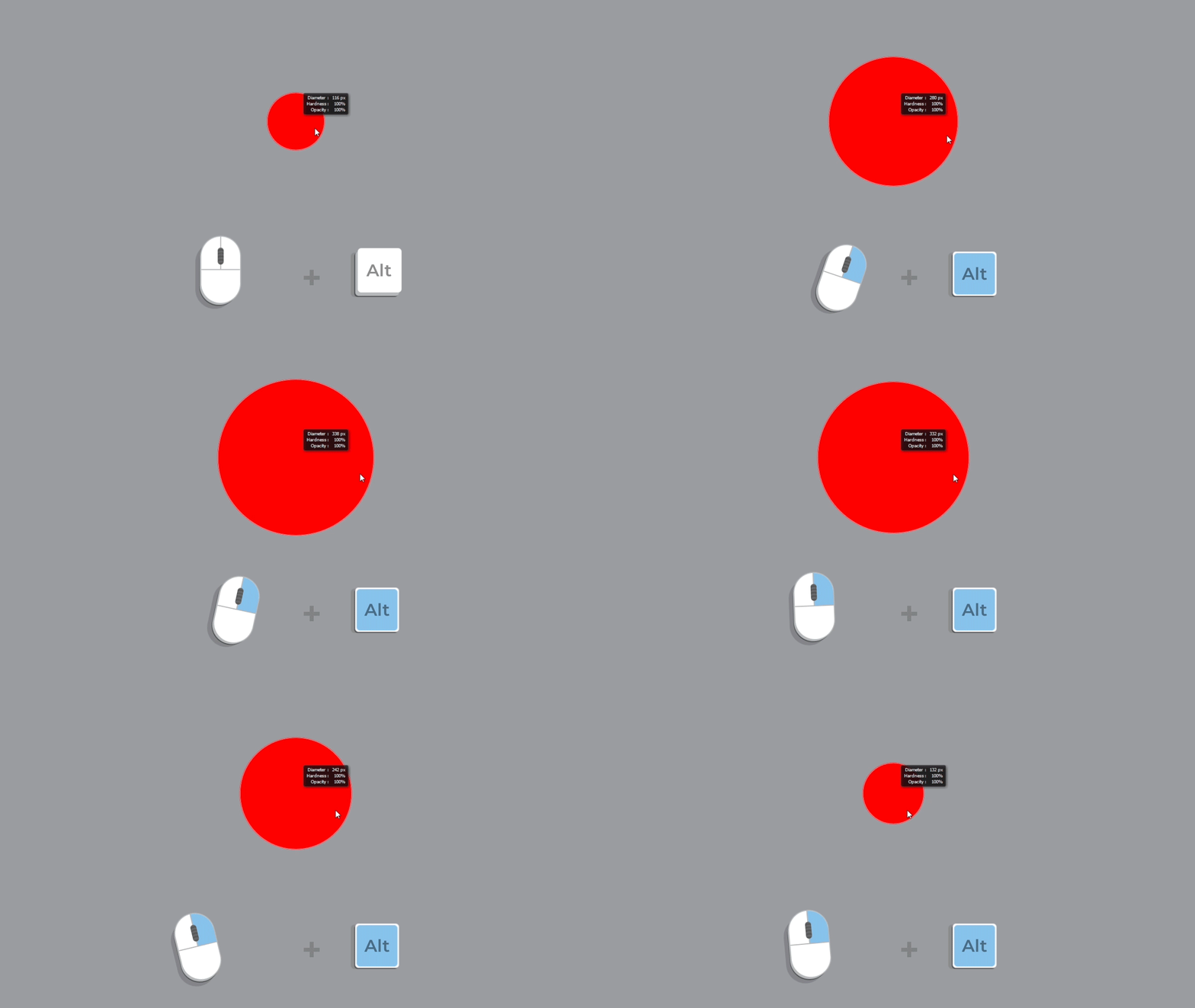
    • On Windows: Hold Alt + Right Click (then drag left/right to change size).
    • On Mac: Hold Control + Option (then drag left/right to change size).

On Windows: Hold Alt + Right Click and drag up/down to change the brush hardness.

On Mac: Hold Control + Option and drag up/down to change the brush hardness.
Method 3: Using Keyboard Shortcuts for Precision

For more precise control, you can use these keyboard shortcuts:

  1. Change Brush Size Gradually:
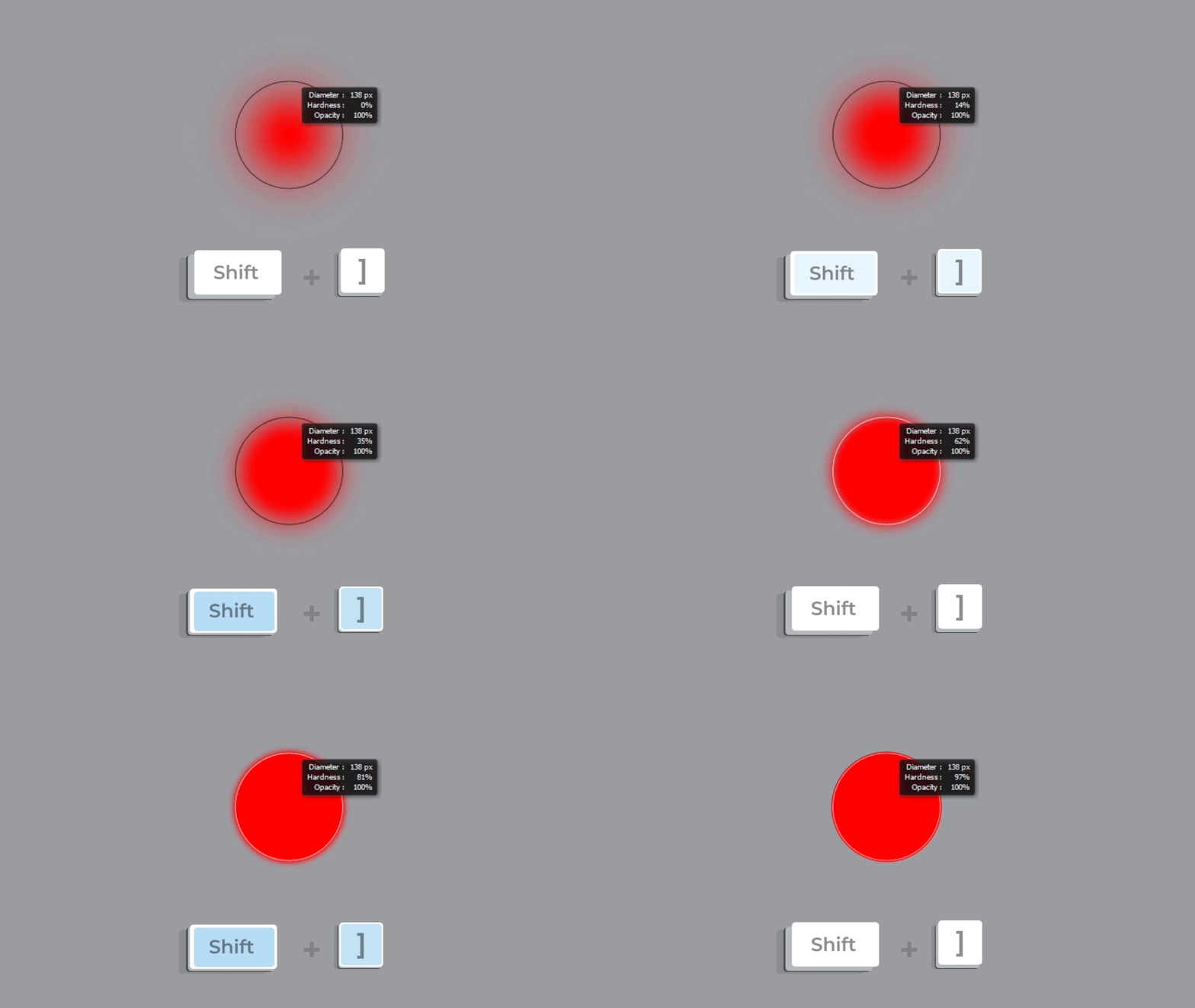
    • Increase Size: Press Shift + ]
How to Change Brush Size in Photoshop

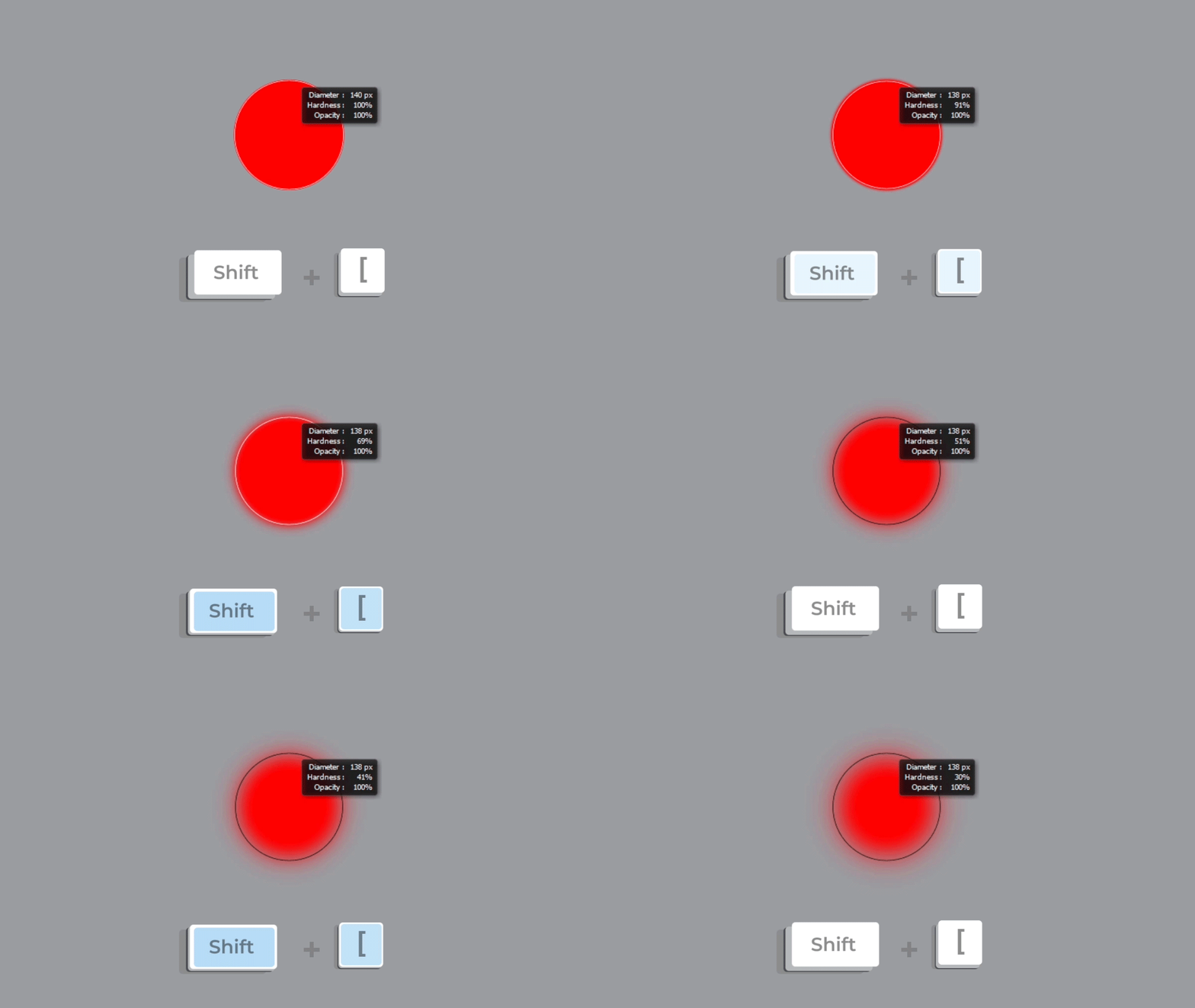
Decrease Size: Press Shift + [

How to Change Brush Size in Photoshop
Wrap-Up

Adjusting brush size and hardness in Photoshop efficiently can revolutionize your creative workflow.

Whether you’re using shortcuts or traditional methods, staying in the zone is key.

Explore our brushes to take your art to the next level.

Dive into a world of endless possibilities and let your creativity shine!

Happy creating! 🎨

What Is an ABR File?

An ABR file is a brush file used primarily in Adobe Photoshop. These files contain various brush presets, which can include shapes, textures, and dynamics, allowing digital artists to create stunning effects with ease. In this article, we will explore what an ABR file is and how to open it in different image editing software, including Adobe Photoshop, Procreate, Photopea, GIMP, and Affinity Photo.

What Is an ABR File?

ABR stands for Adobe Brush. It is a file format created by Adobe to store brush presets for Photoshop. These files can contain a variety of brush tips, from simple shapes to complex textures, enabling artists to paint with different styles and effects. The flexibility of ABR files makes them a favorite among digital artists and designers.

How to Open an ABR File

Opening an ABR file can vary depending on the software you are using. Below, we’ll cover how to open ABR files in several popular image editing programs.

1. Adobe Photoshop

Adobe Photoshop is the native application for ABR files. To install brushes in Photoshop:

  • Open Photoshop.
  • Go to the Brushes panel.
  • Click on the Settings icon and select Import Brushes.
  • Navigate to your ABR file and select it.
  • The brushes will appear in your Brushes panel.

For a detailed guide, check out our article on How to Install Brushes in Adobe Photoshop.

2. Photopea

Photopea is an online image editor that works much like Photoshop and also supports ABR files:

  • Open Photopea in your web browser.
  • Go to the Edit menu and select Import Brushes.
  • Upload your ABR file.
  • The brushes will be available for use in the brush panel.

3. Procreate

Procreate, a popular iPad drawing app, also supports ABR brushes. To import ABR brushes into Procreate:

  • Download the ABR brush file to your iPad or a cloud storage service.
  • Open Procreate and create a new canvas.
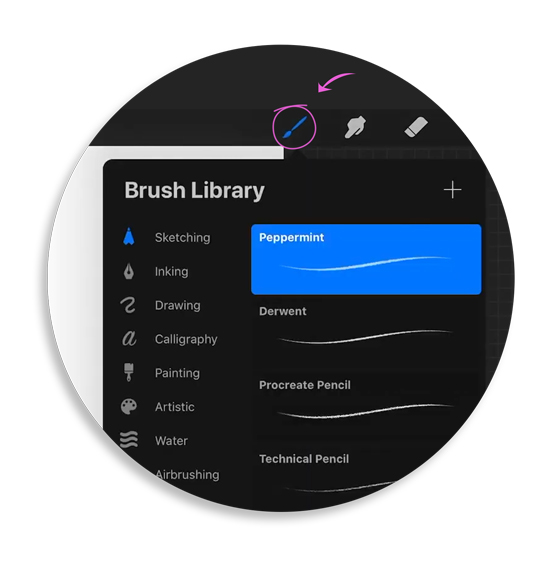
  • Tap the Brush icon to open the Brush Library.
  • Create a new brush set by tapping the + symbol at the top right corner.
  • Hold your finger on the ABR file and select Share, then choose Procreate from the list of apps.
  • The brushes will be imported into your new brush set in Procreate.

For more details, refer to our article on How to Install Brushes in Procreate.

4. GIMP

GIMP is a powerful, open-source image editor that also supports ABR files. To install brushes in GIMP:

  • Open GIMP and go to Edit > Preferences.
  • Navigate to Folders > Brushes and note the directory path.
  • Copy your ABR file to the GIMP Brushes folder.
  • Refresh the Brushes panel in GIMP.
  • For more details, refer to our article on How to Install Brushes in GIMP.

    5. Affinity Photo

    Affinity Photo is another popular image editing software that supports ABR files. To import brushes into Affinity Photo:

    • Open Affinity Photo.
    • Go to the Brushes panel.
    • Click on the Menu icon and select Import Brushes.
    • Navigate to and select your ABR file.

    For a detailed guide, check out our article on How to Install Brushes in Affinity Photo.

How to import ABR Brushes into Procreate

Import ABR brushes into Procreate

Step 1: Explore and Download Our Brushes

To begin your creative journey, you’ll need to find and download the ABR brushes you’d like to use. You can explore our extensive collection of high-quality brushes here. Once you’ve found the perfect set, download the ABR file to your device.

Step 2: Locate the ABR File

Once you’ve downloaded the ABR file, locate it on your device. If you’re using a computer, you may need to transfer the file to your iPad via cloud storage (such as iCloud, Dropbox, or Google Drive) or using AirDrop.

Step 3: Open Procreate

Launch the Procreate app on your iPad. Ensure you have the latest version of Procreate for the best experience and compatibility with ABR files.

Step 4: Import the Brushes

  1. Open your Procreate canvas or create a new one.
  2. Tap on the Brush icon to open the Brush Library.
  3. At the top right corner of the Brush Library, tap on the + symbol to create a new brush set.
  4. Tap on the newly created brush set to open it.
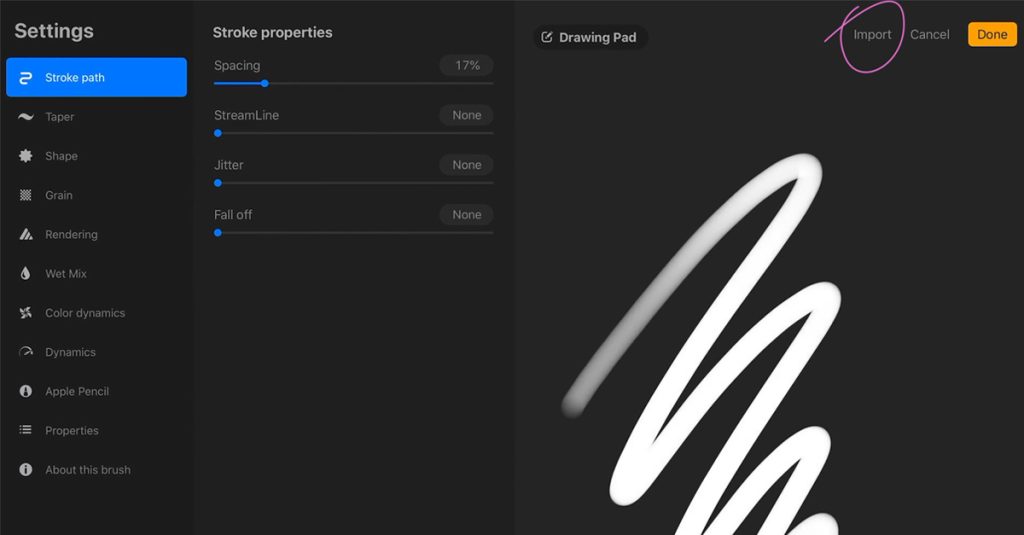
  5. Now, tap on the Import button located at the top right of the brush set panel.
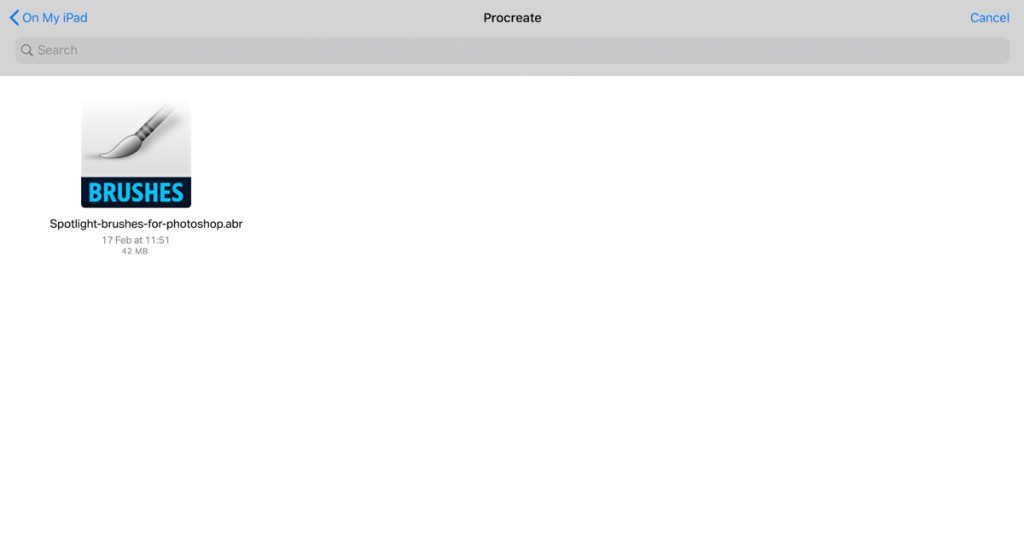
  6. Navigate to the location where you saved your ABR file (e.g., iCloud Drive, Dropbox, etc.).
  7. Select the ABR file to import it into Procreate.
Import ABR brushes into Procreate

Step 5: Organize and Use Your Brushes

After importing, you’ll see your new brushes within the selected brush set in Procreate. You can rename the brush set for better organization. To start using the brushes:

  1. Select the brush you want to use from the imported set.
  2. Adjust the brush settings as needed.
  3. Start creating your artwork with your newly imported brushes!

How to Import ABR Brushes into Procreate on iPad

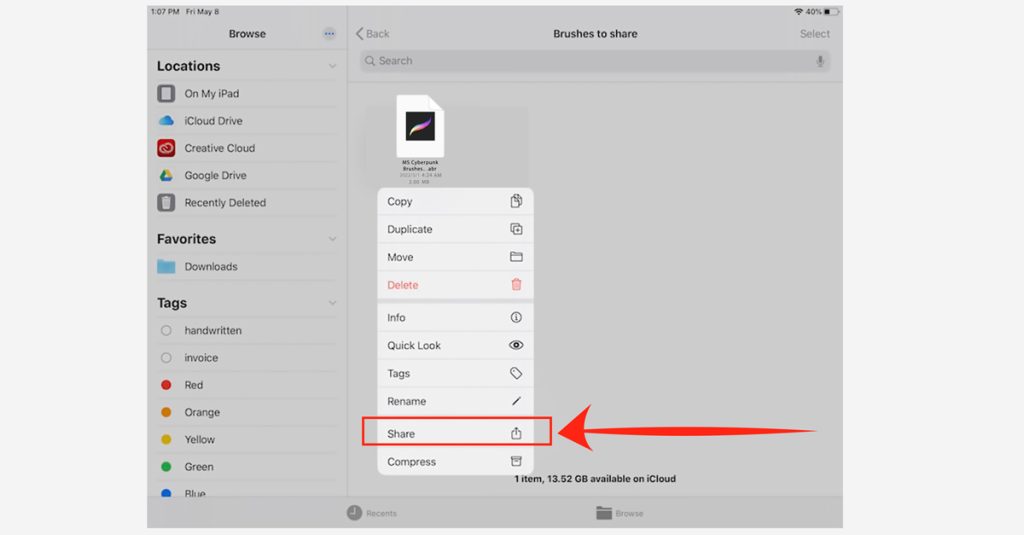
Locate the ABR file on your iPad or cloud storage.

Hold your finger on the brush file and select Share from the options menu

Import ABR brushes into Procreate

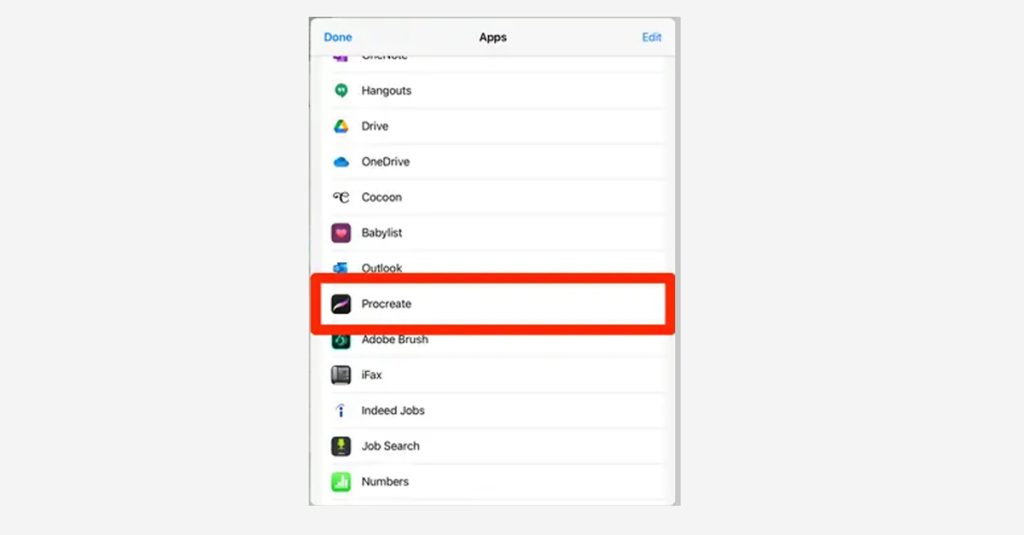
Choose Procreate from the list of apps.

Import ABR brushes into Procreate

Procreate will automatically import the brushes into your selected brush set.

Congratulations!

You’ve successfully imported ABR brushes into Procreate.

Now you can enjoy a wider variety of tools and enhance your digital art projects.

Happy creating!

“Learn how to import ABR brushes into Photoshop with our easy step-by-step guide.

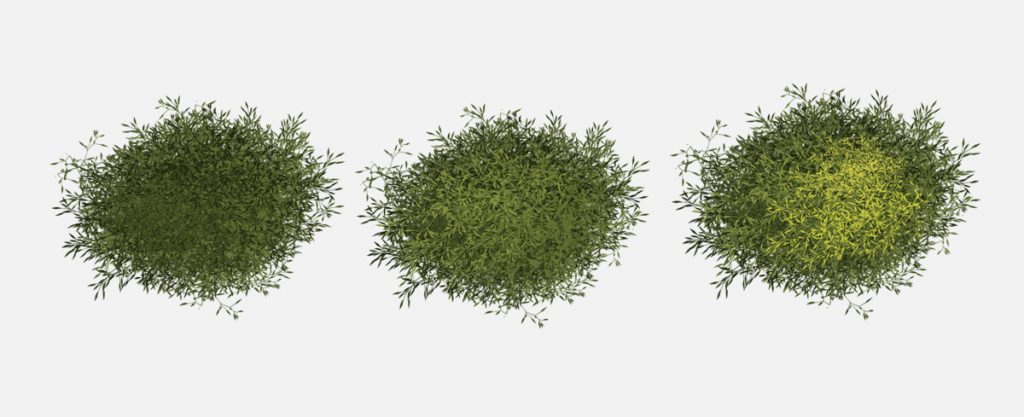
How to paint foliage in photoshop

How to paint foliage in photoshop

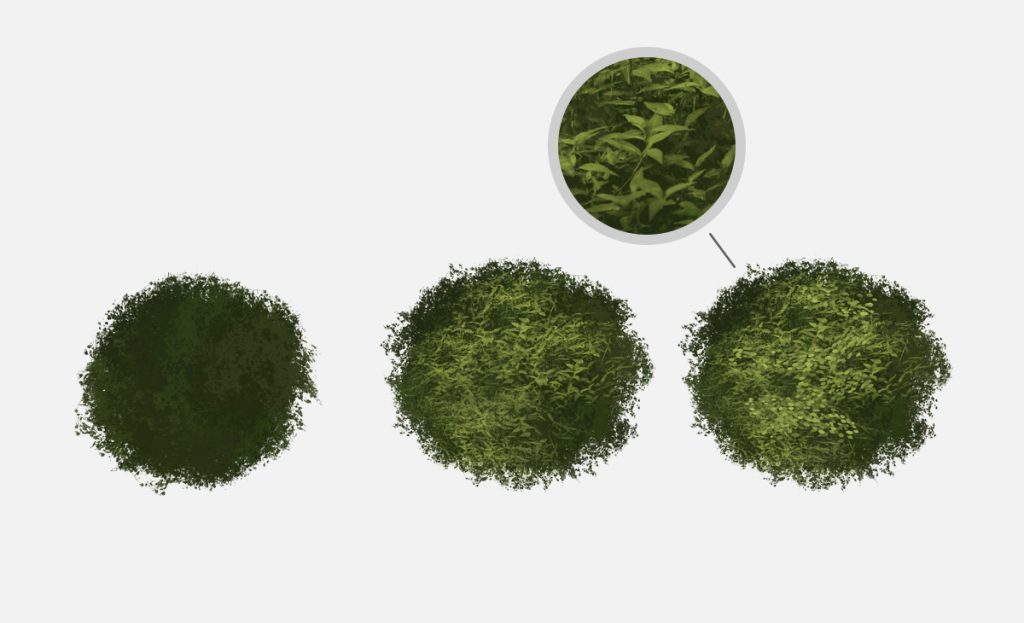
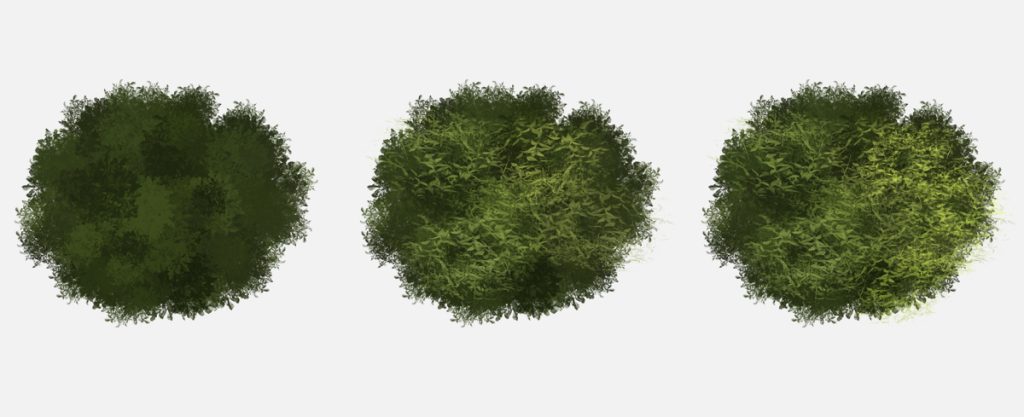
Creating realistic foliage in Photoshop can significantly enhance the depth and vibrancy of your digital artwork. This tutorial will guide you through the process, step by step, using custom brushes designed specifically for painting foliage. Whether you’re just starting out or looking to refine your skills, this guide will help you achieve stunning results.

Before you begin, ensure you have the following:

Selecting the Right Brushes

Using the right brushes is crucial for creating realistic foliage:

Choosing Colors

Choosing the right colors is essential for a natural look. Here’s a suggested palette:

  • Leaf Base Color: #2E8B57
  • Leaf Highlight Color: #76C84E
  • Leaf Shadow Color: #154734

To use the brushes, you need to load them into Photoshop.

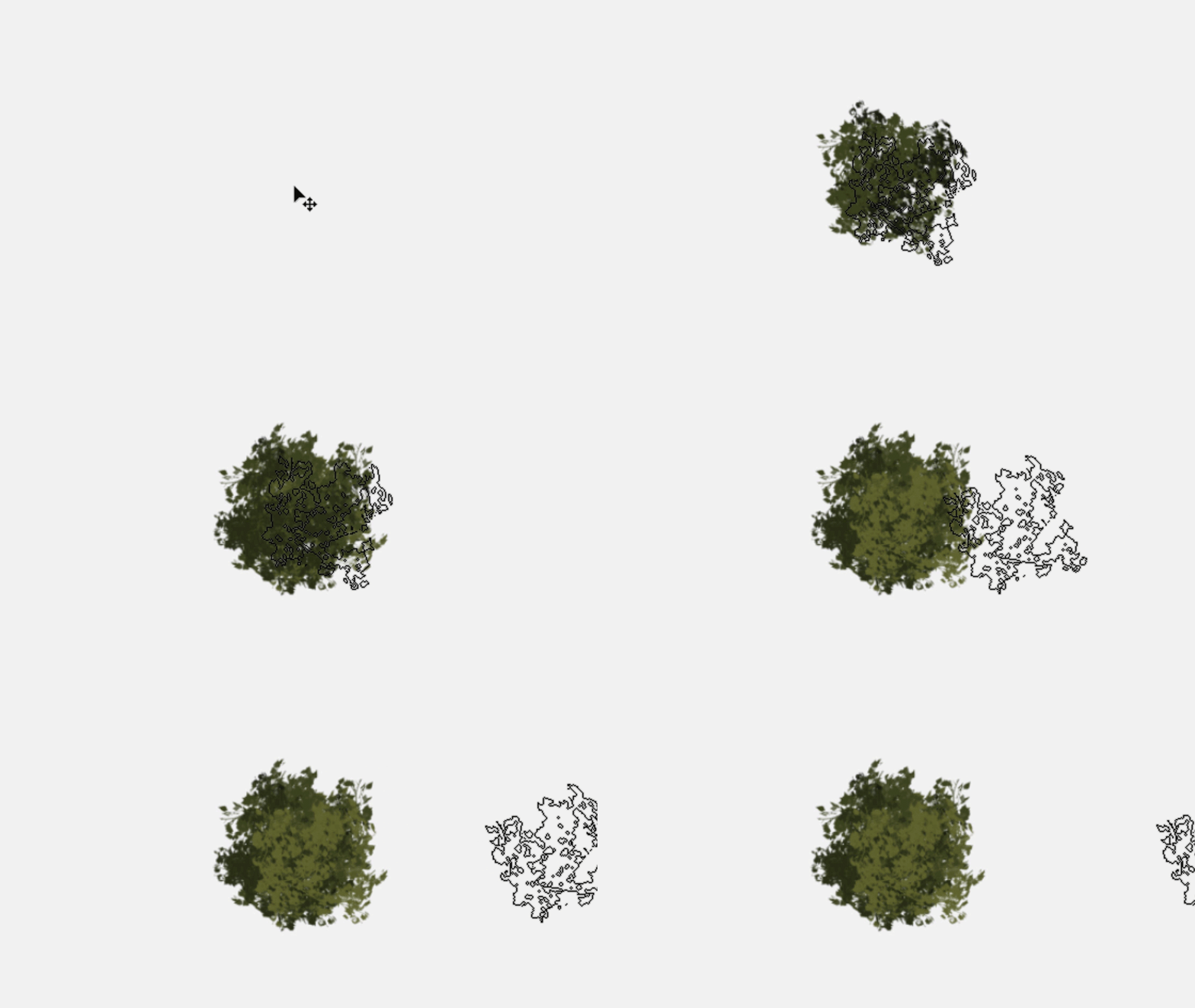
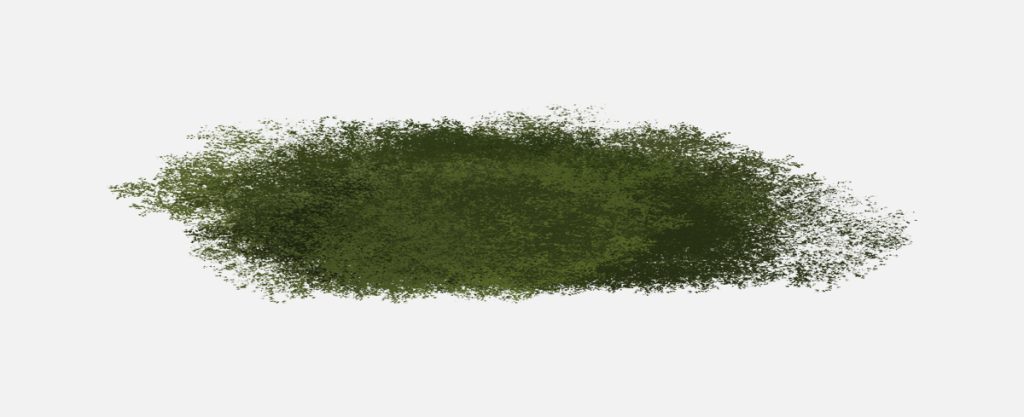
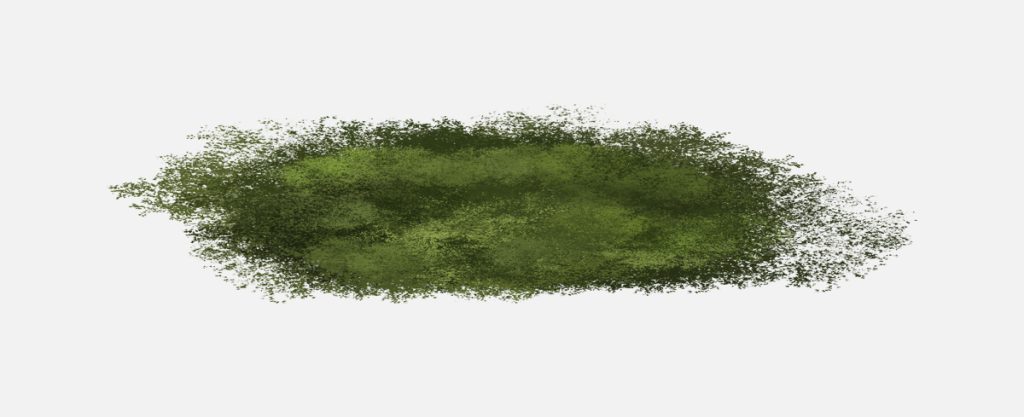
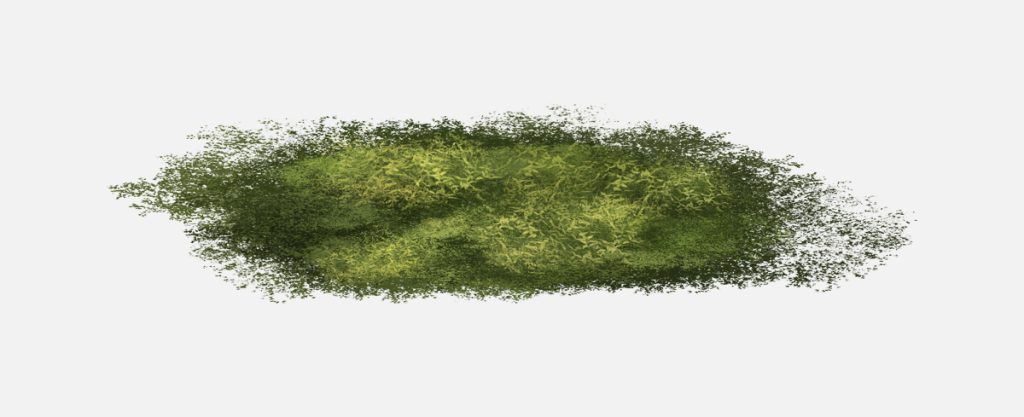
In this package, you will find a set of tree brushes designed to help you paint foliage just the way you envision it

Using these brushes, you can paint with two colors: a foreground color and a background color.
Start by setting the darker color as the foreground color for your initial painting.
Then, switch to the lighter color as the foreground color by pressing ‘X’ in Photoshop and painting Leaves for added depth and realism.

How to paint foliage in photoshop

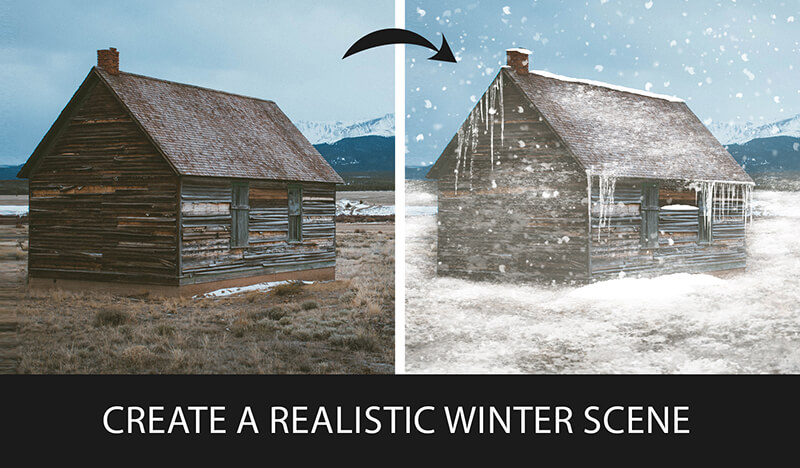
How to Create Snow in Photoshop

How to Create Snow in Photoshop

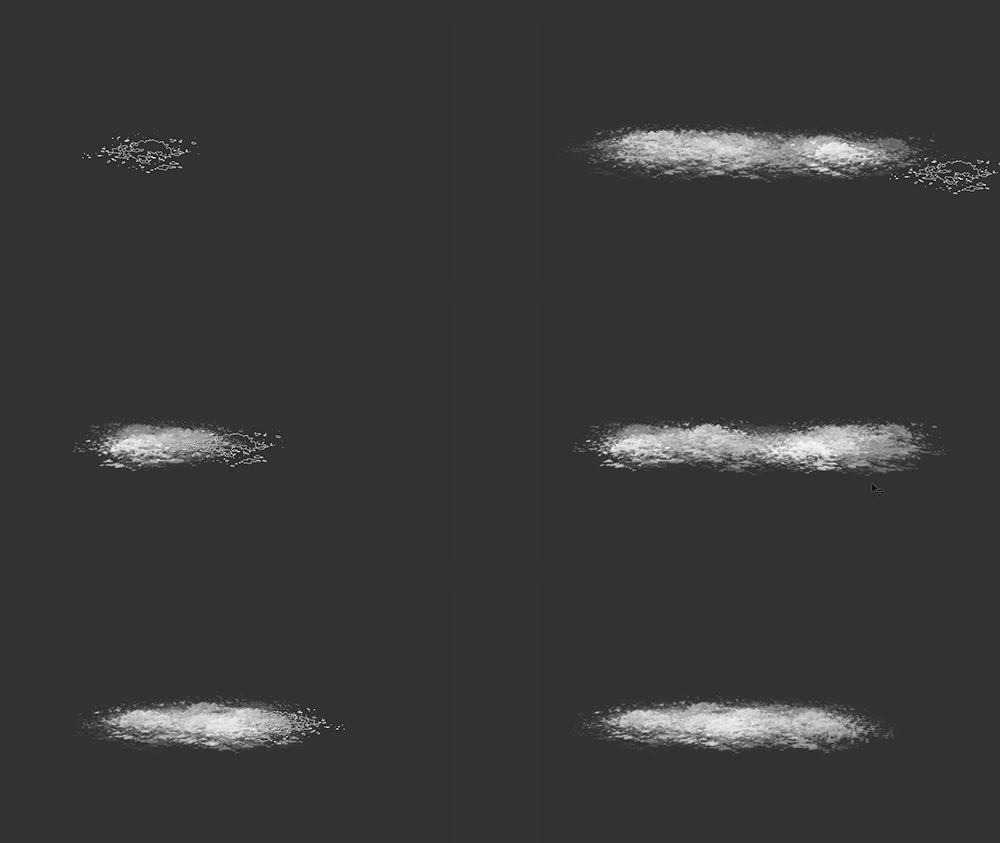
Do you want to create stunning snow scenes in your digital art? If so, you’re going to love this tutorial. I’ve created a brush set for snow in photoshop that you can use to add realistic snow Patch, Falling Snow, icicle, Fog, and snow-covered objects to your paintings. In this post, I’ll show you how to use these brushes to make a beautiful winter landscape in Photoshop. By the end of this tutorial, you’ll be able to create your own snow scenes with ease and confidence. Ready to get started? Let’s go!

Tutorial Resources

Snow Brushes

Step 1: Open your image in Photoshop.

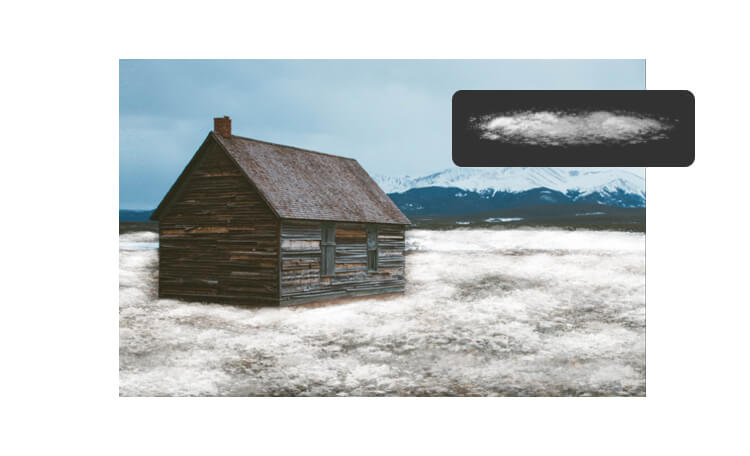
Step 2: Paint the snow on the ground.

Now that you have your image open, you can start painting the snow on the ground. To do this, you need to select the patch snow brush from my snow brush set. This brush will create a realistic snow texture that covers the original surface. To select the patch snow brush,
go to the Brush Tool (B) and click on the Brush Preset Picker in the Options Bar. Then scroll down until you find the brush and click on it.

snow in photoshop

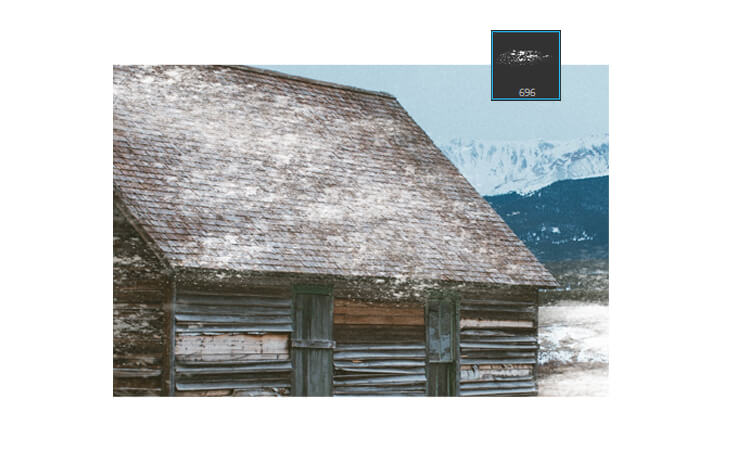
Step 3: Paint the snow on other objects.

After you have painted the snow on the ground, you can use other patch brushes to cover other objects in your image, such as a car or a mountain. This patch brush is lighter and more transparent, so they will create a subtle snow effect that blends with the original color,
select this Patch snow Brush to paint over the areas you want to cover.
Be careful not to overdo it, as too much snow can make your image look unrealistic.

Snow in photoshop

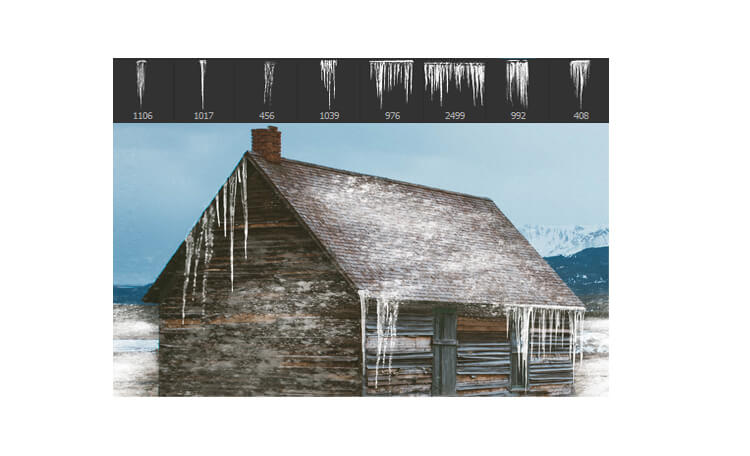
Step 4: Paint the icicles.

The next thing you can do is to paint some icicles on your image. Icicles are frozen water droplets that hang from the edges of roofs, windows, or other objects. They can add some interest and realism to your snow scene. To paint icicles, you need to use the icicle brush from my snow brush set. These brushes will help you to create different shapes and lengths of icicles.

Snow in photoshop

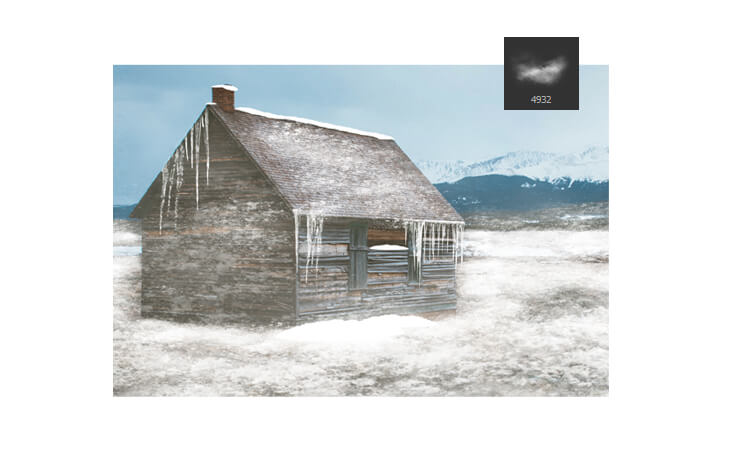
Step 5: Paint the fog.

Another way to enhance your snow scene is to paint some fog in the background. Fog is a thin layer of mist that reduces the visibility and creates a soft and mysterious atmosphere. To paint fog, you need to use the fog brush from my snow brush set. This brush will create a smooth and cloudy effect that fades the colors and details of the background. You can also adjust the brush size and opacity depending on how much fog you want to create.
Be careful not to cover the foreground or the main focus of your image, as this can make your image look too blurry.


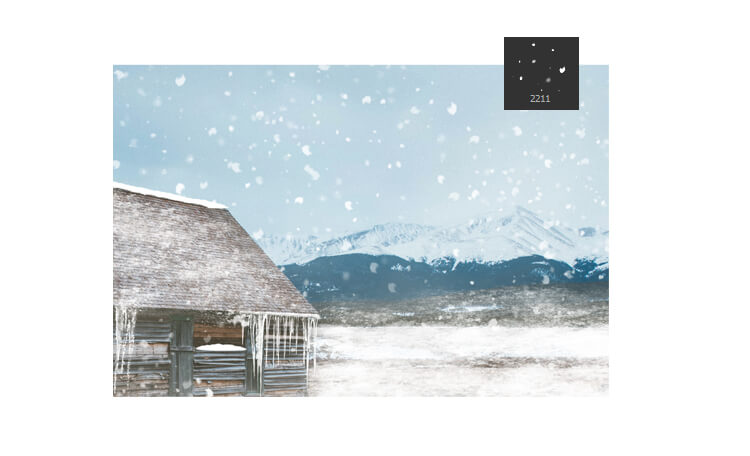
Step 6: Paint the falling snow.

The final touch you can add to your snow scene is to paint some falling snow in photoshop. Falling snow is a collection of snowflakes that drift down from the sky and create a sense of movement and depth. Select falling snow brush from my snow brush set. This brush will create a random pattern of small dots that resemble snowflakes.


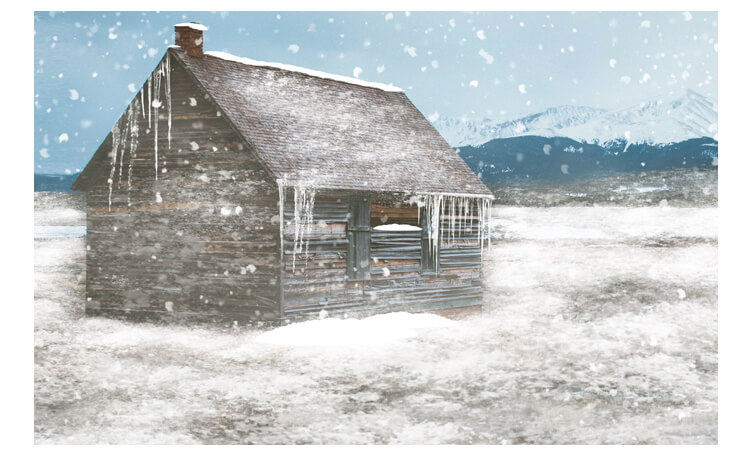
Finished!

Congratulations!

You have successfully created a snow scene in Photoshop.
I hope you enjoyed this tutorial and learned some useful tips and tricks.

see other tips &Tricks

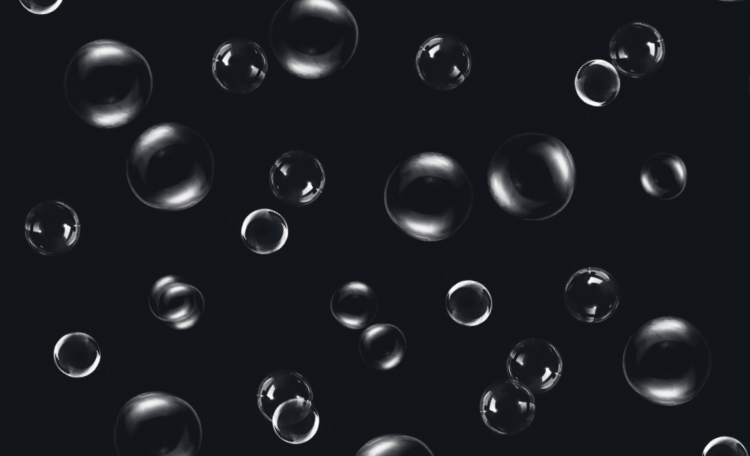
How to make Realistic bubbles in Photoshop

Do you want to learn how to create realistic bubbles in Photoshop? Bubbles can add a fun and magical touch to any photo, but they can be tricky to make look natural and convincing. In this tutorial, I will show you how to use my brushes and techniques to create amazing bubble effects in Photoshop. You will also learn how to customize the colors, shapes, and sizes of the bubbles to fit your style. By the end of this tutorial, you will be able to transform any photo into a bubbly masterpiece. Let’s dive in!

Tutorial Resources
Bubbles Brushes
12 high quality Dynamic water Bubbles brushes + 6 Pattern, you can Paint with Bubbles and change your Bubbles colors to get a colorful pack right away!


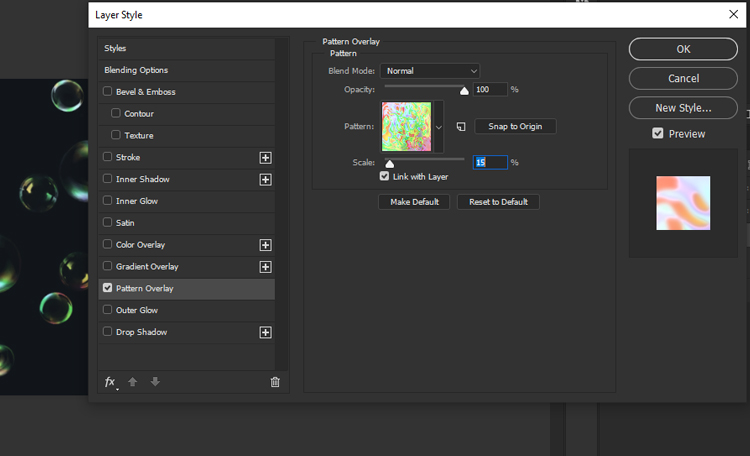
Before we start, you need to import a pattern that we will use for the bubbles.

Now we will apply the pattern effect to the bubbles. To do that, you need to select the layer to right-click on the layer with the bubbles and select Blending Options. Then, choose Pattern from the list of blend modes and click OK.

Â