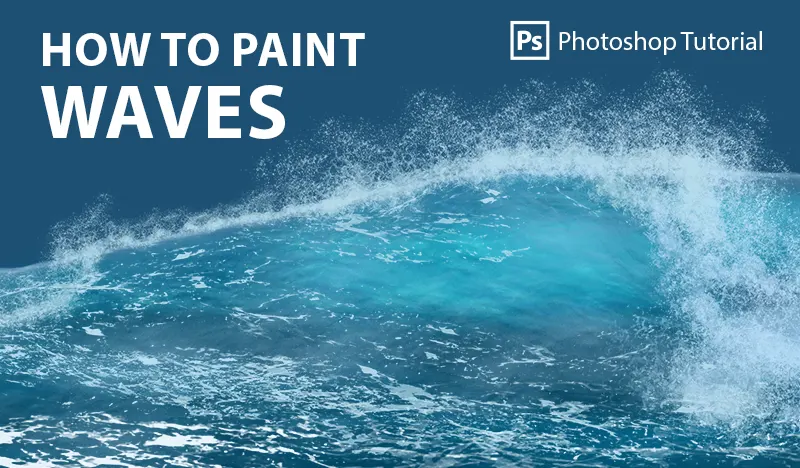
How to Paint Stunning Ocean Waves in Photoshop

How to Paint Stunning Ocean Waves in Photoshop

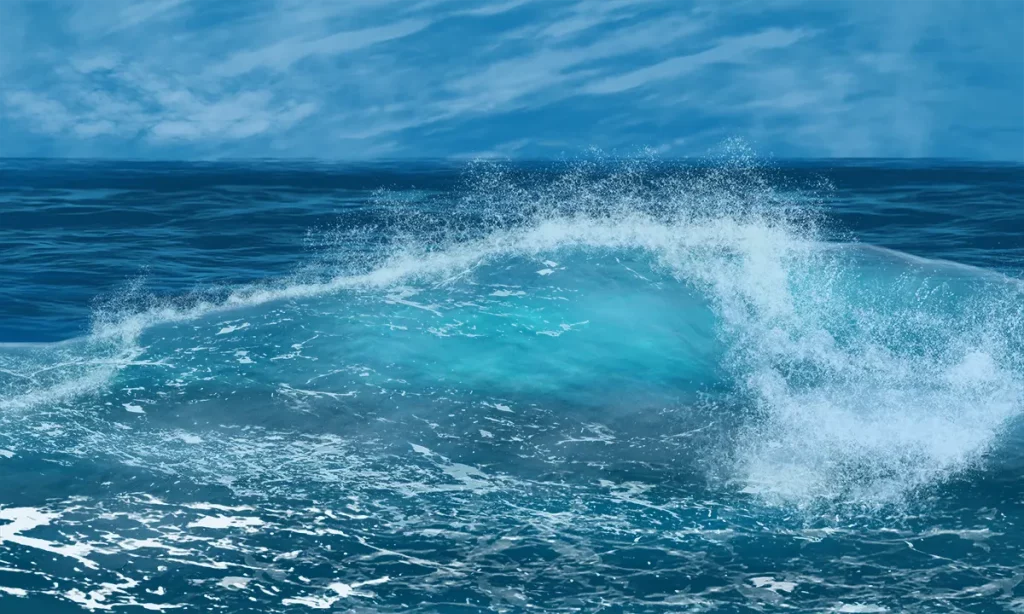
Ever wondered how to capture the mesmerizing movement of ocean waves in your digital art? Painting realistic ocean waves can seem daunting, but with the right tools and guidance, anyone can master this art form. In this comprehensive guide, we’ll walk you through the entire process of painting ocean waves in Photoshop, from setting up your workspace to adding those final, intricate details that make your waves come alive. We’ll be using our custom brush sets designed specifically for painting ocean waves, ensuring that even beginners can achieve professional-quality results. You’ll learn how to create the gentle ebb and flow of a calm sea as well as the dramatic crashes of stormy waves. By the end of this guide, you’ll have the skills and confidence to bring the beauty of the ocean to your digital canvas. Ready to dive in? Let’s get started with the essentials and discover the joy of painting ocean waves in Photoshop from scratch!

Tutorial Assets

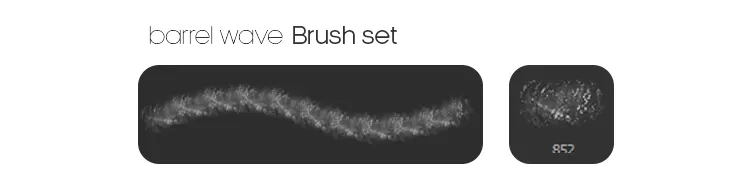
Waves Brushes

Before you start painting, you’ll need to import your custom ABR brushes into Photoshop.

Step 1: Draw a Quick Sketch of the Wave

Before diving into the detailed painting process, it’s crucial to have a clear vision of the wave you want to create.
A quick sketch serves as a foundation, helping you to map out the overall shape and movement of the wave.
Here’s how you can get started: – This is an example of a quick wave sketch to get you started.
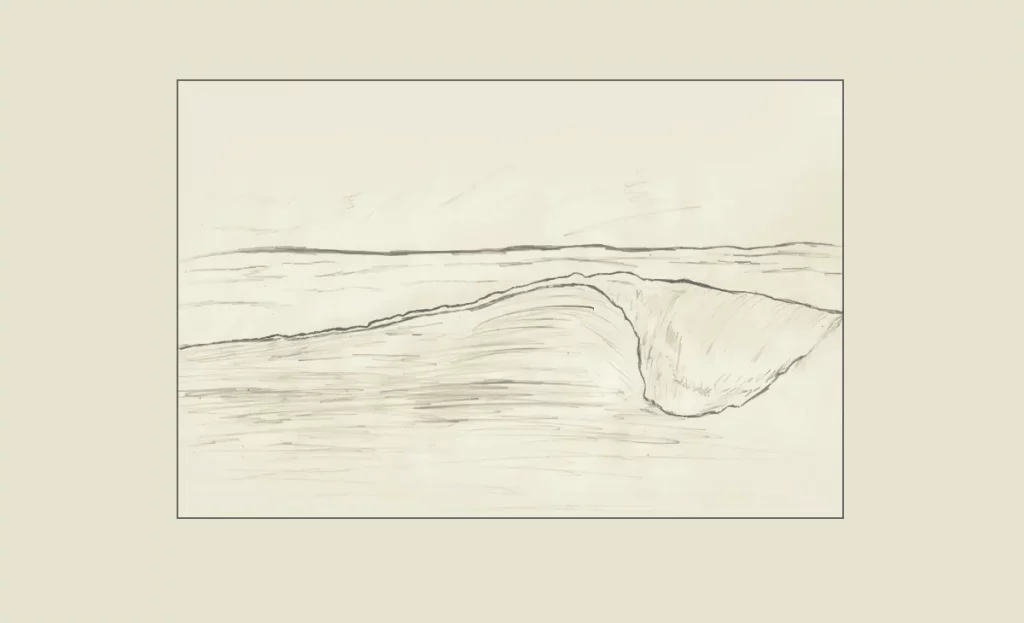
This initial sketch will serve as a road map for the rest of your painting process. Don’t worry about making it perfect; it’s just to give you an idea of the wave’s structure and flow.

Step 2: Select the Color of the Waves

Choosing the right color palette is essential for creating realistic and visually appealing ocean waves. For detailed guidance on how to select colors from images, be sure to read our article How to Select a Color Palette from Images.”

For this tutorial, I’ll use these colors:

  • Background: #3189b9
  • Peak: #7fb9dd
  • Face Wave: #7fb9dd
  • Splash / Foam: #cae5f0
  • Lighten #5c9a9f
  • Bright Color: #38a8bb
  • Ocean Base: #053d62
  • Ocean Highlight: #20749c
  • Cloud: #69add9

Next, let’s set up our new document:

  1. Open Photoshop: Launch Photoshop on your computer.
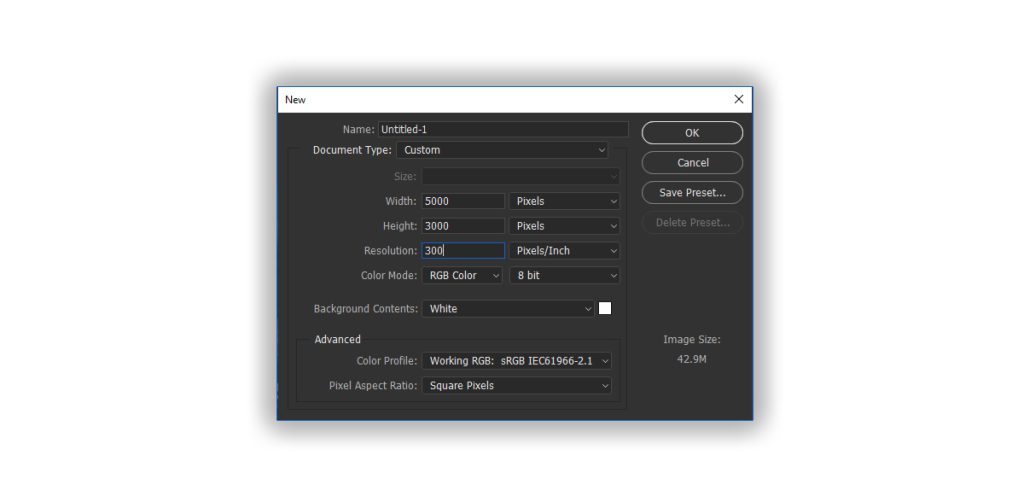
  2. Create a New Document: Go to File > New to open the New Document dialog box.

Open a New Document in Photoshop at 5000 x 3000 pixels and 300 dpi.
Step 3: Fill the Background

To create a visually appealing base for your ocean waves, let’s fill the background of our canvas with a suitable color.

  • Select the Paint Bucket Tool: In the toolbar on the left, select the Paint Bucket Tool (G). If you can’t see it, right-click on the Gradient Tool to find it.
  • Choose Your Background Color: Click on the Foreground color at the bottom of the toolbar to open the Color Picker. Enter the hex code #3189b9.
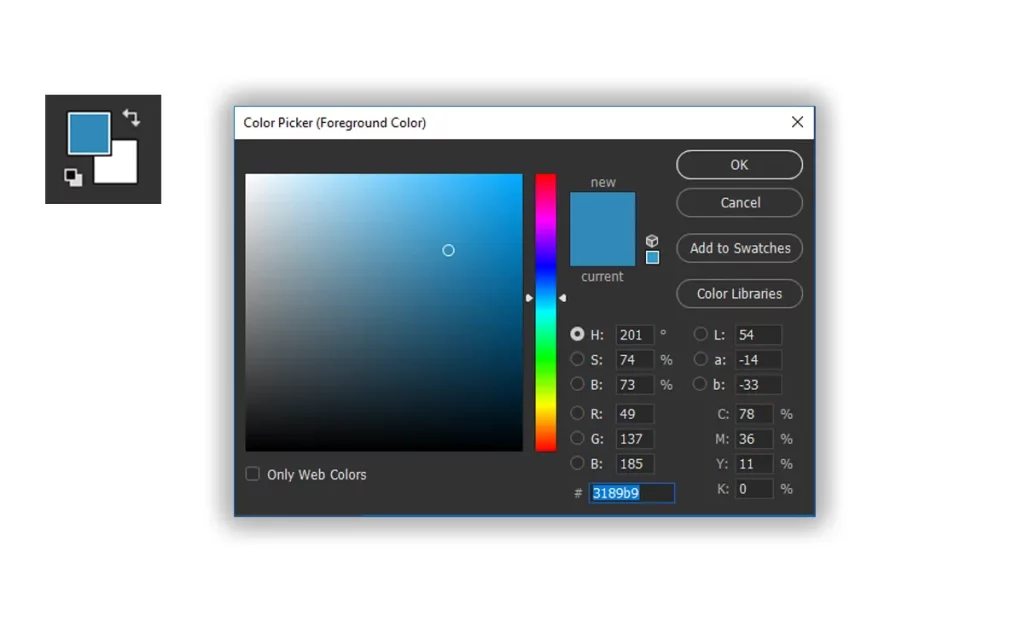
  • Fill the Background: Click anywhere on the blank canvas to fill it with the chosen color.
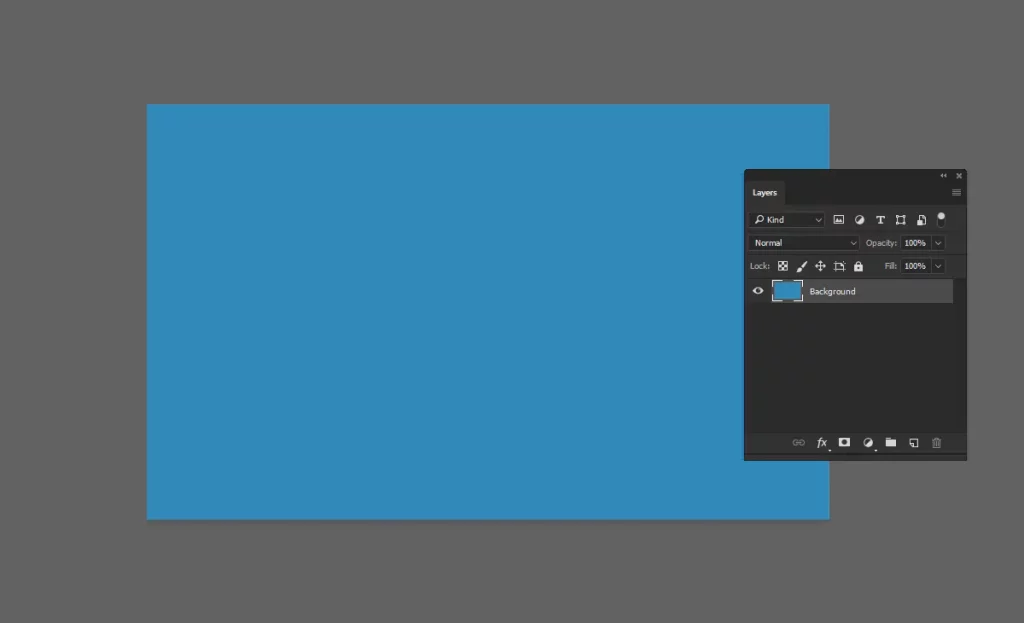
Step 4: Paint the Peak

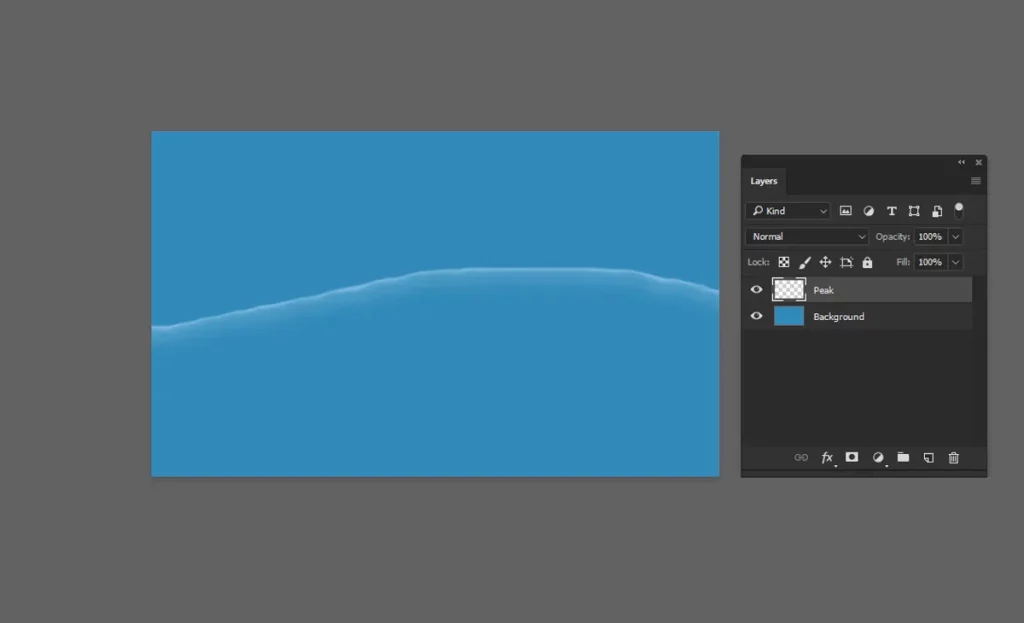
The peak is the topmost part of the wave, following the direction we sketched earlier. This is where the wave starts to crest, creating a beautiful highlight that gives the wave its dynamic appearance.

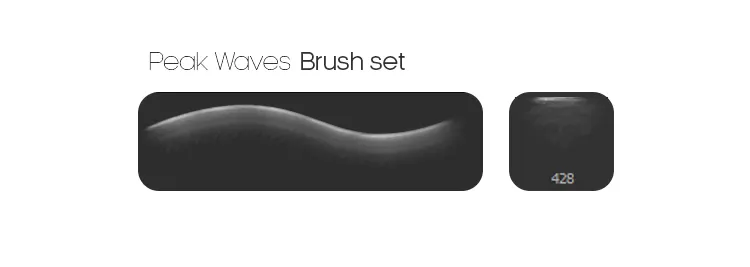
  • Select the Peak Brush: From your custom brush pack, choose the brush designed specifically for painting the peak of the wave.
  • Choose Your Peak Color: Set the Foreground color to #7fb9dd. This color will help highlight the peak and add a sense of light and depth.
  • Paint the Peak: Using the selected brush, carefully paint along the top of your wave sketch. Follow the natural curve and direction of the wave. This will help emphasize the movement.
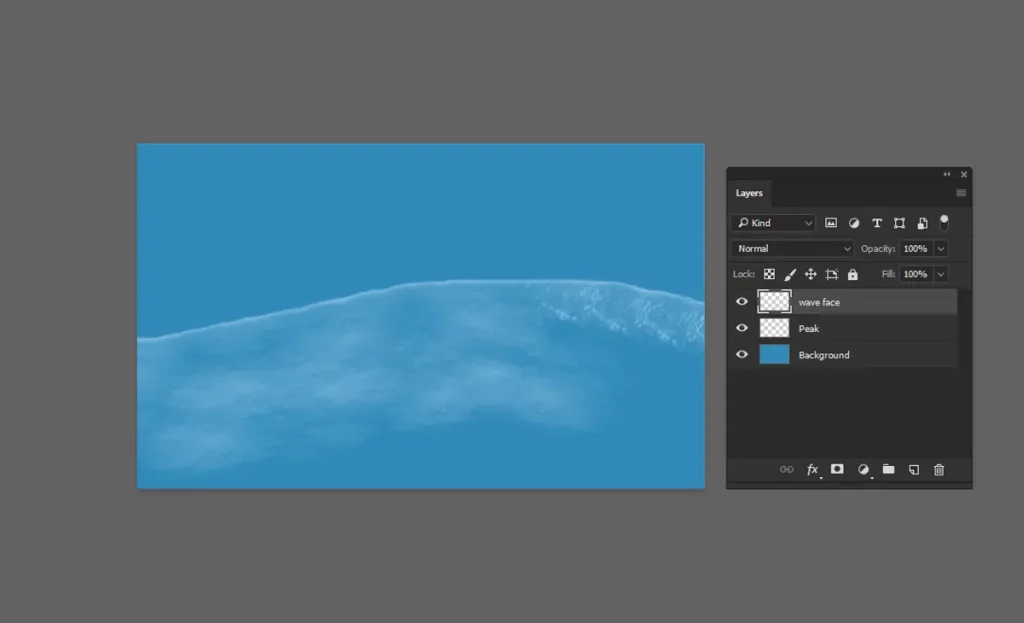
Step 5: Paint the Face of the Wave

Adding depth to your wave involves painting the face, which is the forward-facing part of the wave that catches light differently. Here’s how to do it:

  • Create a New Layer: In the Layers panel, click the New Layer icon to create a new layer above your background layer. This keeps your edits non-destructive and allows for easier adjustments later.
  • Select the Face Brush: From your custom brush pack, select the brush designed for painting the face of the wave. These brushes are tailored to create the smooth, flowing texture of the wave’s face.
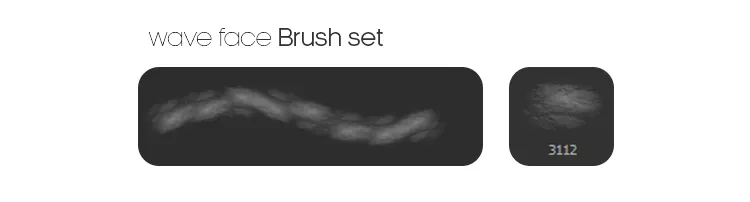
  • Set Your Color: Use the same color as the peak, #7fb9dd , to maintain color harmony in your artwork.
  • Paint the Face of the Wave: Using the selected brush, paint the face of the wave, following the contours and direction of your initial sketch. Take your time to build up the color and texture, creating a sense of volume and movement.
  • Explore Different Brushes: Don’t forget to explore other face brushes in your pack to paint different types of waves. Each brush can offer a unique texture and style, enhancing the overall realism of your ocean scene.
How to Paint Stunning Ocean Waves in Photoshop

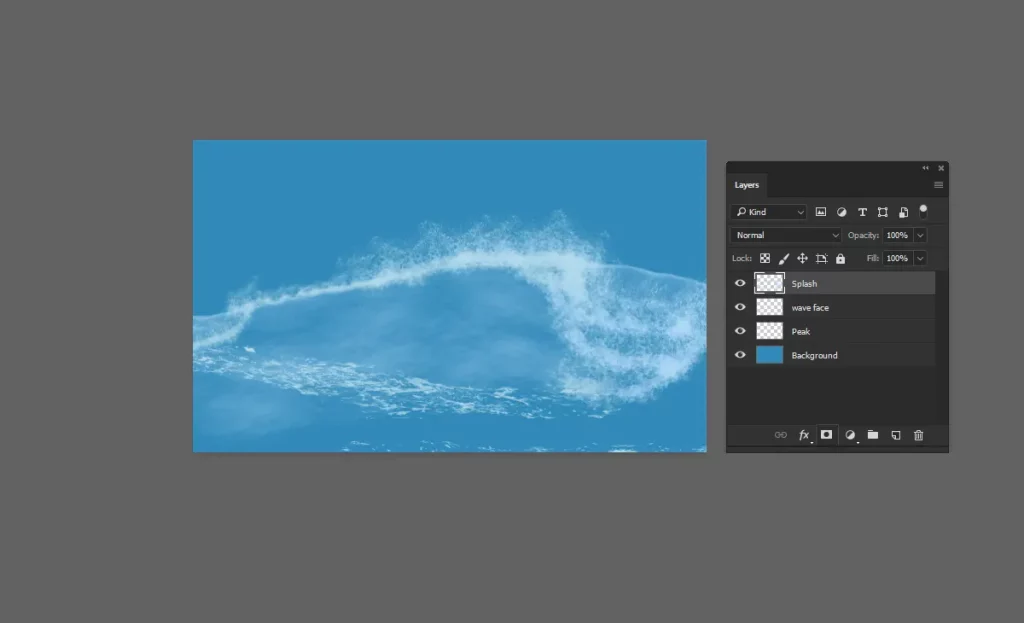
Step 6: Paint the Splash

The splash of the wave is where the water breaks and sprays, creating a foamy, dynamic texture. Here’s how you can paint the splash:

  • Create a New Layer: In the Layers panel, click the New Layer icon to create a new layer above your existing ones. This will keep your splash separate from the rest of your painting, making it easier to adjust.
  • Select the Splash Brush: From your custom brush pack, select the brush designed for painting the splash. This brush is versatile and can paint in any direction, allowing for dynamic and realistic wave splashes.

How to Paint Stunning Ocean Waves in Photoshop
  • Choose Your Splash Color: Set the Foreground color to #cae5f0, which is perfect for highlighting the splash of the wave.
  • Paint the Splash: Using the selected brush, follow the direction of your initial sketch to paint the splash. Focus on the areas where the wave starts to break, adding details and texture to create the appearance of foam and movement. The brush should be able to follow the natural flow of the wave, enhancing the realistic look.
How to Paint Stunning Ocean Waves in Photoshop

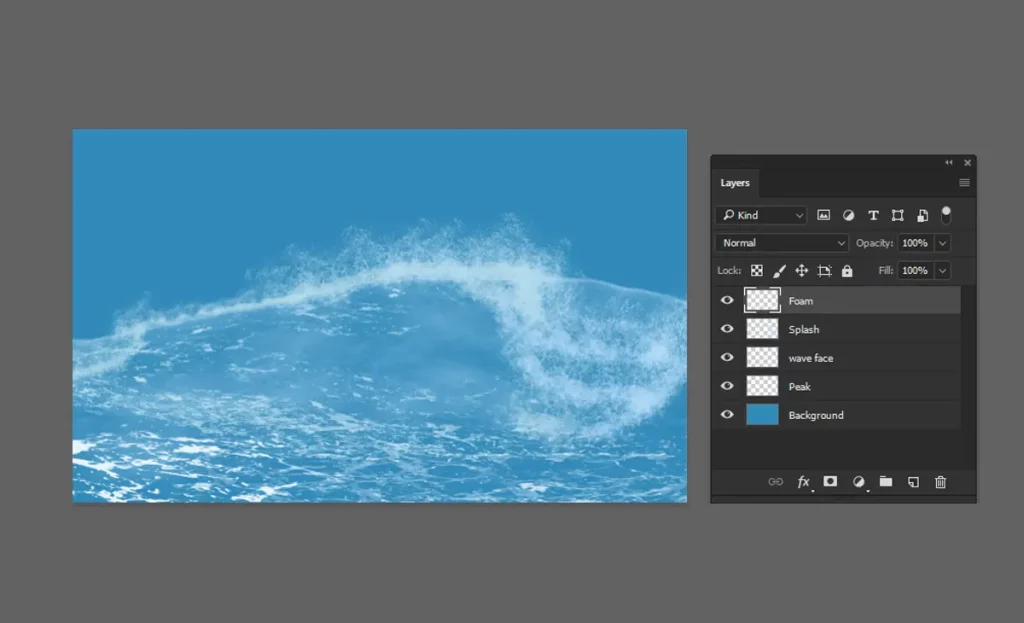
Step 7: Paint the Foam

Adding foam to the wave will give it that extra touch of realism and movement. Here’s how you can do it:

  • Create a New Layer: In the Layers panel, click the New Layer icon to create a new layer above your existing ones. This keeps your foam separate and easily adjustable.
  • Select the Foam Brushes: From your custom brush pack, select a brush designed specifically for painting foam. There are various foam brushes in the pack, so feel free to experiment with different ones to achieve the desired effect.

How to Paint Stunning Ocean Waves in Photoshop
  • Use the Same Color: Set the Foreground color to #cae5f0, the same color used for the crest. This ensures consistency in your wave’s highlights.
  • Paint the Foam: Using the selected brush, paint along the crest and the face of the wave to create the appearance of foam. Focus on areas where the water breaks and churns, adding small details to enhance the sense of movement and texture.

By adding foam, your wave will look more dynamic and realistic, capturing the natural beauty of the ocean.
How to Paint Stunning Ocean Waves in Photoshop

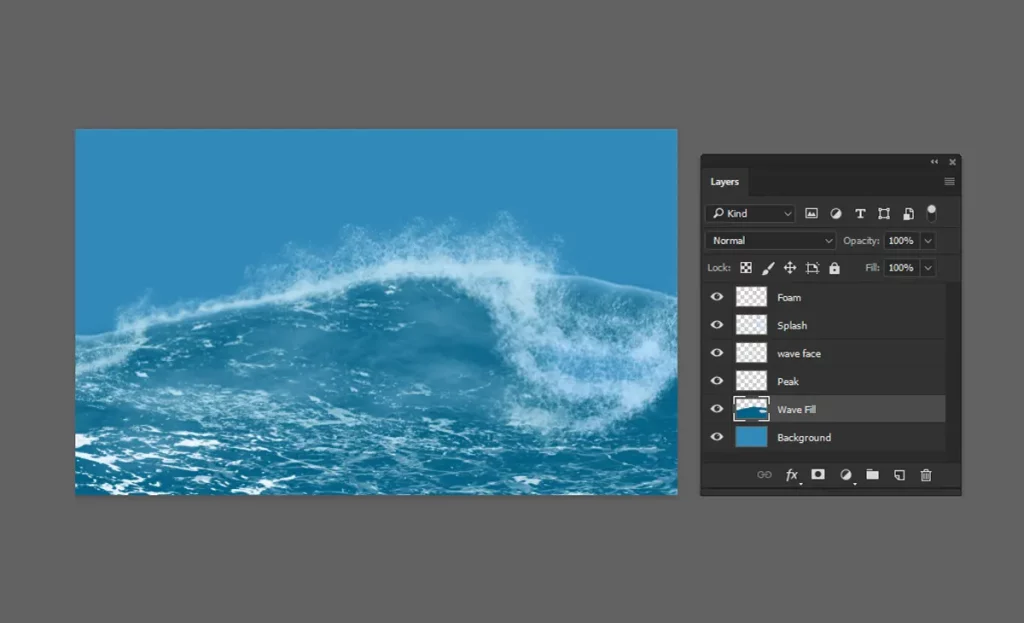
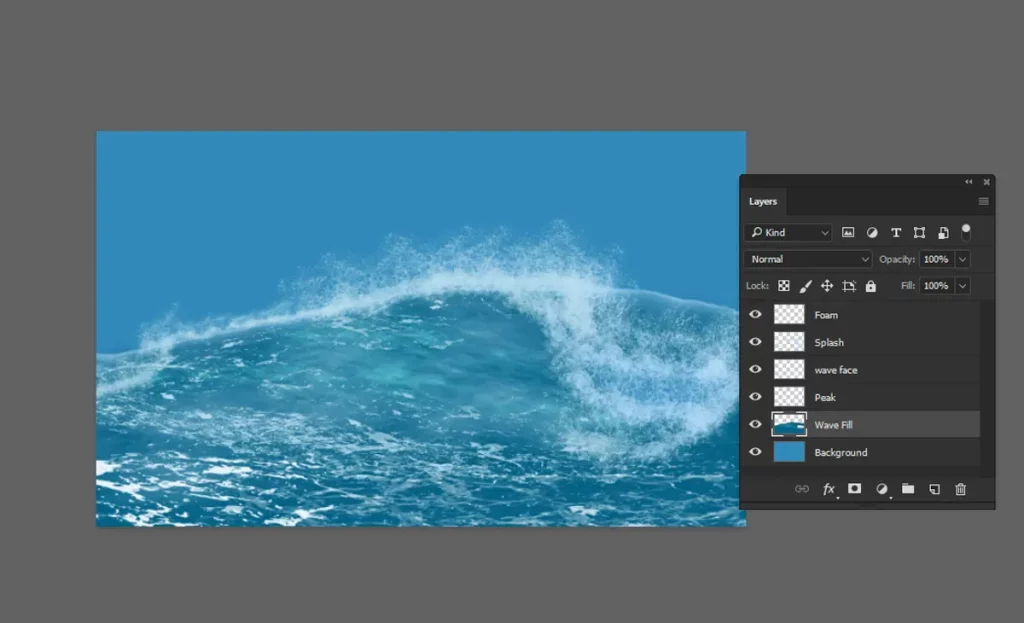
Step 8: Paint the Wave Fill

To add more depth and contrast to your wave, we’ll paint the inner wave area. This will help define the wave’s body and enhance its overall look.

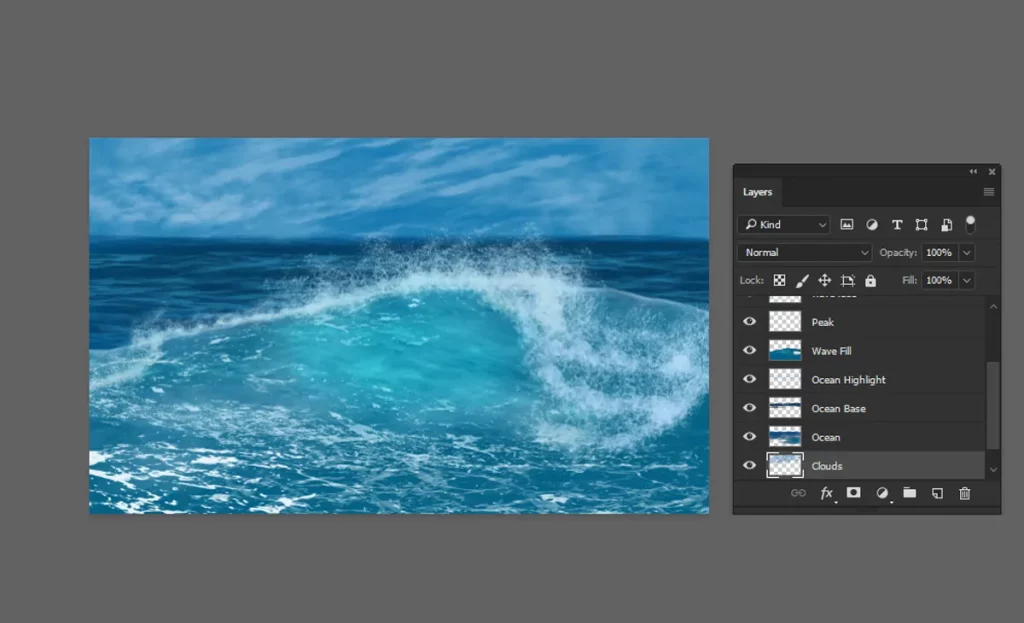
  • Create a New Layer: In the Layers panel, click the New Layer icon to create a new layer. Drag this layer below the peak layer in the layer stack.
  • Select the Wave Fill Color: Set the Foreground color to #036185. This deep Ocean Blue will provide a strong contrast against the highlights of the wave.
  • Paint the Inner Wave: Using a suitable brush from your custom brush pack, paint the inner wave area. Focus on filling the main body of the wave, following the curves and directions of your initial sketch. This will give your wave a more solid and three-dimensional appearance.

By adding this base color, your wave will have a stronger structure and a striking contrast that highlights the movement and power of the ocean.
How to Paint Stunning Ocean Waves in Photoshop

Step 9: Paint the Bright Color on the Same Layer

Adding brighter colors can enhance the highlights and make the wave look more dynamic. Let’s paint these highlights to bring out the detail and contrast.

  • Select the Face Wave Brush: From your custom brush pack, choose the brush designed for painting the face of the wave.
  • Choose the Bright Color: Set the Foreground color to #38a8bb (Sky Blue). This color will work well to add highlights and make the wave appear more vibrant.
  • Paint the Bright Highlights: On the same layer where you painted the inner wave, use the face wave brush to add touches of the bright color. Focus on areas that would naturally catch the light, such as the upper parts of the wave’s face and near the crest.
How to Paint Stunning Ocean Waves in Photoshop

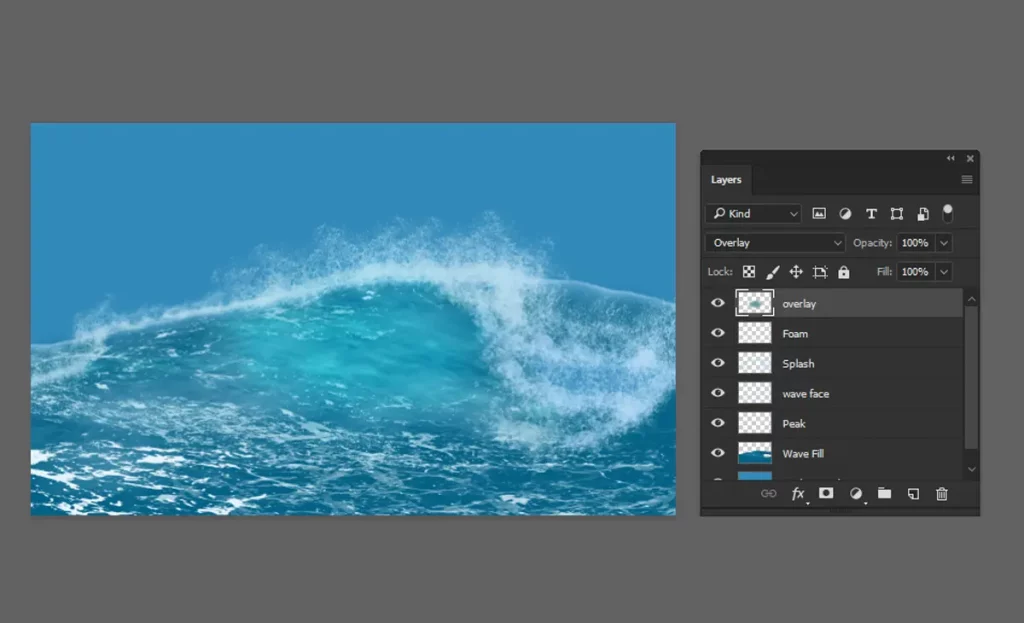
Step 10: Create an Overlay Layer to Lighten the Area

To enhance the lighting and add a more dynamic look to your wave, we’ll use an overlay layer. This will make certain areas appear lighter and more vibrant.

  • Create a New Layer: In the Layers panel, click the New Layer icon to create a new layer above your existing layers.
  • Set the Layer Mode to Overlay: Change the blending mode of this new layer to Overlay. This will allow the colors you paint to blend with the layers below, creating a lighter and more natural effect.
  • Choose the Overlay Color: Set the Foreground color to #5c9a9f. This Soft Aqua color will help to brighten the wave areas without overwhelming the existing colors.
  • Paint the Lighter Areas: Using a soft brush, gently paint over the areas of the wave where you want to add more light. Focus on the parts of the wave that naturally catch the most light, such as the peaks and the face of the wave. This will add a luminous effect and make the wave appear more dynamic.
How to Paint Stunning Ocean Waves in Photoshop

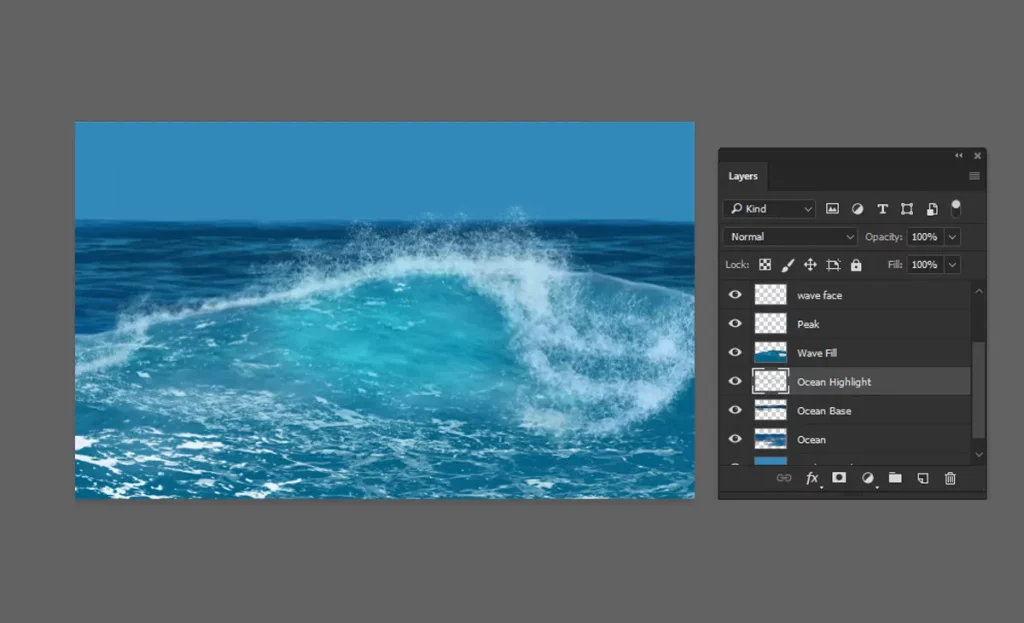
Step 11: Paint the Ocean

To complete your ocean scene, we’ll paint the vast expanse of the ocean using a base color and highlight color to add depth and dimension. For detailed guidance on painting the ocean, be sure to read our articleHow to Paint the Ocean.

  • Create a New Layer: In the Layers panel, click the New Layer icon to create a new layer. This will ensure that your ocean painting remains separate from the wave details.
  • Choose the Base Color: Set the Foreground color to #053d62.
  • Paint the Base Layer: Using a large, soft brush, paint the entire ocean area with the base color. This will create a solid foundation for your ocean.
  • Select the Highlight Color: Change the Foreground color to #20749c. This color will add highlights and enhance the overall depth of your ocean.
How to Paint Stunning Ocean Waves in Photoshop

Step 12: Paint the Clouds

Adding clouds to your scene can create a more dynamic and atmospheric composition. Here’s how you can paint clouds in Photoshop:
  • Create a New Layer: In the Layers panel, click the New Layer icon to create a new layer above your existing layers. This will ensure that your clouds are separate from the ocean and waves.
  • Choose the Cloud Color: Set the Foreground color to #69add9. will give your clouds a light and airy appearance.
  • Select a Cloud Brush: From your brush pack, select a brush designed for painting clouds. Cloud brushes are typically soft and fluffy, allowing you to create realistic cloud shapes.
  • Paint the Clouds: Using the selected brush, gently paint the clouds in the sky area of your canvas. Start with broad strokes to define the overall shape of the clouds, then add smaller, detailed strokes to create texture and depth.

For detailed guidance on painting clouds, be sure to read our article How to Paint Clouds in Photoshop.

How to Paint Stunning Ocean Waves in Photoshop

How to Paint Clouds in Photoshop Using Custom Brushes

How to Paint Clouds in Photoshop Using Custom Brushes

Introduction

Creating realistic clouds in Photoshop can elevate your digital art to a new level. In this tutorial, we’ll guide you through the process of painting clouds using custom brushes. Whether you’re a beginner or an experienced artist, these techniques will help you achieve stunning results.

Step 1: Choosing the Right Brush

  1. Download My Brush Set: Click here to download the custom cloud brushes.
  2. Load the Brush: Open Photoshop, go to the Brush tool (B), click on the brush preset picker, and select “Load Brushes” to add your new cloud brushes.
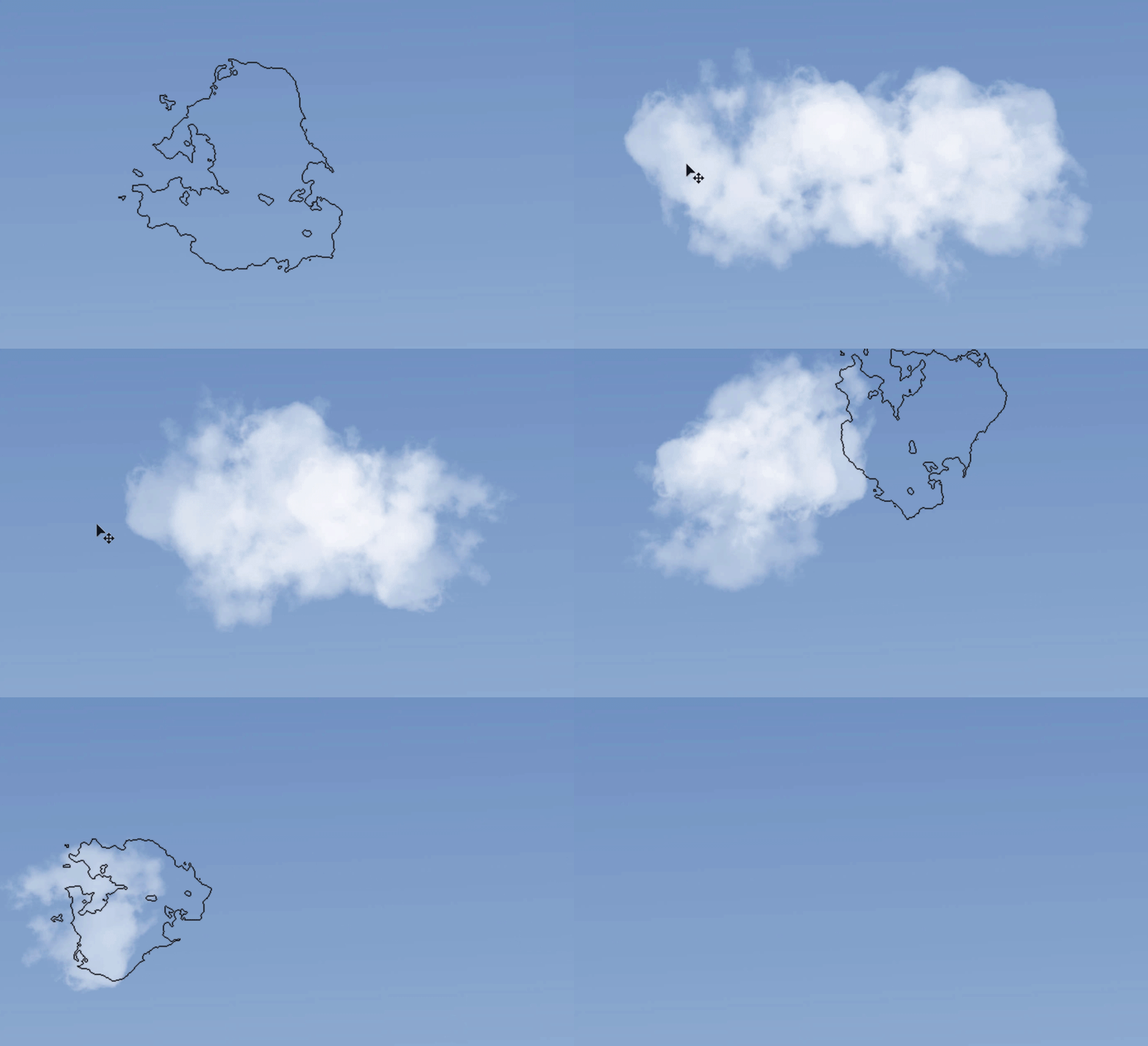
  3. Choosing the Right Brush To paint clouds, custom brushes are essential. You can choose from our exclusive brush set, which offers a variety of cloud brushes to suit your needs:

Step 2: Setting Up Your Canvas

Start by opening Photoshop and creating a new document.
Set your dimensions according to your project needs. A good starting point is 2500x1520 pixels with a resolution of 300 DPI.

Step 3: Preparing the Background

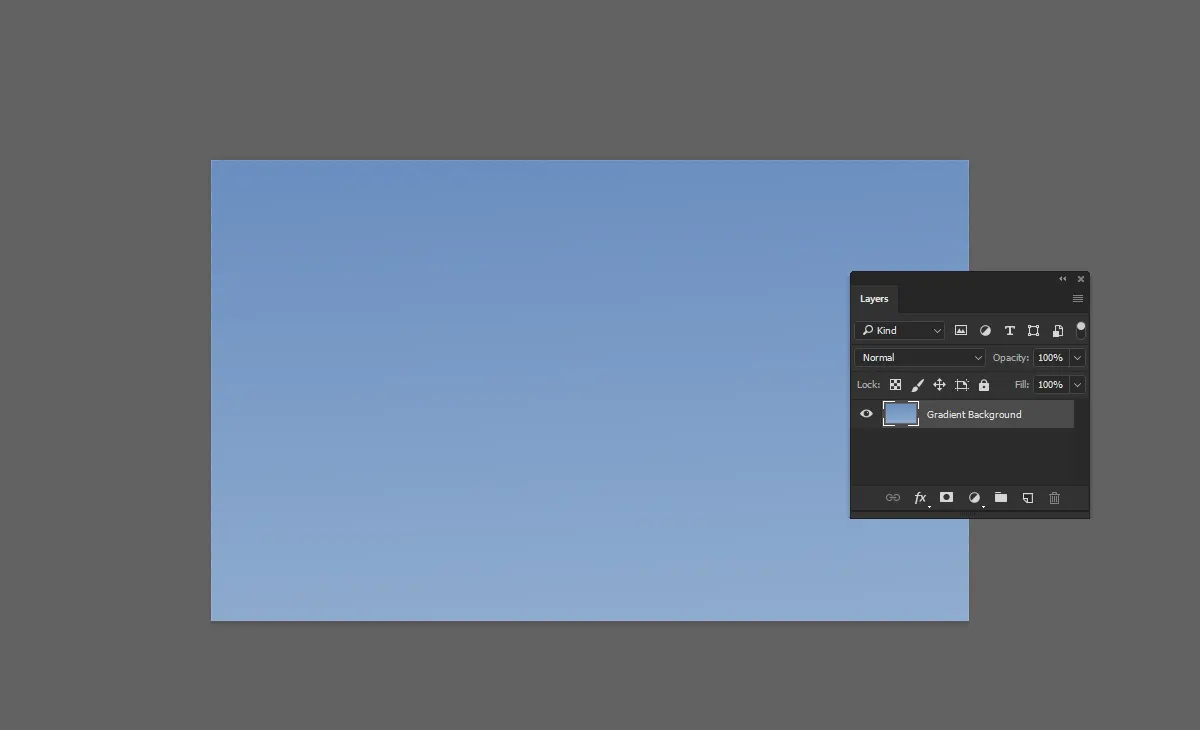
Before painting the clouds, prepare a suitable background. A gradient sky works great:

  1. Create a New Layer: Open Photoshop and create a new layer for the gradient background.
  2. Select the Gradient Tool: Choose the Gradient tool (G) from the toolbar.
  3. Choose Your Colors: Set your gradient to transition between the colors #5a81b8 and #8ca9ce.
  4. Apply the Gradient: Click and drag from the top to the bottom of your canvas to apply the gradient, creating a beautiful sky backdrop for your clouds.

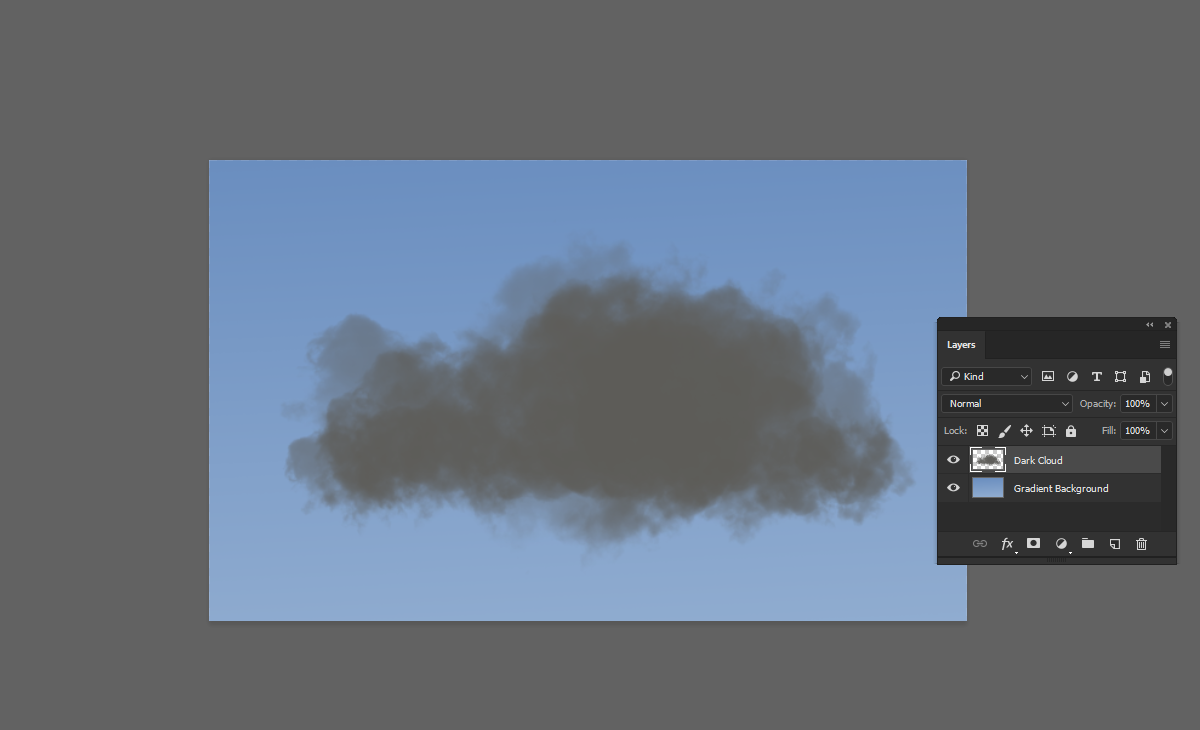
Here’s the result.

Different Examples of Results with Our Cloud Brush Set Using our custom cloud brush set, you can achieve a variety of cloud styles. Here are a few examples:

How to Paint Clouds in Photoshop Using Custom Brushes

Step 4: Painting the Shadow of the Clouds

To create realistic shadows for your clouds:

  1. Set the Foreground Color: Change your foreground color to #5d5c58.
  2. Paint the Shadows: paint the shadow areas of your clouds. Focus on the lower parts and the areas that would naturally be darker.
How to Paint Clouds in Photoshop Using Custom Brushes

Step 5: Painting the Light of the Clouds

For adding highlights and enhancing the depth:

  1. Disable Auto-Nesting: Ensure that “Prevent Auto-Nesting into and out of Artboards” is selected.
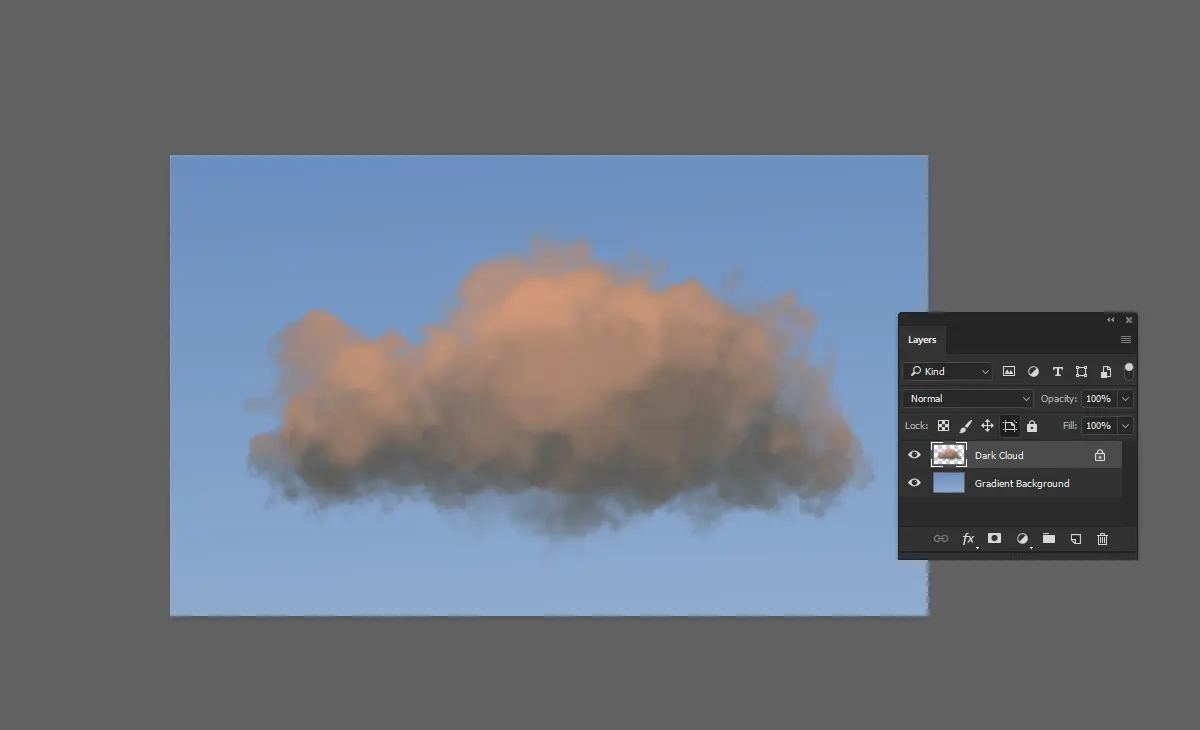
  2. Set the Foreground Color: Change your foreground color to #eaac8a.
  3. Paint the Highlights: Using the same brush, paint the light areas of your clouds. Focus on the top and areas that catch the lightest to create inner shadows.

Step 6: Creating Highlights for the Clouds

To add highlights:

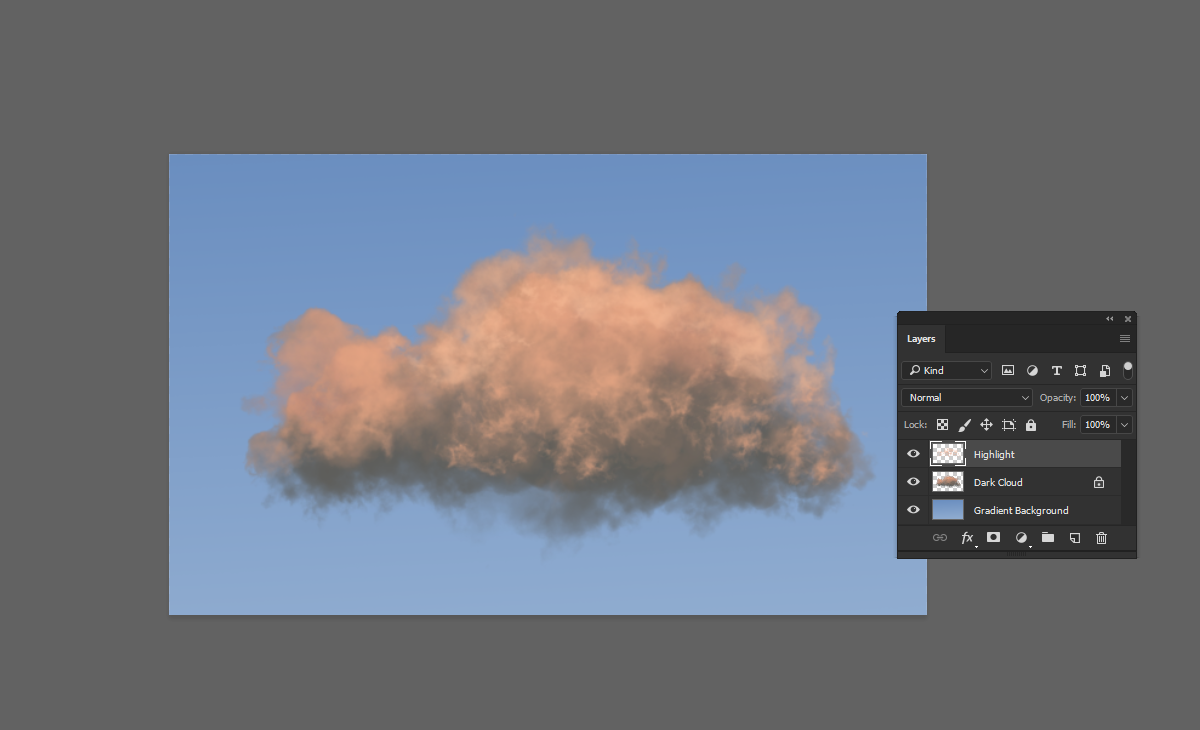
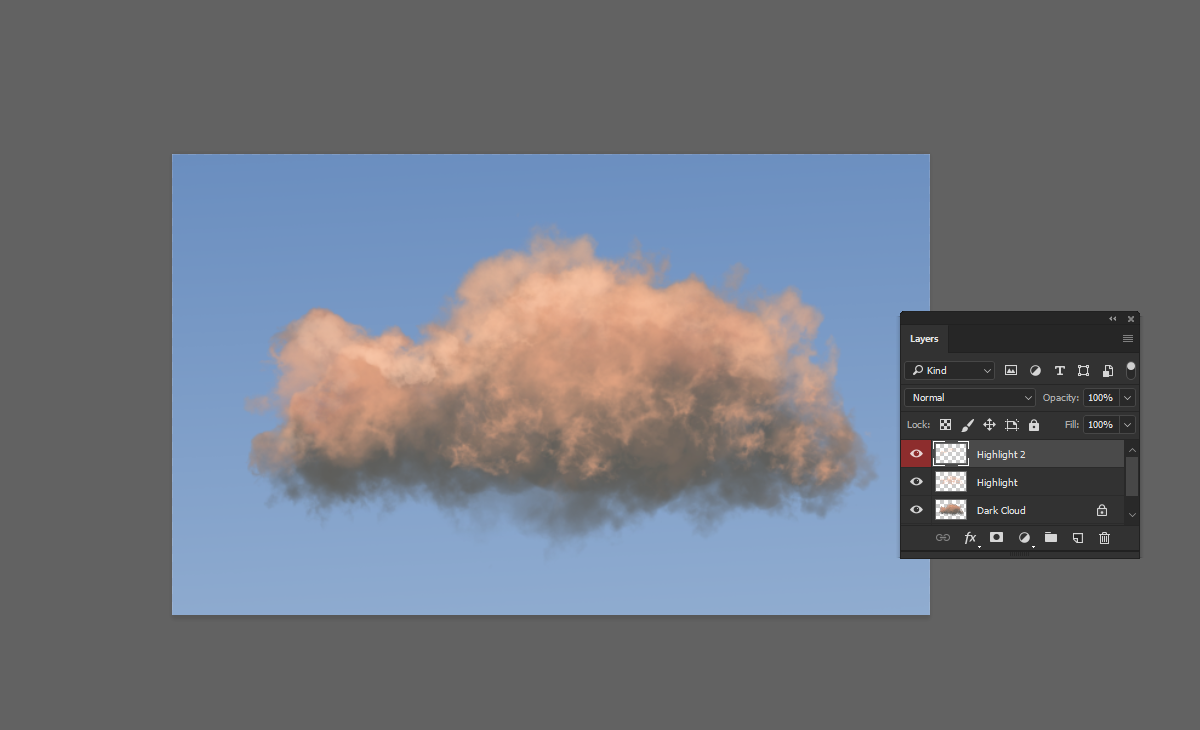
  1. Create a New Layer: Add a new layer and name it “Highlight”.
  2. Set the Foreground Color: Change your foreground color to #f9ccab.
  3. Paint the Highlights: paint the highlights on the top and edges of your clouds. This will add a glowing effect and enhance the realism.

Step 7: Adding a Second Layer of Highlights

To enhance the highlights even more:

  1. Create a New Layer: Add a new layer and name it “Highlight 2”.
  2. Set the Foreground Color: Change your foreground color to #f9cdac.
  3. Paint the Second Layer of Highlights: gently paint additional highlights. Focus on the areas that you want to stand out the most, enhancing the glow and depth of your clouds.

With this step, your clouds should have a beautiful, layered effect with realistic lighting and shadows.

Step 8: Adding Directional Light Highlights

To define the direction of the light and add depth:

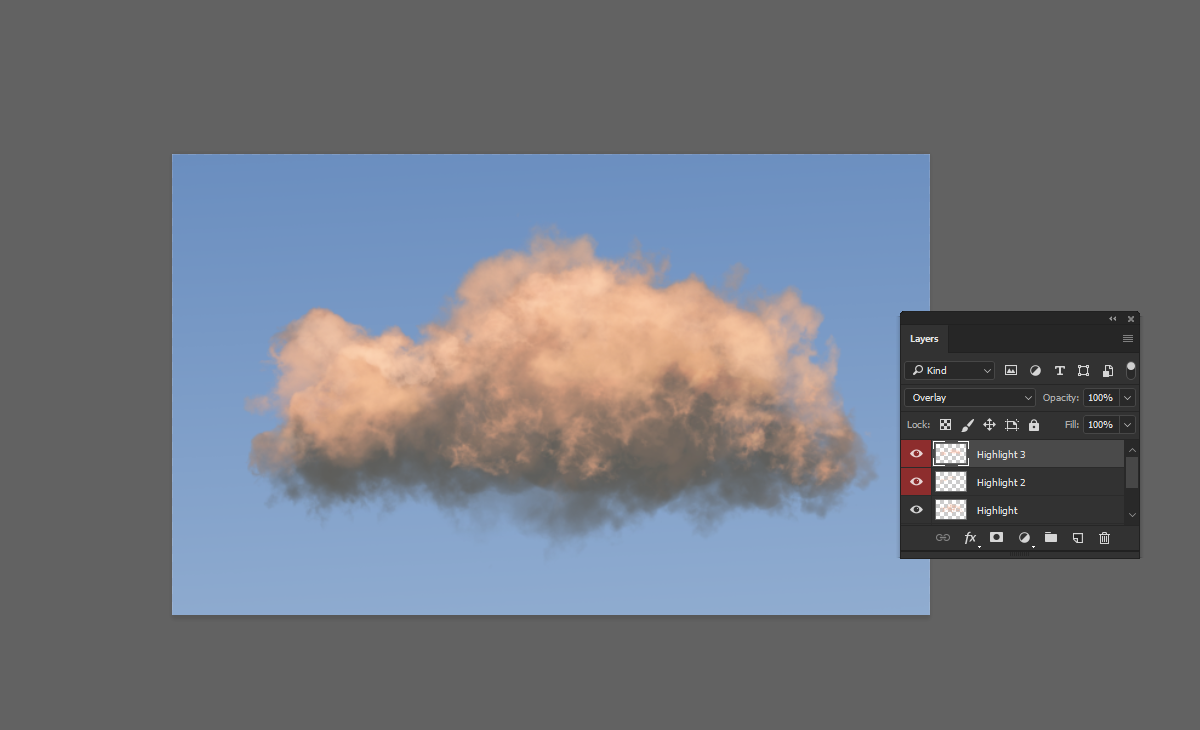
  1. Create a New Layer: Add a new layer and name it “Highlight 3”.
  2. Set the Foreground Color: Change your foreground color to #f1b099.
  3. Set Layer Mode to Overlay: Change the blending mode of this layer to “Overlay”.
  4. Paint the Highlights: paint the areas where the light would naturally hit. This will create a realistic direction of light and enhance the overall effect of your clouds.
How to Paint Clouds in Photoshop Using Custom Brushes

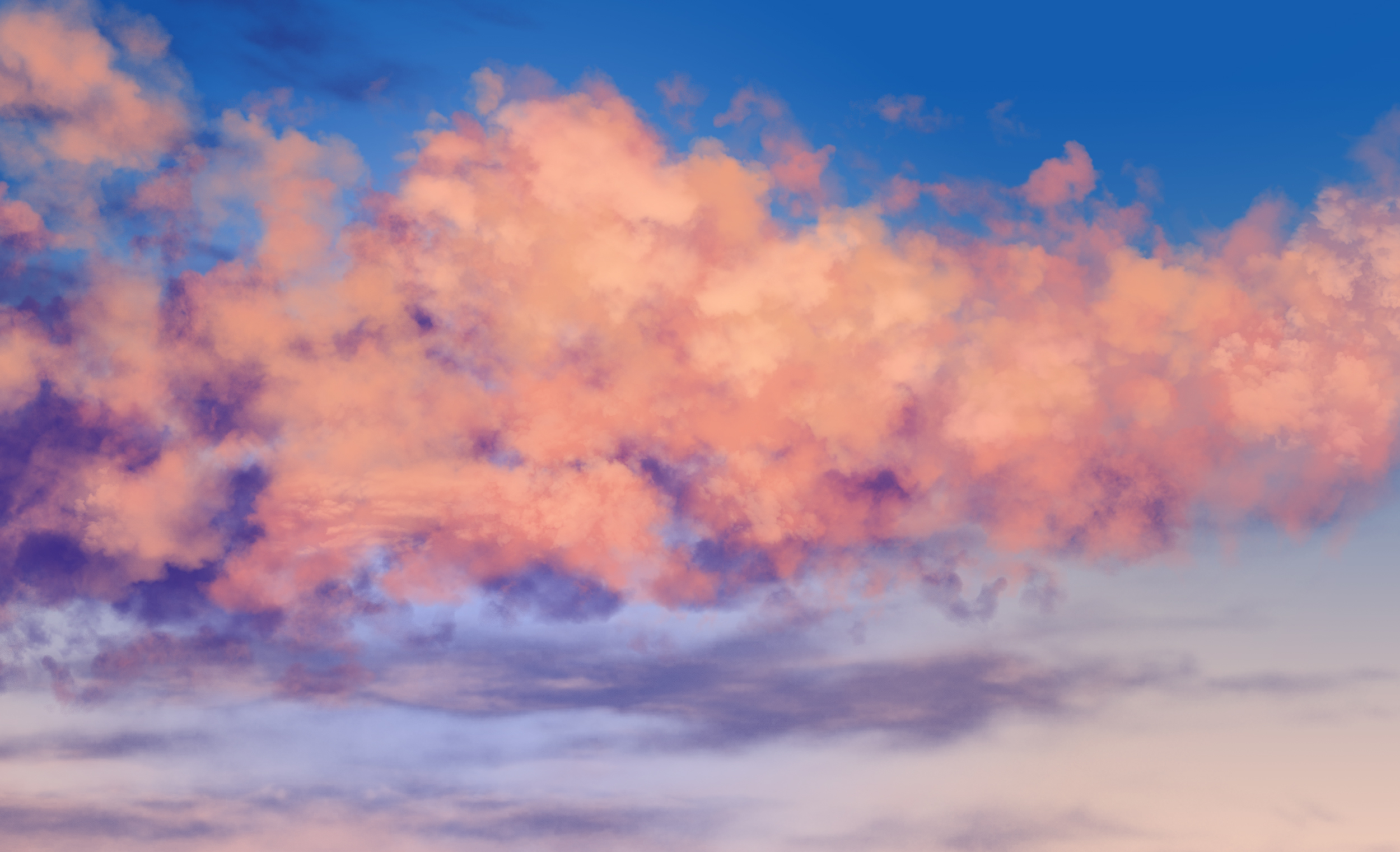
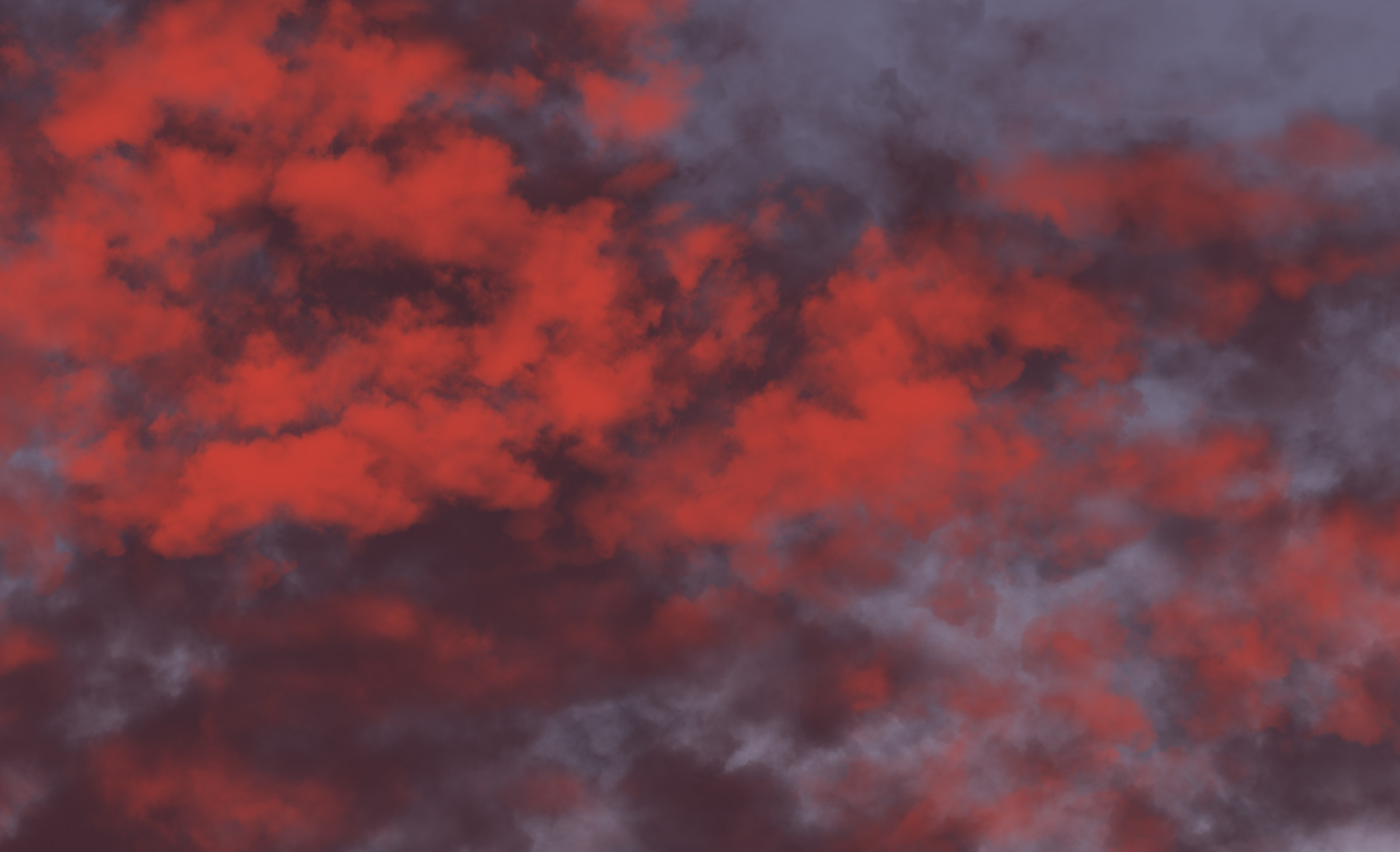
Check out these stunning examples created using our Cloud Brushes Vol. 3.
You can get them and start creating your own masterpieces!

How to Paint Clouds in Photoshop Using Custom Brushes

We hope you enjoyed this tutorial and found it helpful.

Happy creating!

How to Paint Realistic Grass in Photoshop

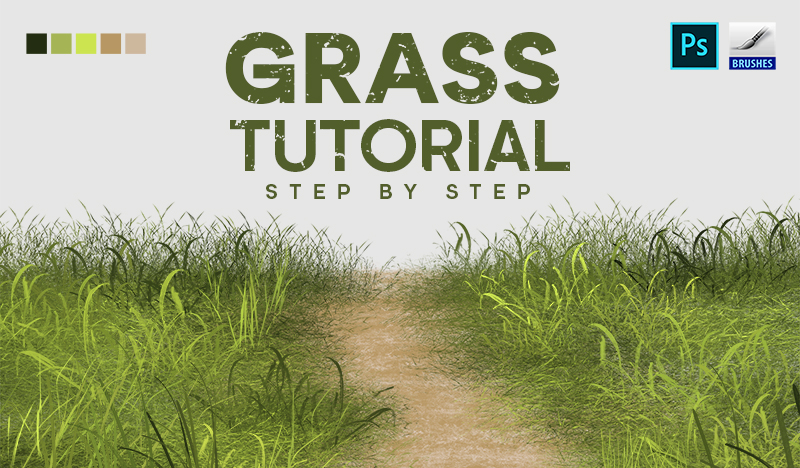
Introduction Grass tutorial Photoshop can add depth and realism to your digital artwork. In this tutorial, we’ll guide you through the steps to paint grass using custom brushes

Tutorial Assets

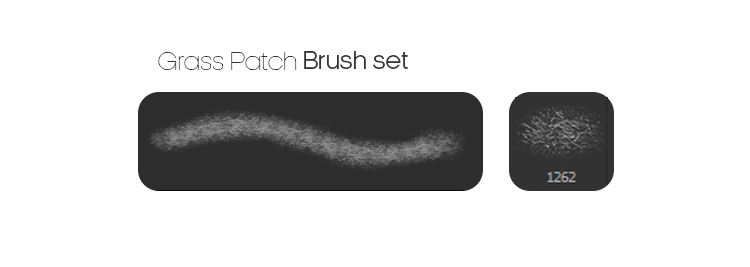
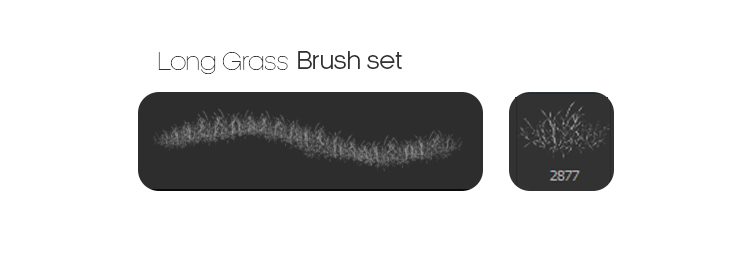
  • Grass Brushes: Download our specialized brush set here for the perfect tools to create lifelike grass textures.


Step 1: Selecting the Color of Grass

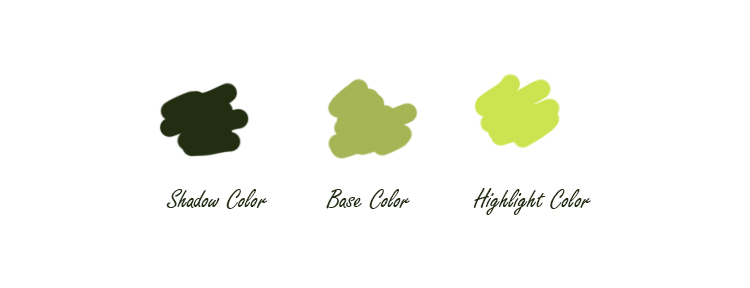
Begin by choosing the appropriate colors for your grass. Here’s the palette used in this tutorial:

  • Shadow Color: #232d11
  • Base Color: #a5b555
  • Highlight Color: #cbe450

Selecting the right colors is essential to achieving a realistic look. Start with a base color that represents the overall tone of your grass. Use lighter shades for highlights and darker shades for shadows to add depth and dimension.

To use the brushes, you need to load them into Photoshop first, you need to create a new layer above the background layer.

Step 2: Selecting the Color of Grass

First, create a new document in Photoshop by pressing Ctrl + N or navigating to File > New. Set the dimensions to 5000 x 3000 pixels at 300 dpi to ensure high-quality output.

Next, choose the appropriate colors for your grass. Here’s the palette used in this tutorial:

Set the base color as your background color and the Shadow color as your foreground color.

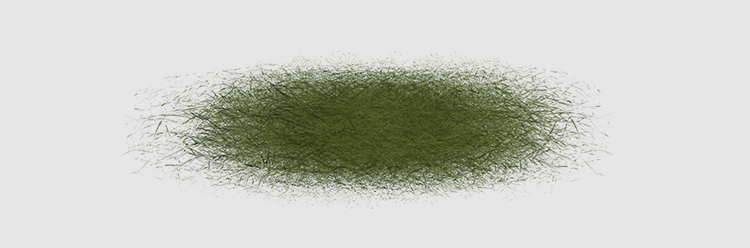
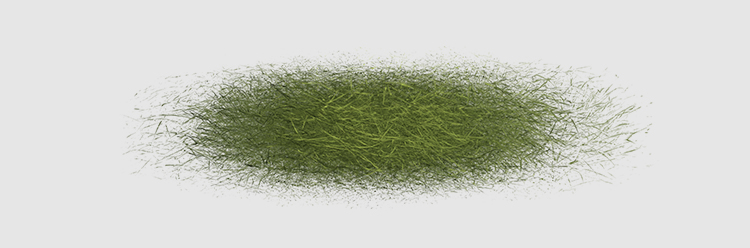
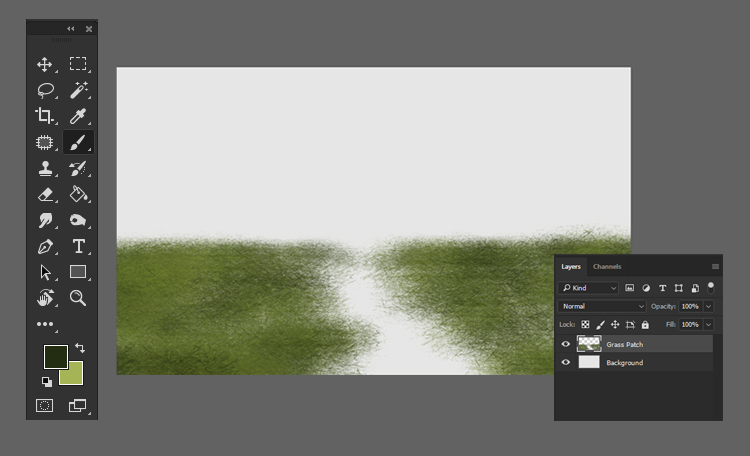
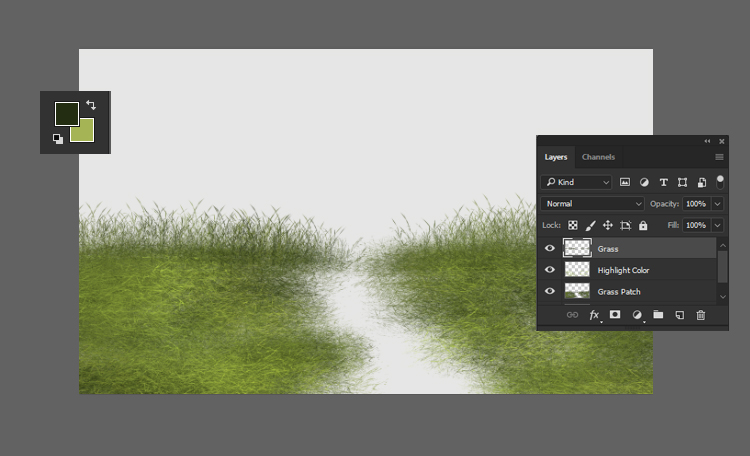
Using the custom grass brushes, paint a patch of grass. Start with the Shadow color, then add the highlight color to create variations.

Grass tutorial Photoshop

Step 3: Paint Long Grass

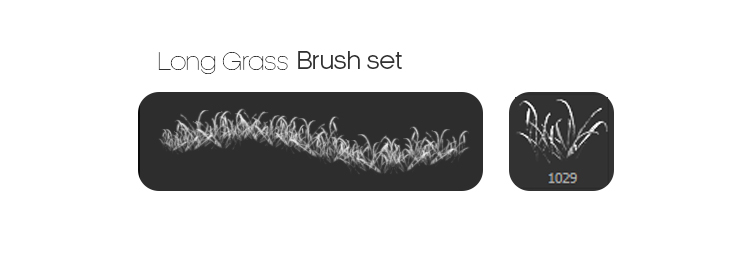
Select a variety of grass brushes from your custom set.

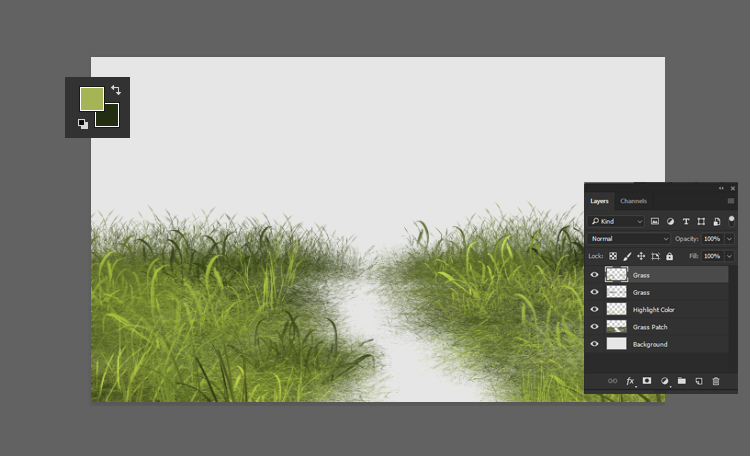
Paint long grass by layering different brush strokes. This will add texture and natural variations to your grass.

Grass tutorial Photoshop

Step 4: Paint Long Grass Highlights

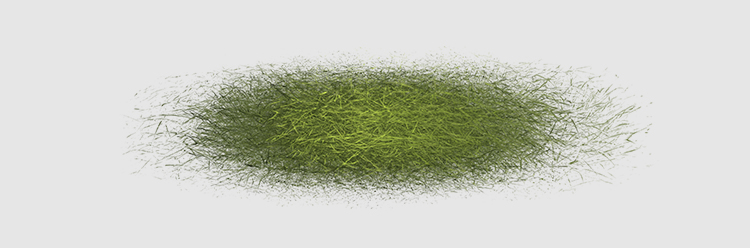
Continue painting the long grass with the highlight color. This will create a more dynamic and realistic look.

Grass tutorial Photoshop

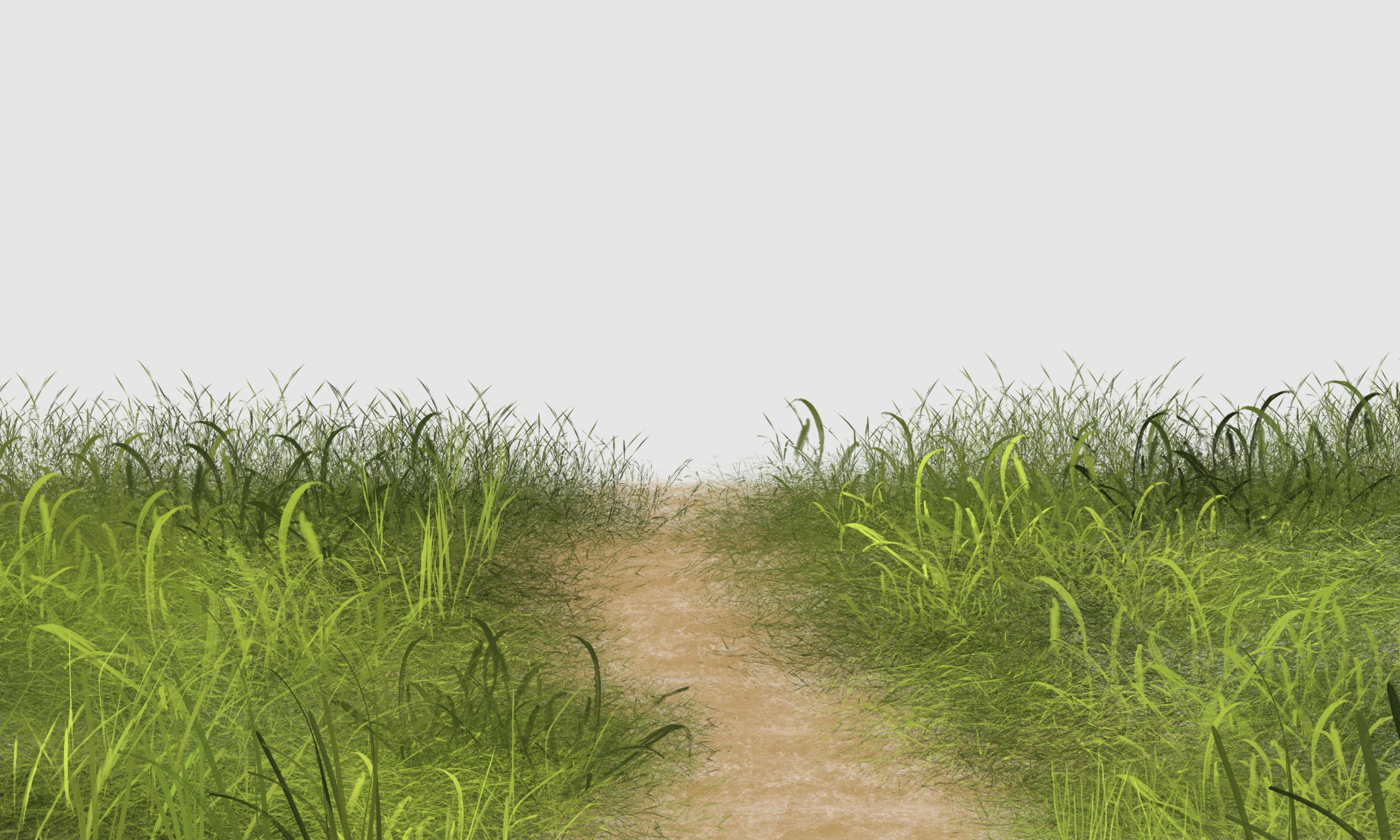
Step 5: Paint Mud

Before starting, you can refer to our detailed article on how to paint mud or download our custom mud brushes here.

Use the following colors to paint mud in the background or foreground:

  • Mud Base Color: #b79764
  • Mud Highlight Color: #cdb89d
Grass tutorial Photoshop

Finishing Touches
Once you have completed painting the grass and mud, take a step back and review your work. Make any necessary adjustments to ensure that the colors blend well and the textures look natural. Experiment with additional brush strokes or layers to enhance the realism of your grass.

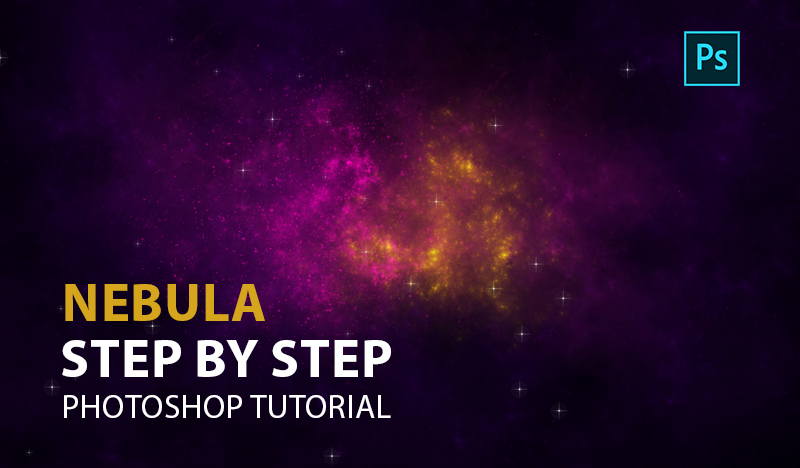
Create a Realistic Nebula in Photoshop

Hey there, space lovers!

Tutorial Resources 

Do you want to learn how to create amazing nebula in Photoshop?

If so, you are in the right place. In this blog tutorial, I will teach you how to use my space brushes to paint beautiful and realistic nebula in photoshop.

My space brushes are specially designed to help you create stunning space scenes with ease. They have different shapes, sizes, and textures to suit your needs and preferences. You can use them to paint Nebula, stars, shooting star, black holes.

In this tutorial, I will give you some tips and tricks on how to blend the colors, add effects, and make your nebula look awesome.

You will see some examples of how I used these brushes in my own artworks as well.

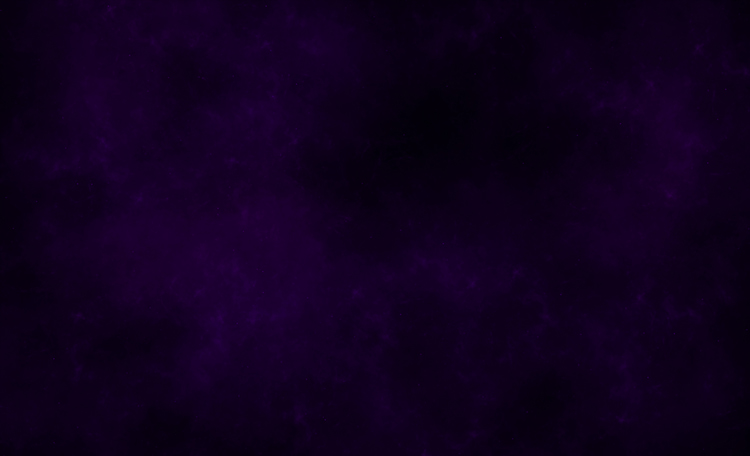
Step 1: Create a new file and fill in a dark background.

The first thing you need to do is to create a new file in Photoshop.

Go to File > New and choose the size and resolution you want. I recommend using a large size and a high resolution for better quality. For this tutorial, I used 2500 x 1605 pixels and 300 dpi. Next, you need to fill in the background with a dark color #010006

.

This will create contrast and make your nebula stand out. You can use any dark color you like, but I suggest using a dark blue.

To fill in the background, go to Edit > Fill and choose the color you want. Alternatively, you can use the Paint Bucket Tool (G) 

and click on the canvas.

Step 2: Paint with any nebula brush

Now comes the fun part. You can start painting your nebula with any of the space brushes.

These brushes are dynamic and realistic, so you don’t need to worry about the details. Just let your imagination run wild and enjoy the process.

To use the brushes, you need to load them into Photoshop first, you need to create a new layer above the background layer.

Go to Layer > New > Layer and name it “Nebula”. Then, select the Brush Tool (B) and choose any of the nebula brushes from the panel. Next, you need to choose a color for your nebula. You can use any color you want, but I suggest using a light or bright color to contrast with the dark background.

You can use the Color Picker Tool (I) to pick a color from an image or use the Color Panel to choose a color manually. Then, you can start painting on the canvas. You can use different brushes and colors to create different shapes and effects.

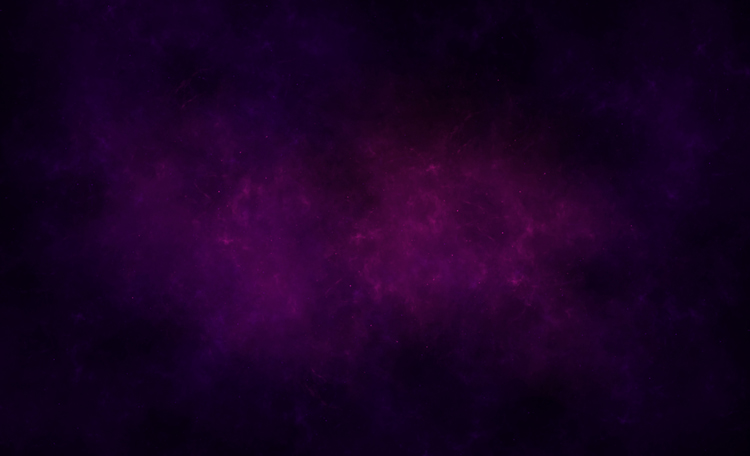
Step 3: Paint another nebula with purple

To make your space scene more interesting, you can paint another nebula with a different color. For this tutorial, I chose purple, but you can use any color you like. To paint another nebula, you need to create another layer above the previous one.

Go to Layer > New > Layer and name it “Nebula 2”. Then, select the Brush Tool (B) and choose another space brush from the panel.

You can use a different brush as before. Next, you need to choose a purple color #7a0c65

for your nebula in photoshop.

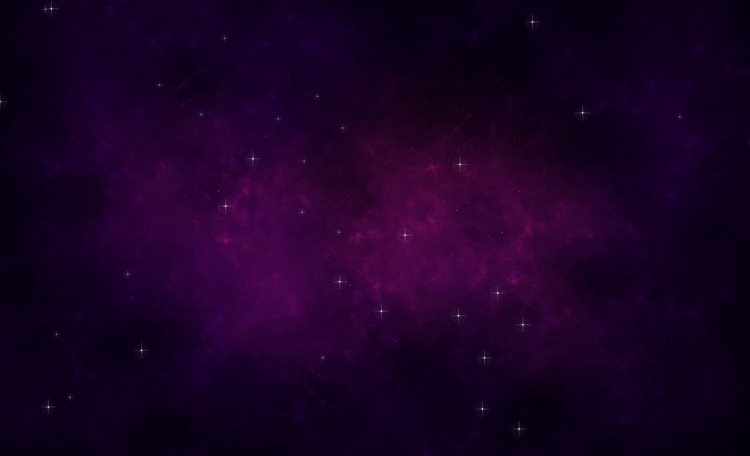
Step 4: Paint stars

To complete your space scene, you need to add some stars. You can find dynamic stars in this pack that will help you create realistic stars.

To paint stars, you need to create another layer above the previous one. Go to Layer > New > Layer and name it “Stars. Then, select the Brush Tool (B) and choose any of the star brushes from this brush pack.

Step 5: Add some contrast with a linear nebula.

create a new layer and name it “Linear Nebula”. Then, select a nebula brush and a color for your nebula. I chose a purple color #ff00b8

Next, paint on the canvas with the brush. You can use different brushes and colors to create different shapes and effects.

However, instead of using Linear Light as the blending mode. This will make your nebula brighter and more intense.

You can also change the blending mode of the layer to get different results, but you can experiment with other modes as well.

Nebula in photoshop

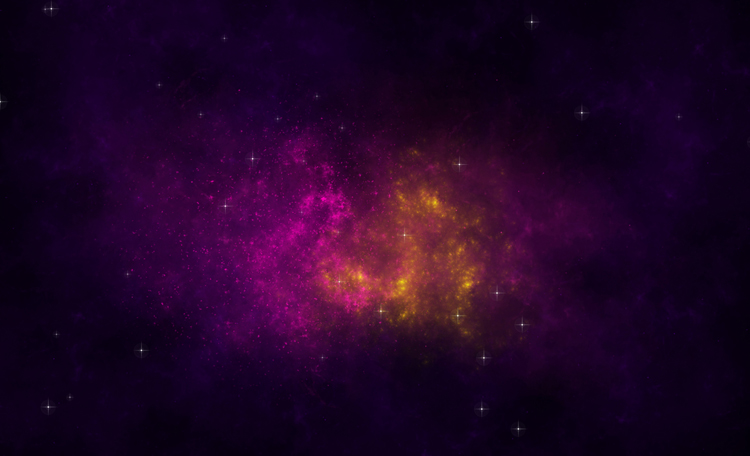
Step 6: Add some warmth with a yellow nebula.

To make your space scene more colorful, you can add some warmth with a yellow nebula.

You should have something like this:

Nebula in photoshop

I hope you enjoyed this tutorial and found it useful to create nebula in photoshop. If you did, please share it with your friends. I would love to see your creations and hear your feedback.

Thank you for reading and happy painting!

How to Create a Black Hole in Photoshop

How to Create a Black Hole in Photoshop!

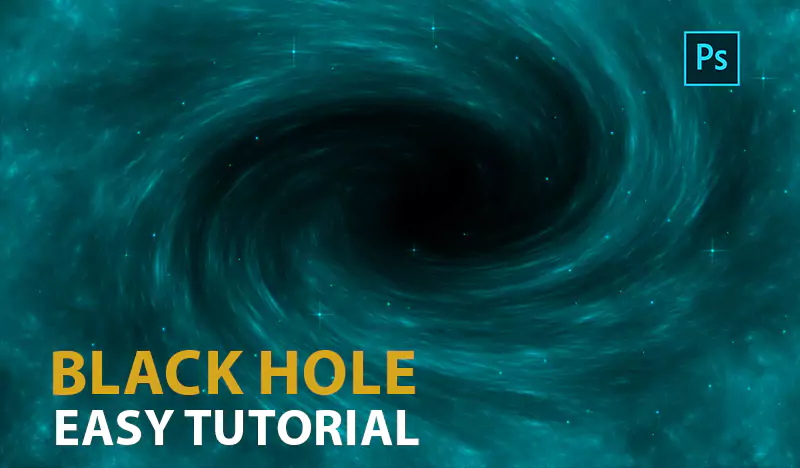
This tutorial will also introduce you to a new technique for Photoshop that I have developed to create realistic black hole in photoshop with brushes. This technique is simple and effective, and it can be used to create different types of black holes with different colors and shapes. You will be amazed by the results you can achieve with this technique and the brush set. So, if you are ready to learn something new and exciting, let’s begin this tutorial!

Tutorial Resources 

Step 1: Create a new file and a dark background color.

The first step is to create a new file in Photoshop with the dimensions of your choice.

I’m using a 2500 x 1605 PX file with a resolution of 300 dpi. You can use any size you want, but make sure it is large enough to fit your space scene.

Next, we need to fill the background with a dark color. You can use any dark color you like, but I recommend using a very dark blue or purple to create some contrast with the stars and planets later. To fill the background, select the Paint Bucket Tool (G) and click on the canvas.

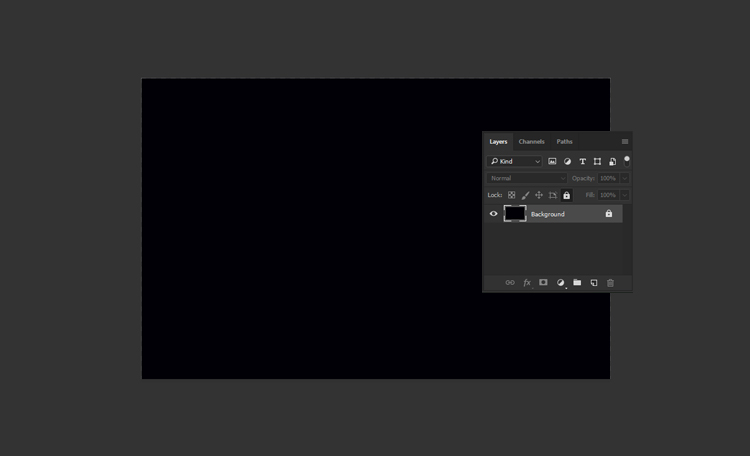
You should have something like this:

Step 2: Import our brushes and select the nebula you want.

The next step is import brushes.

Now, we are going to use one of the brushes to create a nebula. A nebula is a cloud of dust and gas in space.

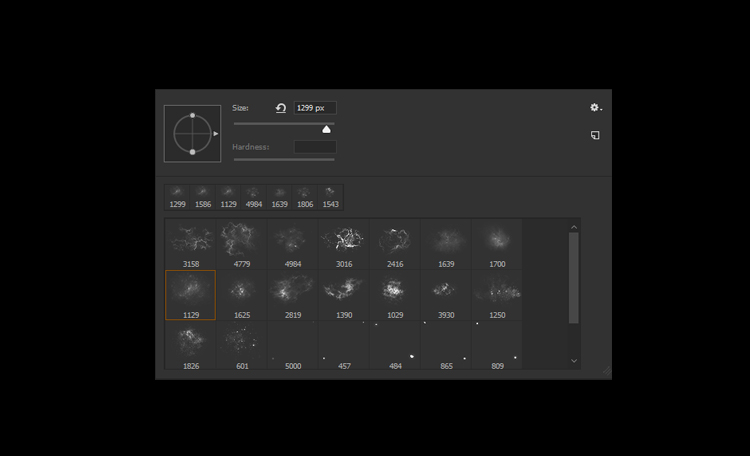
To create a nebula, select the Brush Tool (B) and choose one of the brushes from the set, which looks like this.

Step 3: Paint with nebula in a circular movement

The next step is to change the foreground color to #00e5f8 , which is a bright cyan color. You can use the Color Picker or type the hex code in the box.

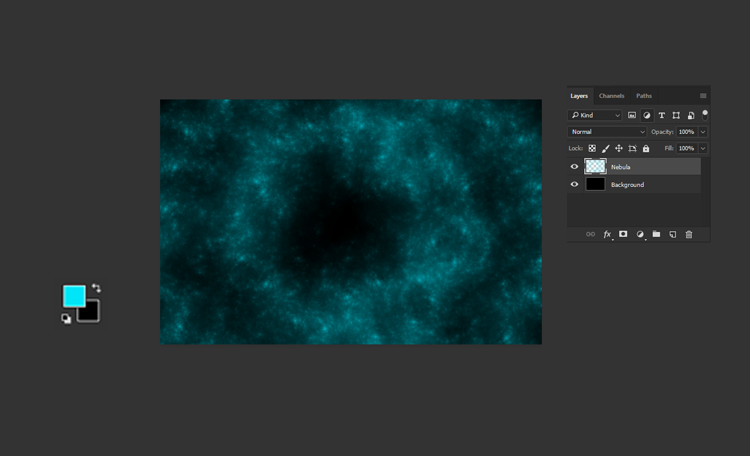
Next, create a new layer (Ctrl+Shift+N) and name it Nebula. On this layer,

Paint with the nebula brush in a circular motion around the center of the canvas to create a more dynamic and realistic effect.

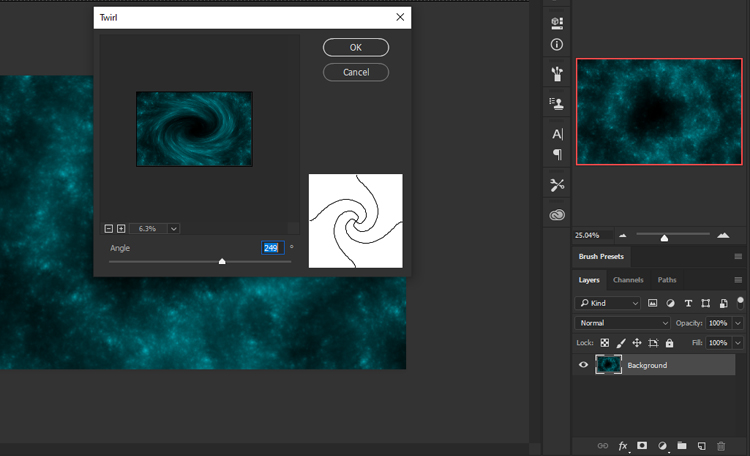
Step 4: Merge layers and apply twirl filter.

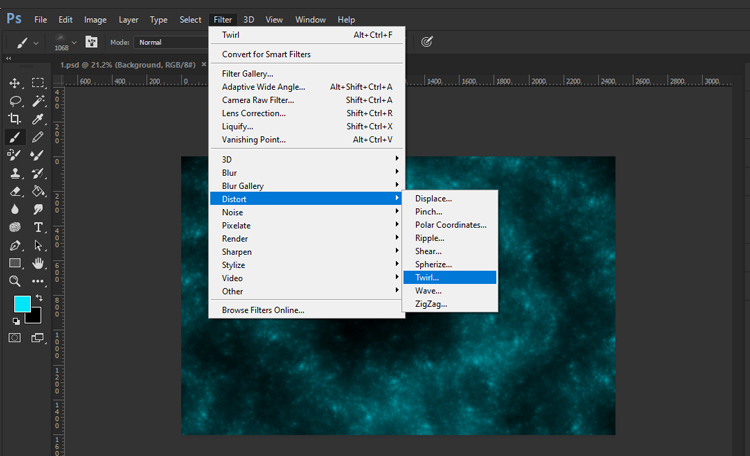
The next step is to merge the nebula layers and apply a twirl filter to create a spiral effect.

To do this, select both nebula layers in the Layers panel and press Ctrl+E to merge them. Then,


go to Filter > Distort > Twirl

and adjust the angle as you like.

black hole in photoshop

Step 5: Use angle to create a black hole.

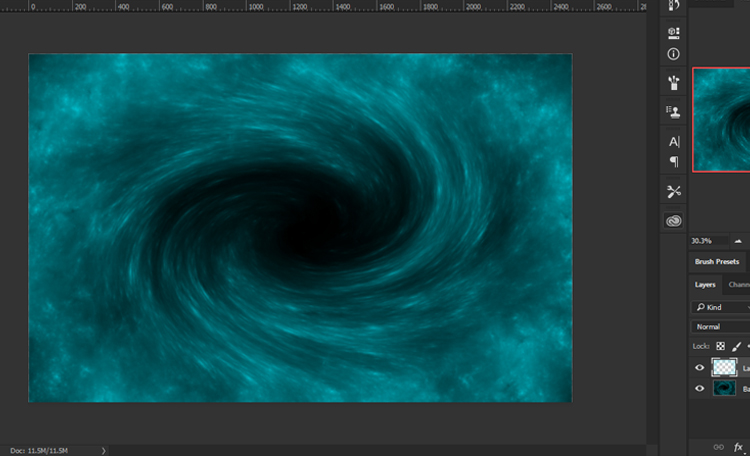
The angle is the amount of rotation that the filter applies to the image. The higher the angle, the more twisted the image becomes. The lower the angle, the less twisted the image becomes. You can use any angle you want, but I recommend using a high angle to create a spiral effect.

I’m using an angle of 249 degrees. You should have something like this.


Step 6: Create a new layer and paint some edges in the corner.

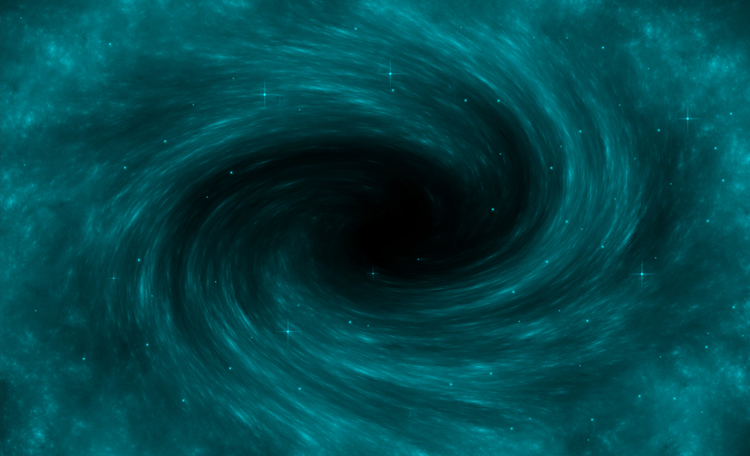
The next step is to create a new layer and use the same nebula brush to paint some edges in the corner of the canvas. This will add some depth and interest to your space scene. To do this, select the Brush Tool (B) and choose the same nebula brush as before.

Then, create a new layer. On this layer, click and drag the brush along the edges of the canvas. You can use any color you like, but I recommend using a lighter color than the background. You should have something like this:

black hole in photoshop

Next, add some stars to your space scene using the dynamic stars brush in this pack. This brush will create different sizes and brightness of stars depending on the pressure and speed of your stroke.


Congratulations!


You have successfully created a stunning black hole scene in Photoshop using a custom brush set for space. I hope you enjoyed this tutorial and learned something new. Thank you for following along!

How to Create Snow in Photoshop

How to Create Snow in Photoshop

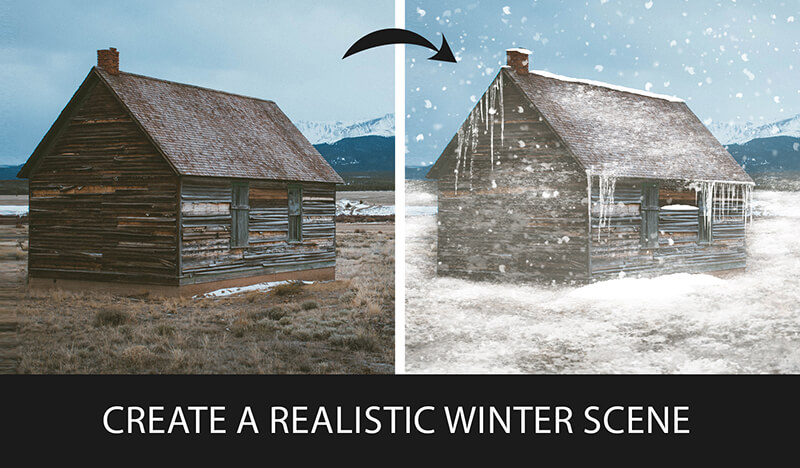
Do you want to create stunning snow scenes in your digital art? If so, you’re going to love this tutorial. I’ve created a brush set for snow in photoshop that you can use to add realistic snow Patch, Falling Snow, icicle, Fog, and snow-covered objects to your paintings. In this post, I’ll show you how to use these brushes to make a beautiful winter landscape in Photoshop. By the end of this tutorial, you’ll be able to create your own snow scenes with ease and confidence. Ready to get started? Let’s go!

Tutorial Resources

Snow Brushes

Step 1: Open your image in Photoshop.

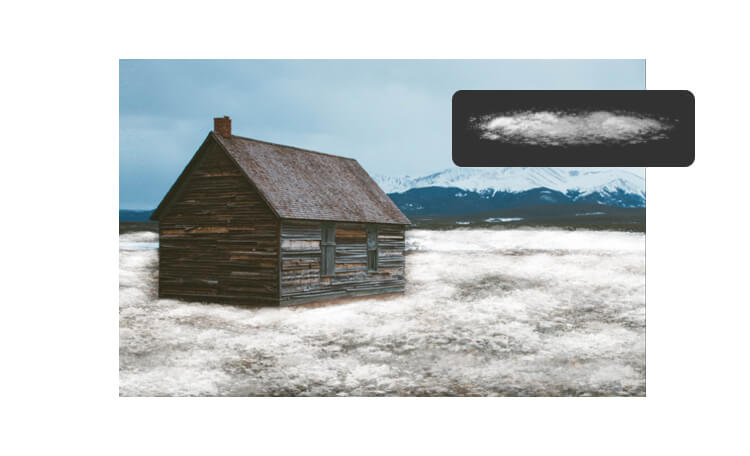
Step 2: Paint the snow on the ground.

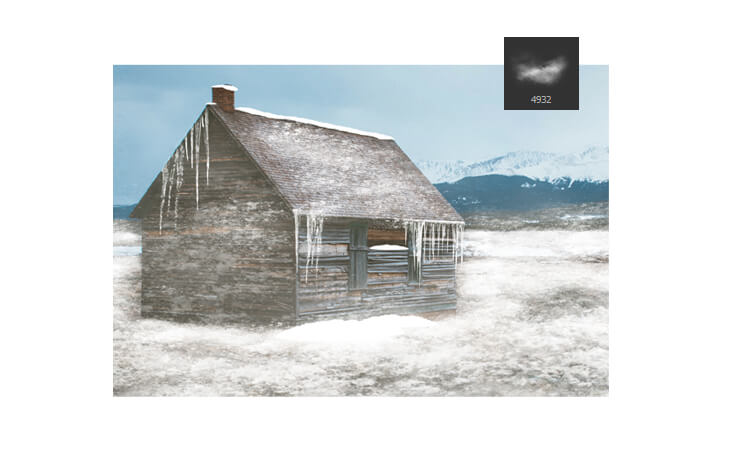
Now that you have your image open, you can start painting the snow on the ground. To do this, you need to select the patch snow brush from my snow brush set. This brush will create a realistic snow texture that covers the original surface. To select the patch snow brush,
go to the Brush Tool (B) and click on the Brush Preset Picker in the Options Bar. Then scroll down until you find the brush and click on it.

snow in photoshop

Step 3: Paint the snow on other objects.

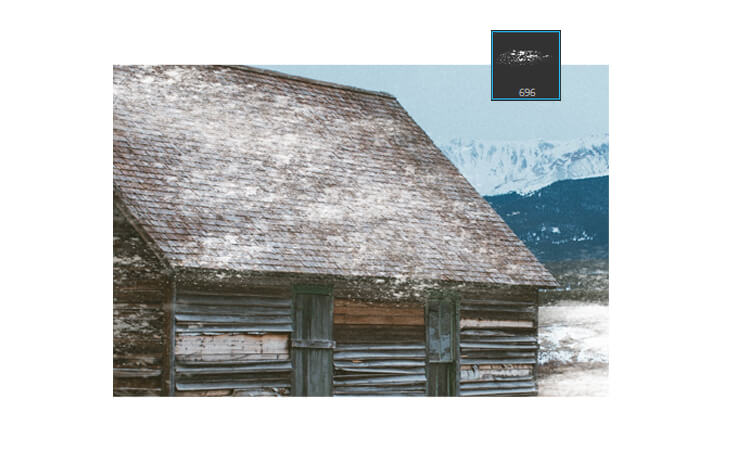
After you have painted the snow on the ground, you can use other patch brushes to cover other objects in your image, such as a car or a mountain. This patch brush is lighter and more transparent, so they will create a subtle snow effect that blends with the original color,
select this Patch snow Brush to paint over the areas you want to cover.
Be careful not to overdo it, as too much snow can make your image look unrealistic.

Snow in photoshop

Step 4: Paint the icicles.

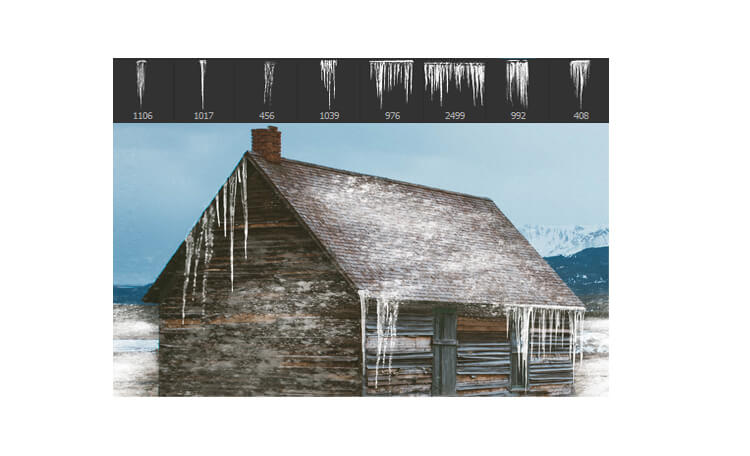
The next thing you can do is to paint some icicles on your image. Icicles are frozen water droplets that hang from the edges of roofs, windows, or other objects. They can add some interest and realism to your snow scene. To paint icicles, you need to use the icicle brush from my snow brush set. These brushes will help you to create different shapes and lengths of icicles.

Snow in photoshop

Step 5: Paint the fog.

Another way to enhance your snow scene is to paint some fog in the background. Fog is a thin layer of mist that reduces the visibility and creates a soft and mysterious atmosphere. To paint fog, you need to use the fog brush from my snow brush set. This brush will create a smooth and cloudy effect that fades the colors and details of the background. You can also adjust the brush size and opacity depending on how much fog you want to create.
Be careful not to cover the foreground or the main focus of your image, as this can make your image look too blurry.


Step 6: Paint the falling snow.

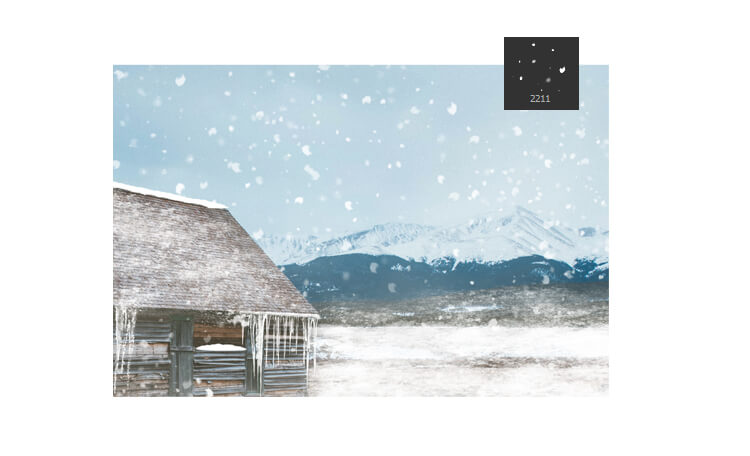
The final touch you can add to your snow scene is to paint some falling snow in photoshop. Falling snow is a collection of snowflakes that drift down from the sky and create a sense of movement and depth. Select falling snow brush from my snow brush set. This brush will create a random pattern of small dots that resemble snowflakes.


Finished!

Congratulations!

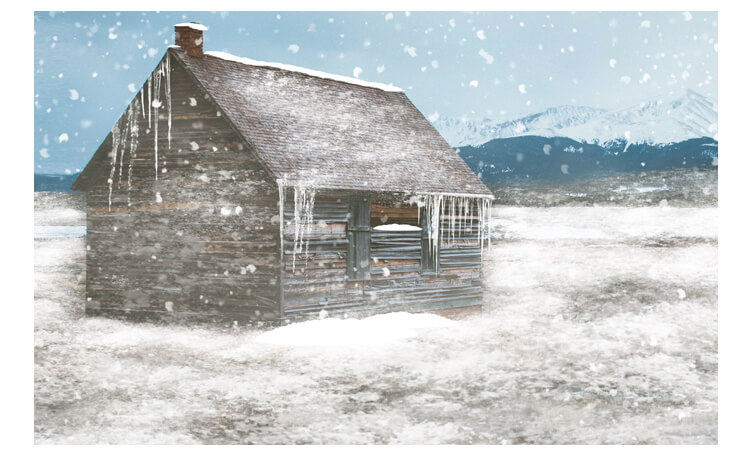
You have successfully created a snow scene in Photoshop.
I hope you enjoyed this tutorial and learned some useful tips and tricks.

see other tips &Tricks

How to make Realistic bubbles in Photoshop

Do you want to learn how to create realistic bubbles in Photoshop? Bubbles can add a fun and magical touch to any photo, but they can be tricky to make look natural and convincing. In this tutorial, I will show you how to use my brushes and techniques to create amazing bubble effects in Photoshop. You will also learn how to customize the colors, shapes, and sizes of the bubbles to fit your style. By the end of this tutorial, you will be able to transform any photo into a bubbly masterpiece. Let’s dive in!

Tutorial Resources
Bubbles Brushes
12 high quality Dynamic water Bubbles brushes + 6 Pattern, you can Paint with Bubbles and change your Bubbles colors to get a colorful pack right away!


Before we start, you need to import a pattern that we will use for the bubbles.

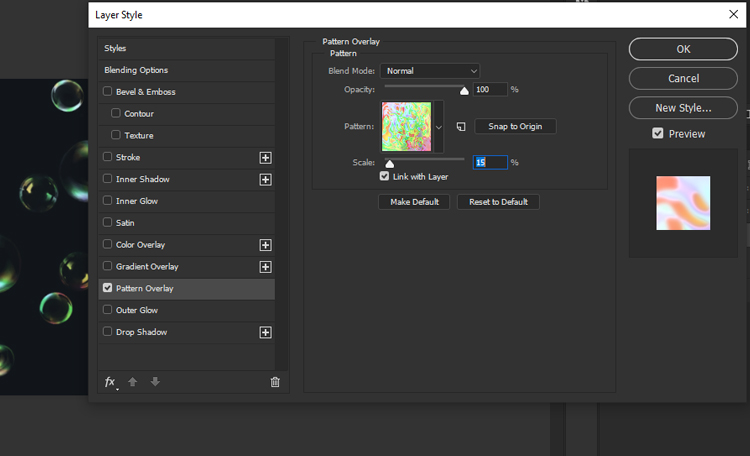
Now we will apply the pattern effect to the bubbles. To do that, you need to select the layer to right-click on the layer with the bubbles and select Blending Options. Then, choose Pattern from the list of blend modes and click OK.