Master the Waves: Ocean Photoshop Tutorial

Unleash Your Inner Artist: Ocean Photoshop Tutorial with Premium Brushes

Welcome to our comprehensive ocean Photoshop tutorial! Whether you’re an experienced digital artist or a newcomer eager to dive into the world of seascapes, this guide is designed for you. In this tutorial, we’ll explore the step-by-step process of painting an ocean scene, using our specially designed brushes to bring the waves to life. You’ll learn how to create realistic waves, shimmering reflections, and dynamic light effects that will transform your digital canvas into a breathtaking masterpiece. Ready to embark on this creative journey? Let’s get started!

Tutorial Assets


Step 1

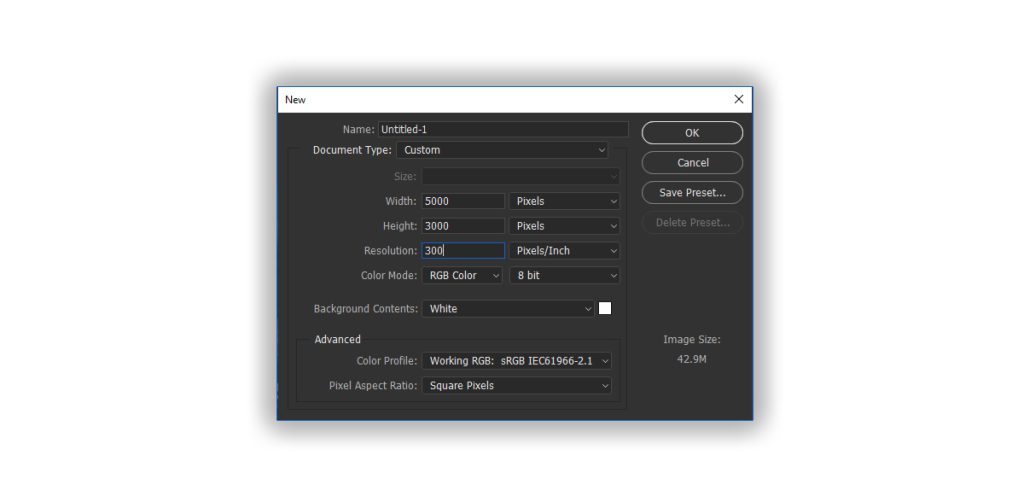
Open a New Document in Photoshop at 5000 x 3000 pixels and 300 dpi.
ocean photoshop tutorial

Step 2: Choosing Your Color Palette

For this tutorial, I used these colors to bring the ocean scene to life. Here are the color codes:

  • Base color: #26424d
  • Highlight: #7fb8ab
  • Highlight 2: #4bbaa5
  • Shadow 1: #1a333d
  • Shadow 2: #0f2025

Step 3: Fill the Background with the Base Color

Use the Paint Bucket tool to fill the background with your base color: #26424D. This deep, oceanic hue will serve as the foundation for your artwork, setting the tone for your sea painting.

ocean photoshop tutorial

Step 3: Adding Highlights with the Ocean Brush Pack

To use the brushes, you need to load them into Photoshop
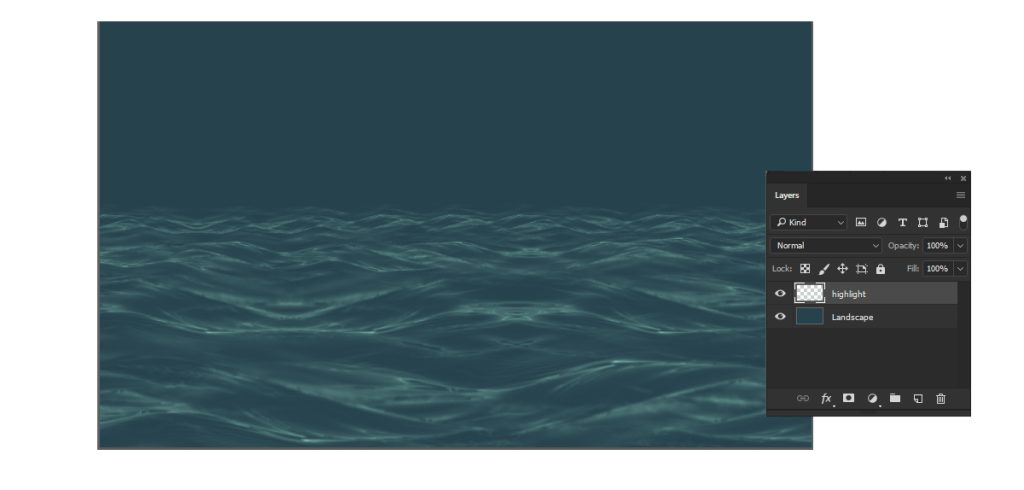
First, create a new layer and rename it “Highlight.” Using any brush from the Ocean Brush Pack, set your foreground color to #7FB8AB. Select the Brush Tool (B) and start painting the highlight areas in your ocean scene. This color will add a touch of light and vibrancy, mimicking the way sunlight dances on the waves.
ocean photoshop tutorial

Step 4: Painting the Shadows

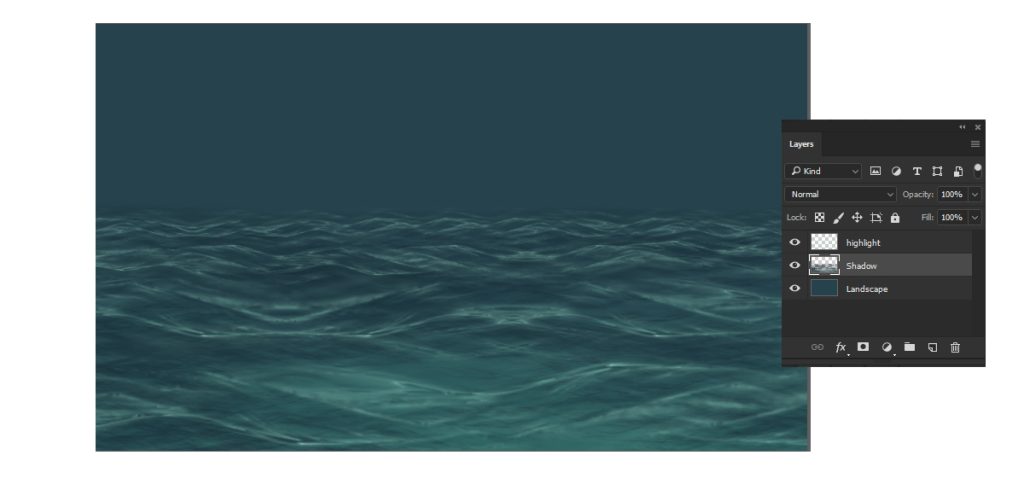
Create a new layer and name it “Shadow.” Place this layer below the “Highlight” layer. Set your shadow color to #1A333D and, using the same brush from the Ocean Brush Pack, paint the shadow areas.
This will add depth and dimension to your ocean scene, enhancing the contrast and making the highlights stand out even more.
ocean photoshop tutorial

Step 5: Adding Secondary Highlights

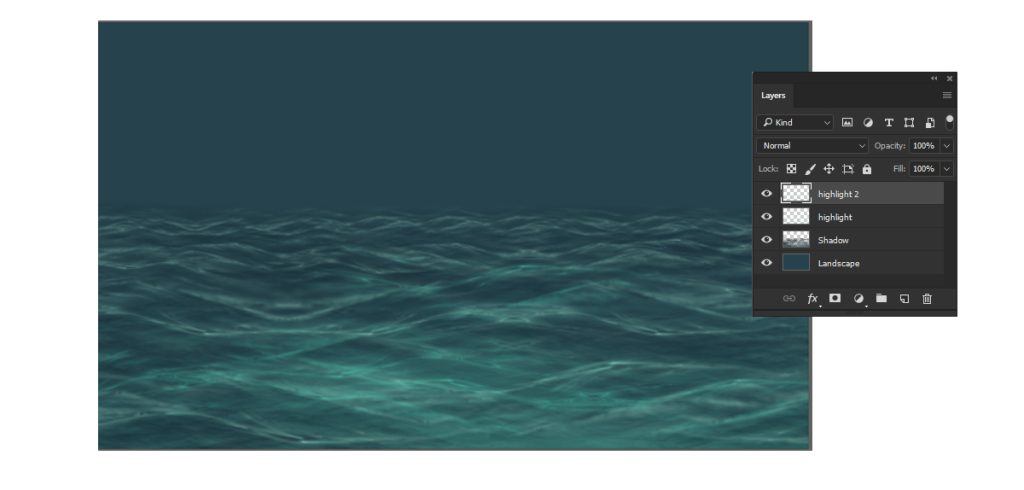
Create a new layer and rename it “Highlight 2.” Position this layer above the “Highlight” layer. Set your shadow color to #4bbaa5, paint your secondary highlights in this layer.
This will enhance the light and detail in your ocean scene, adding an extra dimension to your artwork.
ocean photoshop tutorial

Step 6: Adding Second Layer of Shadows

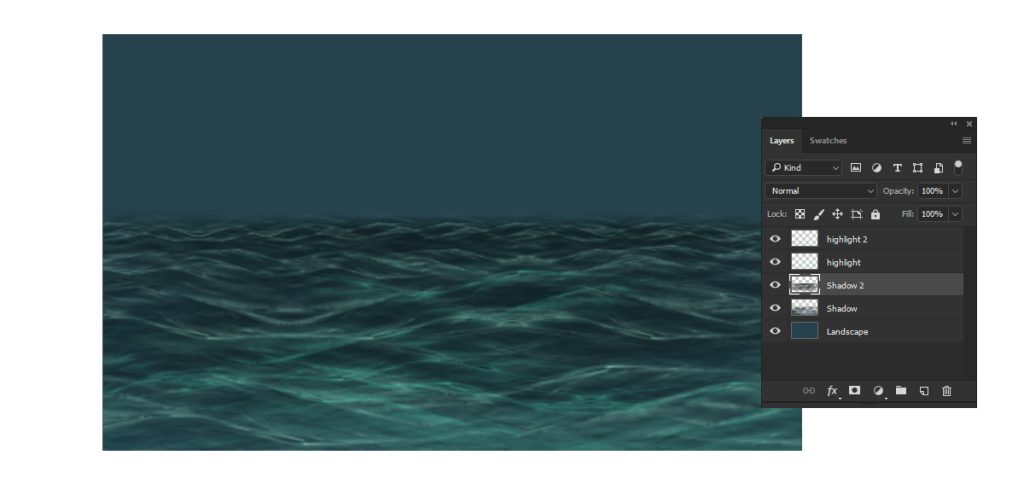
Create a new layer and rename it “Shadow 2.” Place this layer above the “Shadow” layer. Set your shadow color to #0F2025. , paint the shadow areas to add more contrast and depth to your ocean scene.
This additional layer of shadows will enhance the dimensionality of your artwork, making it even more realistic.
Step 7: Painting the Light

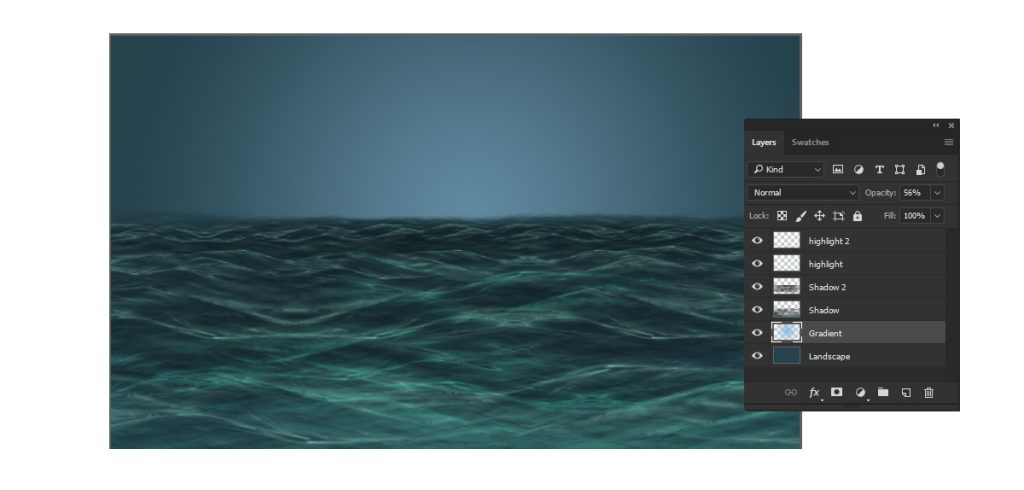
Create a new layer and position it below the “Highlight” layer. Select the Gradient Tool and choose the Radial Gradient option.

Use this color for the light: #5e869b. Paint the direction of the light in the sky, which will give a sense of illumination and add depth to your ocean scene.
Step 8: Painting the Foam

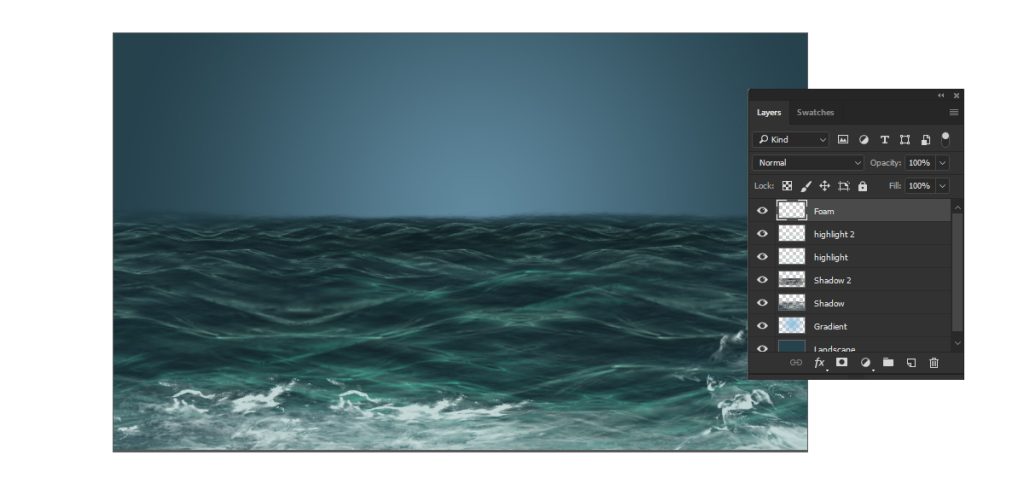
Create a new layer and place it above the “Highlight 2” layer.
Select the Foam Brush from the Ocean Brush Pack, set your foreground color to #FFFFFF (white), and start painting the foam.
This will add the final touch to your ocean waves, creating realistic and dynamic foam patterns that enhance the overall scene.
Step 9: Adding the Glitter

Create a new layer and set it above all the previous layers.
Select a glitter brush from the Ocean Brush Pack and set your foreground color to #FFFFFF (white).
Use the brush to add glittering highlights to the ocean, mimicking the sparkle of sunlight on the water.
This will add a magical and dynamic touch to your artwork, making it truly stand out.
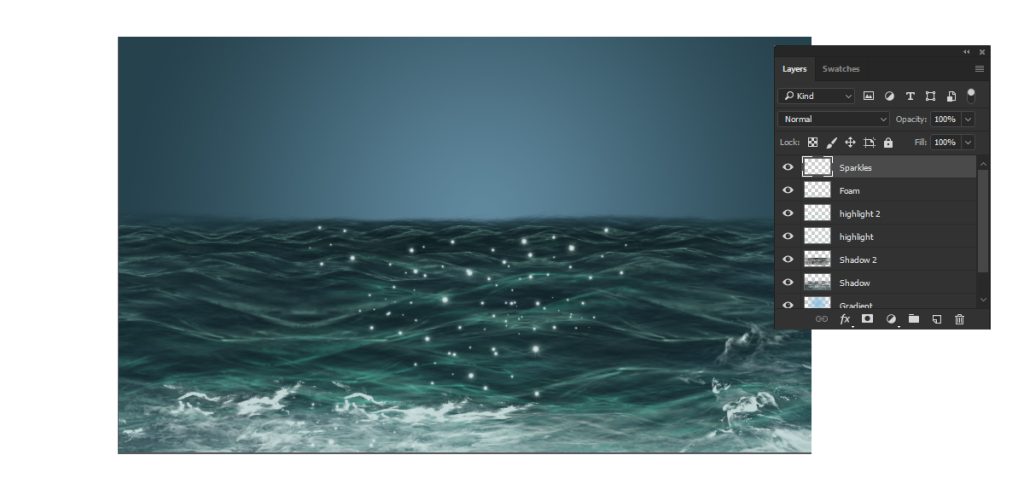
ocean photoshop tutorial

Congratulations! Your Ocean Painting Tutorial is Complete

Great job following along! You’ve successfully created a stunning ocean scene in Photoshop using our premium brushes. If you want to see the entire process in action, you can watch the video tutorial here.

How to paint tree trunk in photoshop

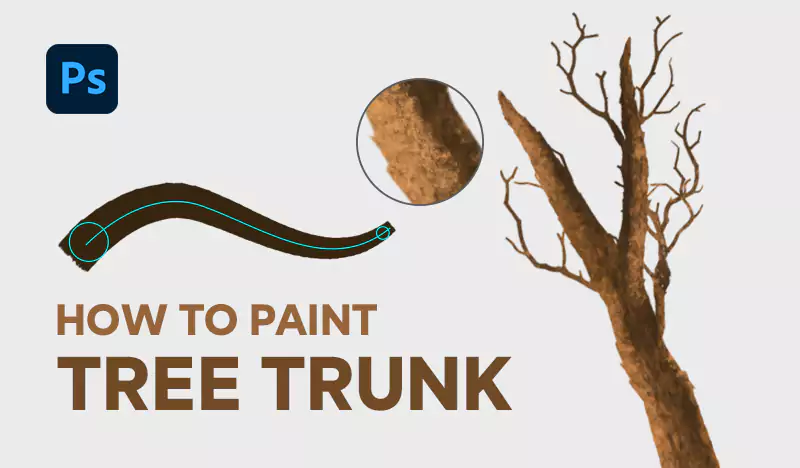
Introduction In this tutorial, we will guide you through the process of painting a realistic tree trunk using our specialized foliage brush pack. These brushes are designed to create authentic textures, helping you achieve stunning results with ease. Whether you’re enhancing a digital forest or adding a single tree to your artwork, this guide will ensure your tree trunk looks lifelike and detailed.

Tutorial Assets

Step 1: Painting the Tree Trunk

start by selecting the tree trunk brush from the foliage brush pack

To use the brushes, you need to load them into Photoshop first.

The difference between the two brushes lies in the edges of the resulting tree trunk: one brush produces softer edges, while the other creates more defined edges.

This brush is designed to create a faded effect, mimicking the natural texture of a real tree trunk. As you start painting, you will notice the brush blends seamlessly, providing a realistic base layer for your tree.

Step 2: Drawing Sub-Trunks

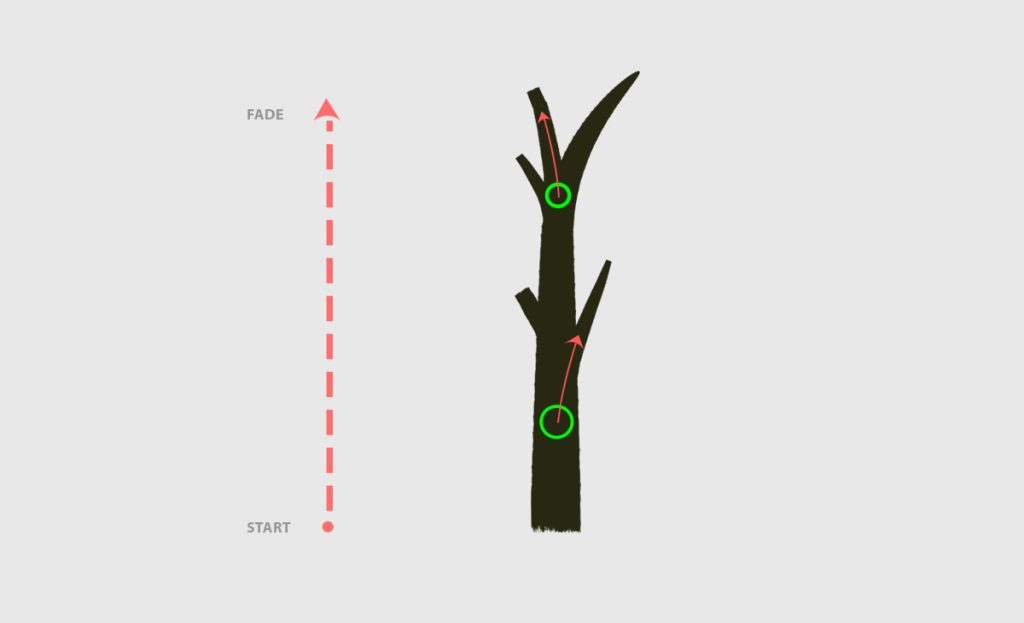
  • Keep the same brush to draw the sub-trunks of the tree.
  • When you want to create a smaller trunk, start at the bottom of the tree, as shown in the green circle. This technique works realistically since trees grow from the bottom up.

Step 3: Drawing Tree Branches

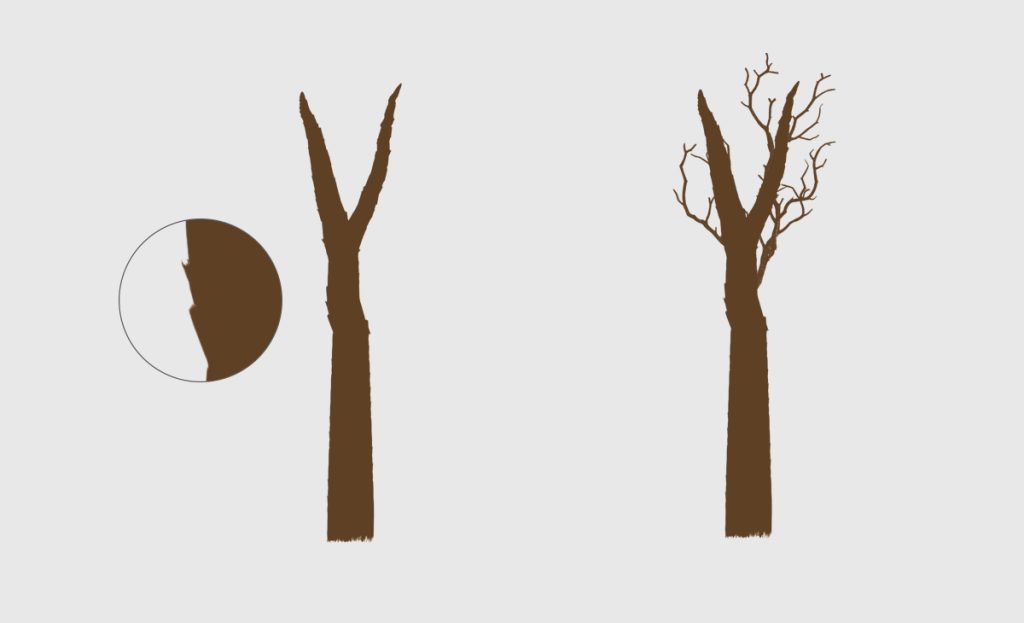
At this point, we’re going to draw the branches. Use any of the brushes from the foliage brush pack to create them.

Just practice with these brushes; they are designed to be easy to use.

Keep the same color as the tree trunk to ensure consistency.

Notice that the dark color should be under the texture layer to add depth and realism to your branches.

write step 4 : paint tree trunk texture use tree trunk texture brushes and 3a2715 for dark colors and ac6e33 for light color a

Here’s the next step for painting tree trunk texture:

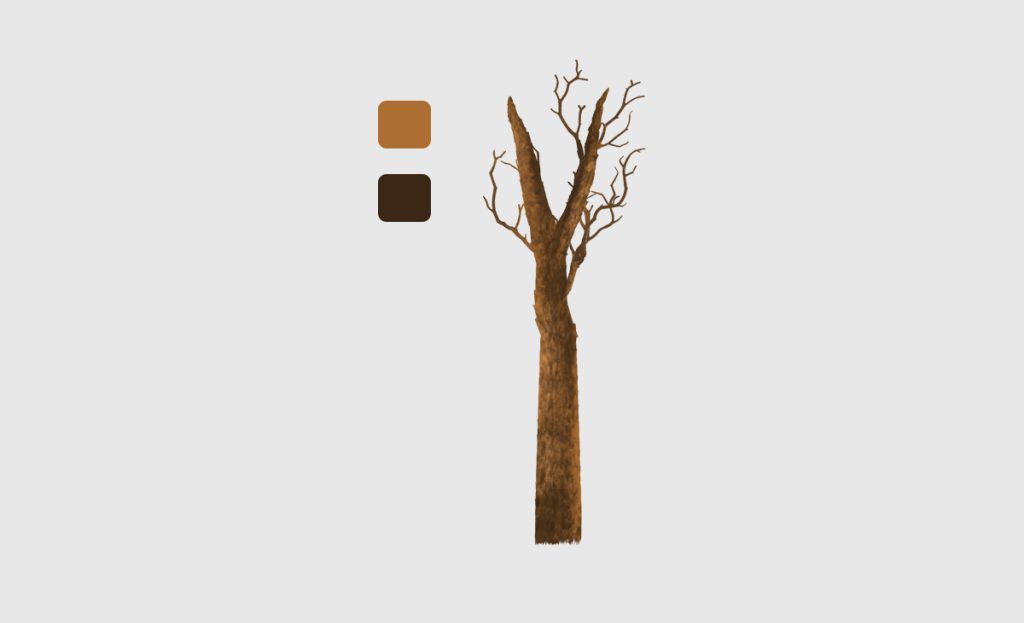
Step 4: Painting Tree Trunk Texture

  • Use the tree trunk texture brushes from your foliage brush pack to add detailed textures to the trunk.
  • For the dark areas, select the color #3a2715. This will add depth and shadow to the trunk.
  • For the lighter areas, use the color #ac6e33. This will highlight the raised parts of the texture, adding a realistic effect.
  • Carefully apply the texture, blending the dark and light colors to mimic the natural variations found in real tree bark.

Step 5: Adding Foliage

How to paint foliage in photoshop

How to paint foliage in photoshop

Creating realistic foliage in Photoshop can significantly enhance the depth and vibrancy of your digital artwork. This tutorial will guide you through the process, step by step, using custom brushes designed specifically for painting foliage. Whether you’re just starting out or looking to refine your skills, this guide will help you achieve stunning results.

Before you begin, ensure you have the following:

Selecting the Right Brushes

Using the right brushes is crucial for creating realistic foliage:

Choosing Colors

Choosing the right colors is essential for a natural look. Here’s a suggested palette:

  • Leaf Base Color: #2E8B57
  • Leaf Highlight Color: #76C84E
  • Leaf Shadow Color: #154734

To use the brushes, you need to load them into Photoshop.

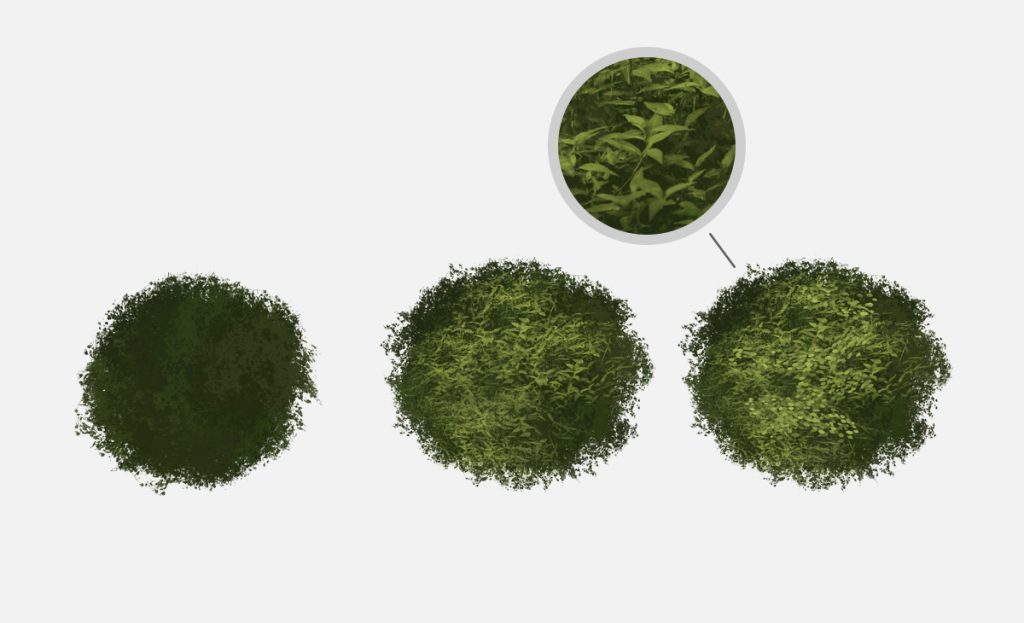
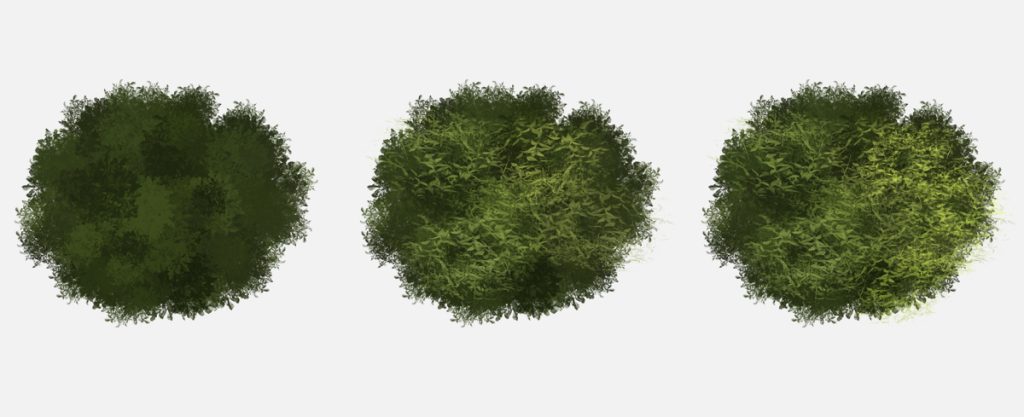
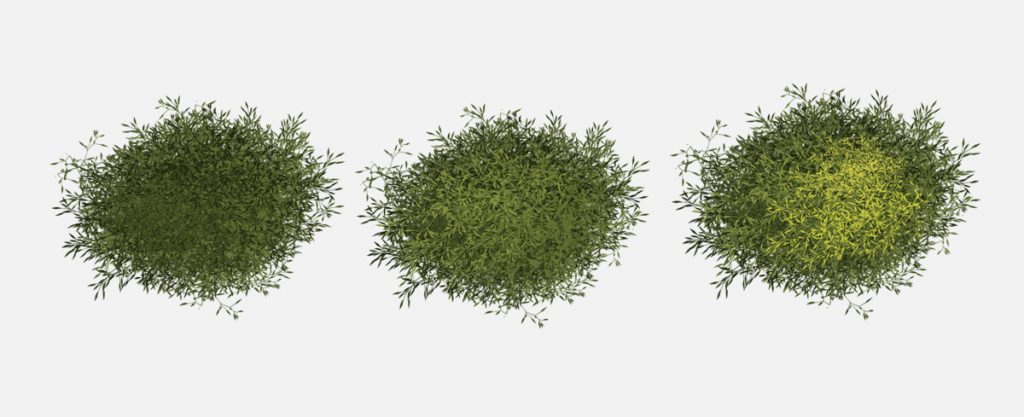
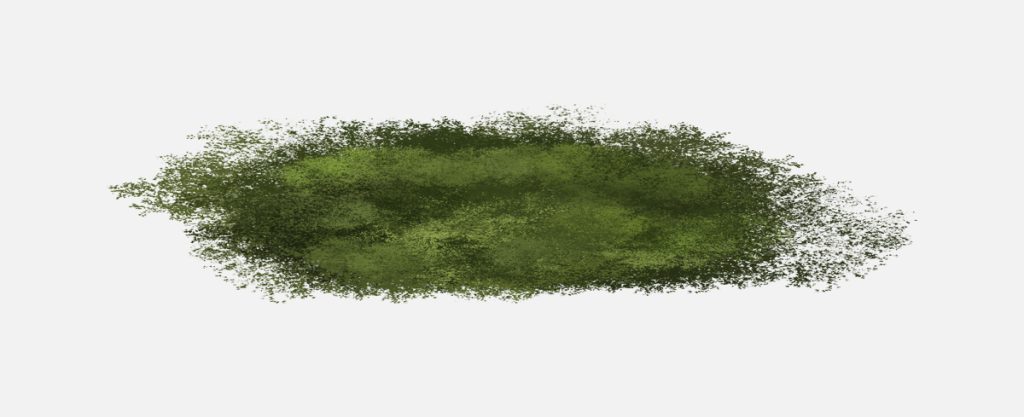
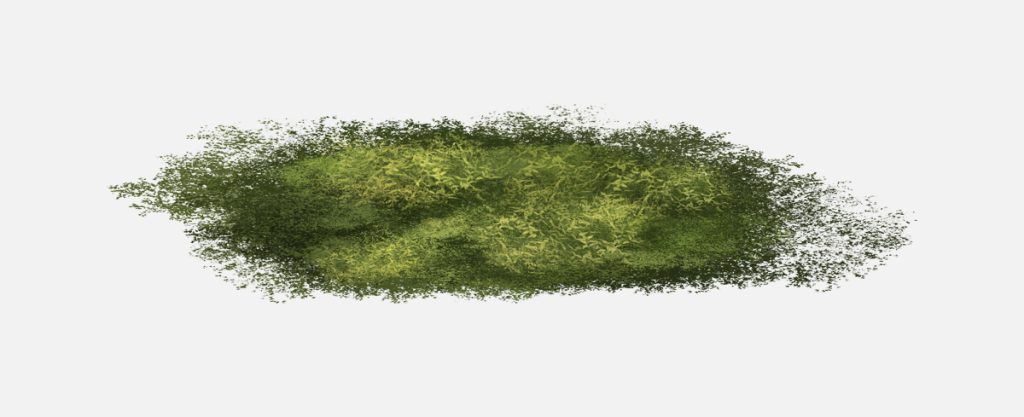
In this package, you will find a set of tree brushes designed to help you paint foliage just the way you envision it

Using these brushes, you can paint with two colors: a foreground color and a background color.
Start by setting the darker color as the foreground color for your initial painting.
Then, switch to the lighter color as the foreground color by pressing ‘X’ in Photoshop and painting Leaves for added depth and realism.

How to paint foliage in photoshop

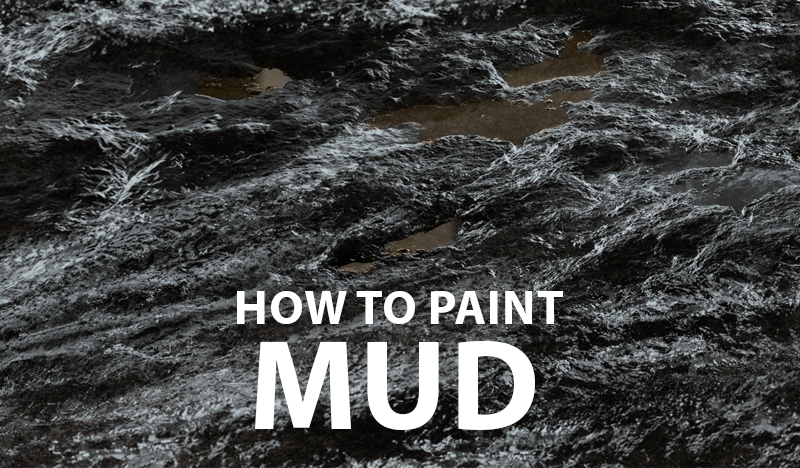
How to Paint Realistic Mud in Photoshop

Introduction Paint mud in Photoshop can enhance the authenticity of your digital landscapes and artworks. This tutorial will guide you through the process using our custom mud brushes, ensuring that you achieve stunning results every time. Whether you’re a novice or a seasoned artist, our step-by-step guide will make the process straightforward and enjoyable.

Tutorial Assets

Step 1: Select the color palettes

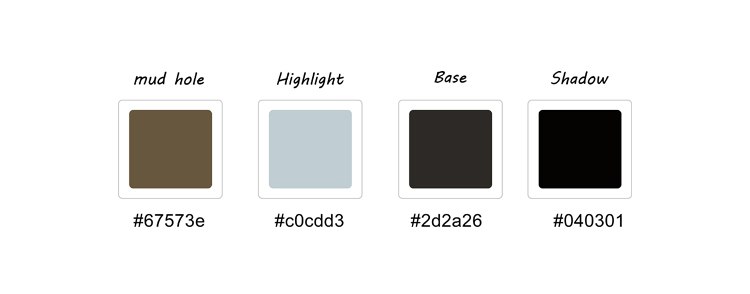
Select the color palettes To paint realistic mud with the brushes, you need to choose the right colors for your scene. You can use one of the five swatches palettes that come with the brushes or create your own custom palette.

Know the names of the colors Each palette has four colors that are named according to their role in the mud painting.

Step 2: Paint the base color

To use the brushes, you need to load them into Photoshop first, you need to create a new layer above the background layer.

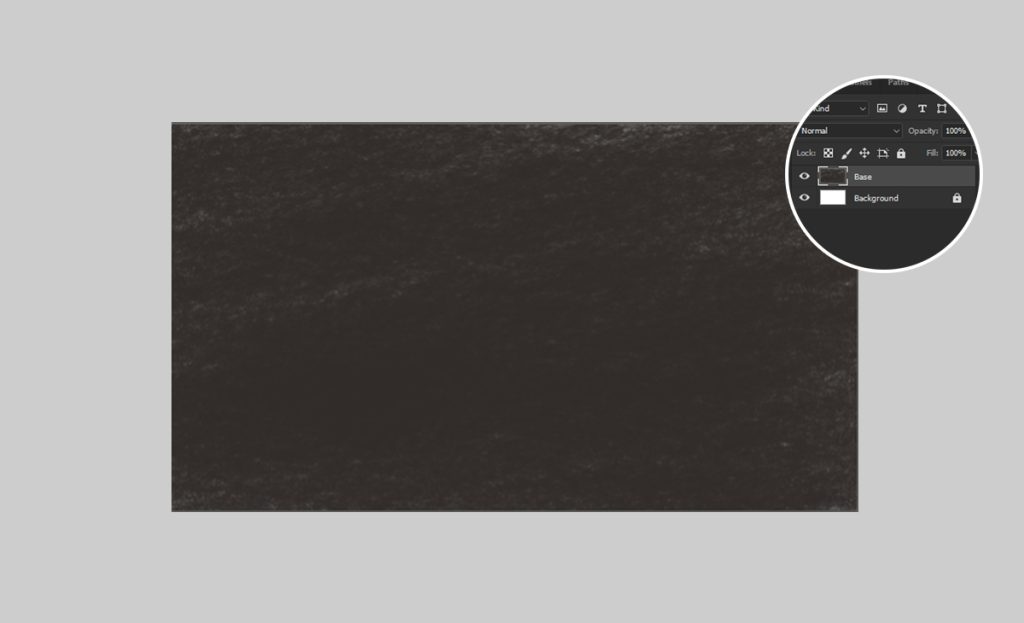
Paint the base color #2d2a26

This is the main color of the mud, usually a dark brown or gray. You will use this color to fill the background layer.

you need to create a new layer and use a brush with the color that you chose as the base. To create a new layer, go to Layer > New > Layer ( Ctrl+Shift+N on your keyboard)

Name the layer “Base” and click OK. Choose one of the mud brushes as you like.

To paint the base color, use the Brush Tool (B) and paint over the entire canvas with the mud brush. You can vary the pressure and direction of your strokes to create some texture and variation on the mud. You should now have a layer of mud color on your canvas.

paint mud Photoshop

Step 3: Paint the highlight

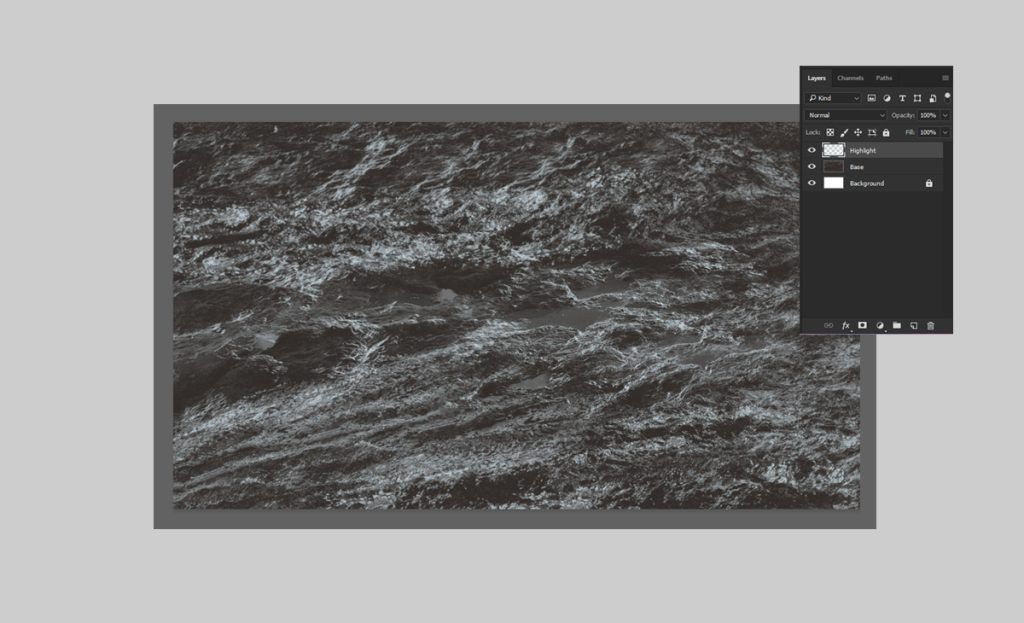
Create a layer to paint the highlight and use different Mud brushes with the color that you chose as the highlight. #c0cdd3

This is a slightly lighter color than the base. You will use this color to paint the highlights and contrast of the mud,
Name the layer “Highlight” You can use different brushes to create different effects and textures for the highlight.

paint mud Photoshop

Step 4: Paint the shadow

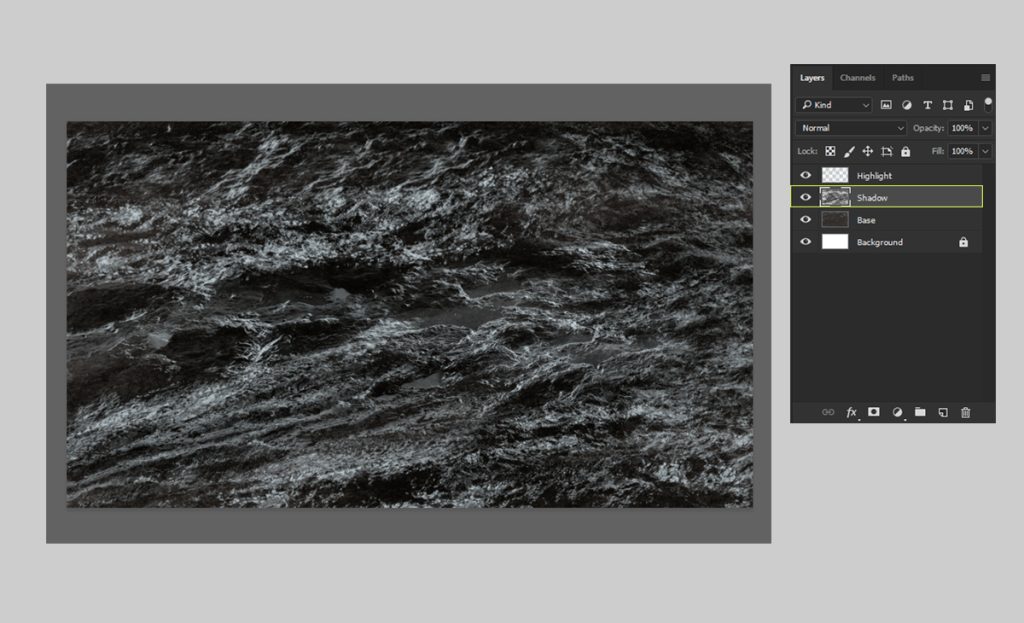
Paint “Shadow” #040301

This is the darkest color in the palette. You will use this color to paint the deepest and darkest parts of the mud, such as crevices, holes, or areas that are far from the light source. This step will make contrast and depth in your mud painting.

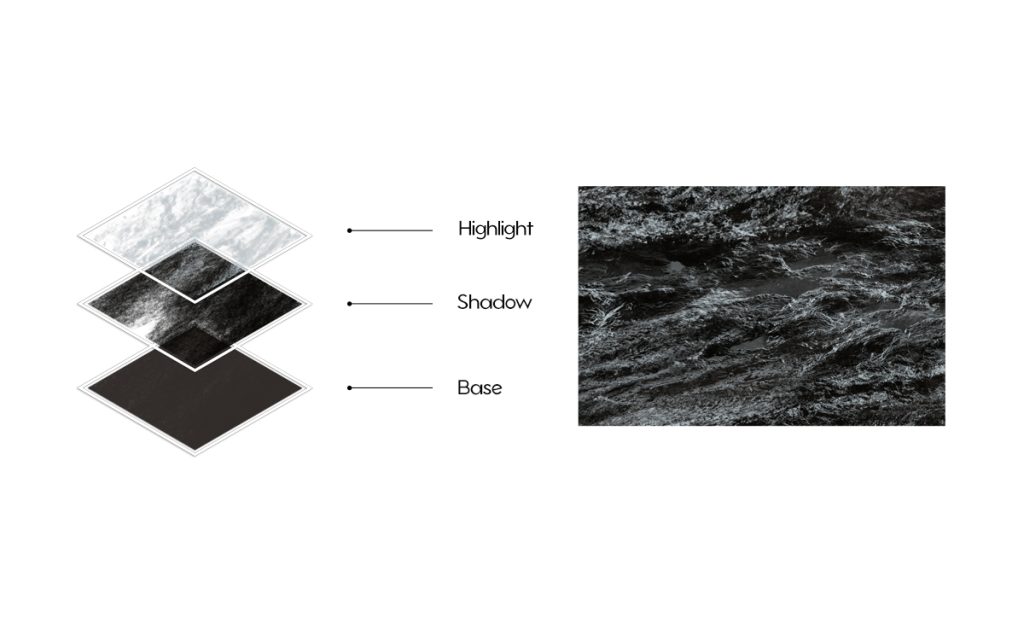
Note: Make sure that the dark colored layer (shadow) is under the light-colored layer (highlight) in the Layers panel.

paint mud Photoshop

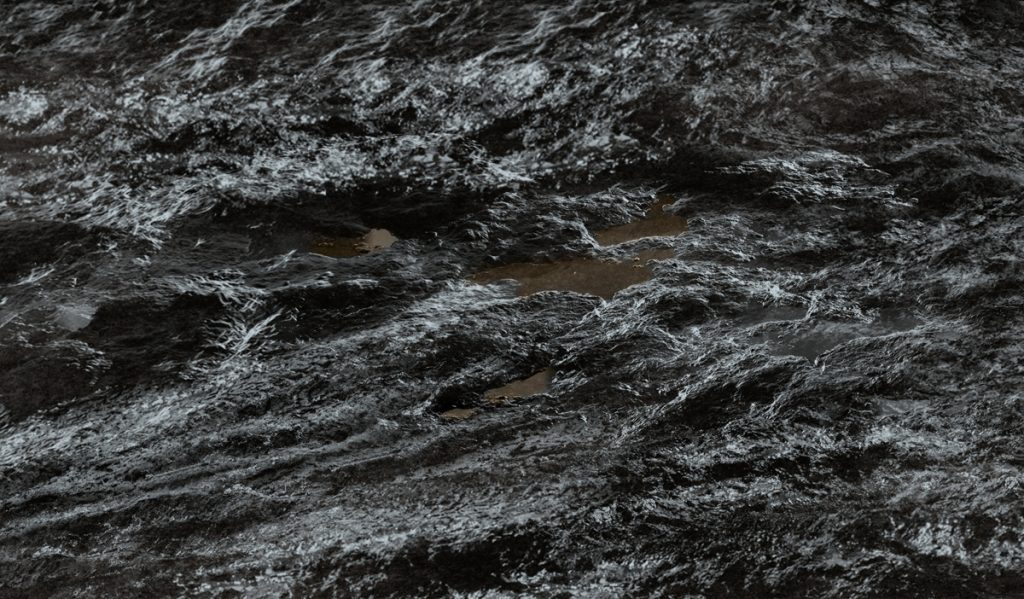
Arrange the layers to make your mud painting look realistic

paint mud

I hope this image inspires you to create your own mud paintings with Photoshop.

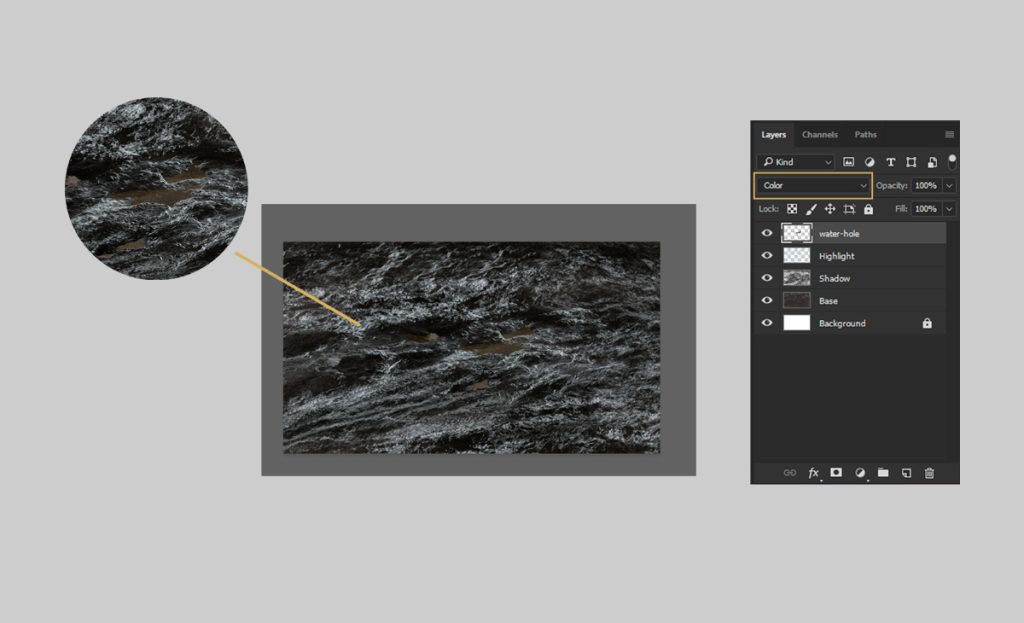
Step 5: Paint the mud hole

To paint the mud hole, you need to create a new layer and use a soft round brush with a Brown color #67573e

change the layer mode to color, go to the Layers panel and click on the drop-down menu.
Choose “Color” from the list

You have completed the tutorial on how to paint mud with Photoshop. You have learned how to use the mud brushes and the color palettes to create realistic and detailed mud effects. You have also learned how to paint a mud hole with a simple trick. You can use these techniques to create infinite scenes and scenarios with mud, such as swamps, deserts, battlefields, or anything else you can imagine.

paint mud

create an underwater scene in Photoshop

How to Make Realistic underwater in Photoshop

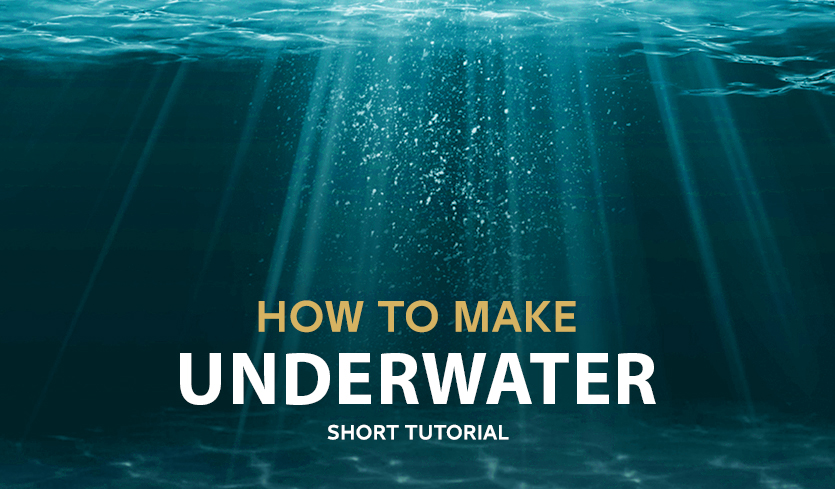
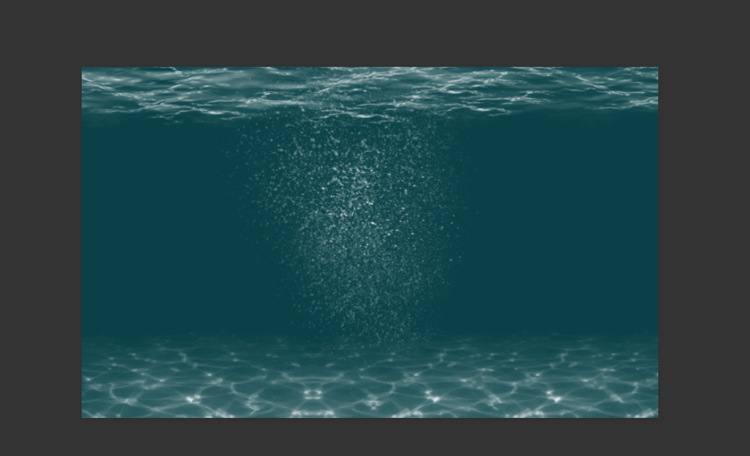
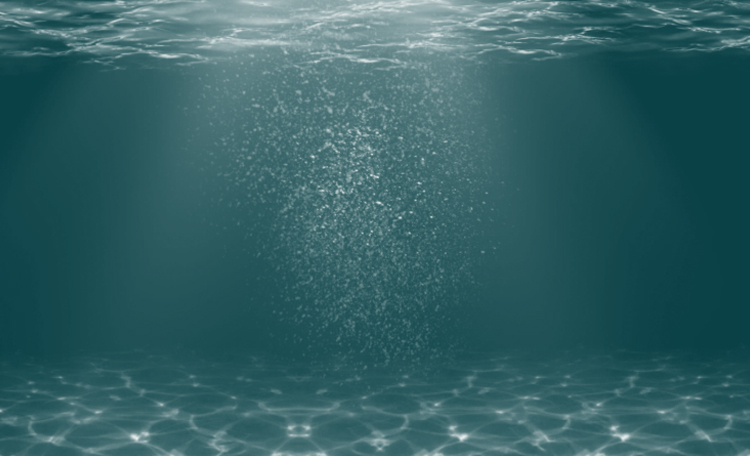
Create an Underwater Scene in Photoshop in this tutorial, you will learn how to create an underwater effect using Photoshop and my custom brushes. You will discover how to make realistic water effects, such as bubbles, reflections, and splashes. You will also learn how to add depth and atmosphere to your paintings by using color and lighting techniques. By the end of this tutorial, you will be able to create stunning underwater artworks with Photoshop and my brushes. You can apply this effect to any text or image you want to give it an amazing look. Let’s begin!

Tutorial Resources

Step 1

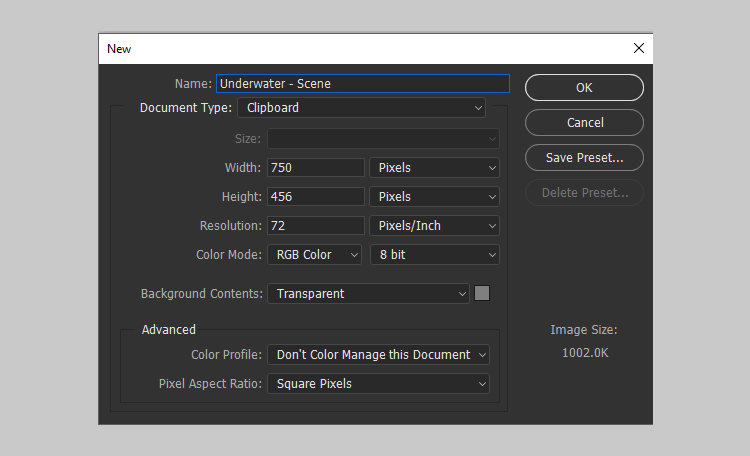
Create a new document in Photoshop with any size and orientation. You can use the same techniques for any canvas size.

For this example, I will use a 750 x 456 PX document with the settings below:

Step 2

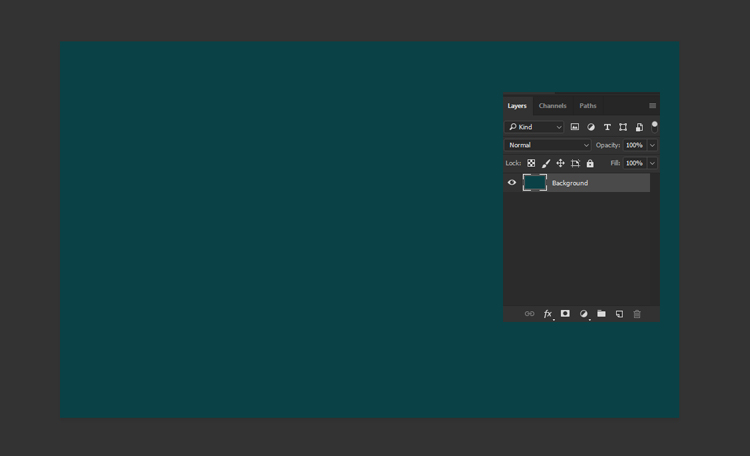
Create a new layer for the background and fill it with a green color #0a4146 using the Paint Bucket Tool (G). This will be the base color of the water.

Step 3

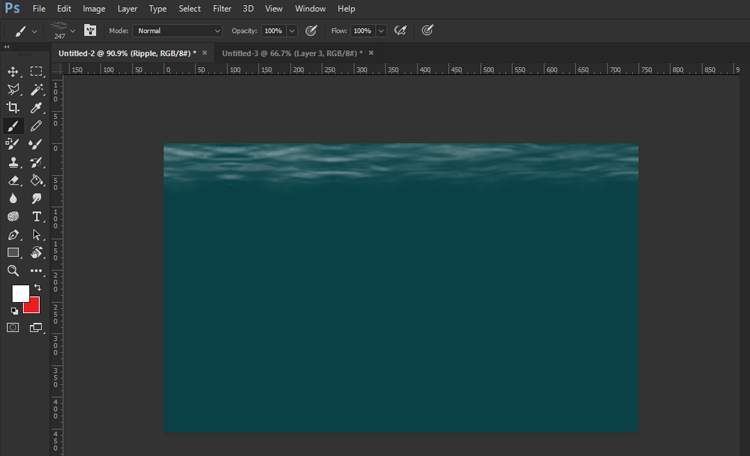
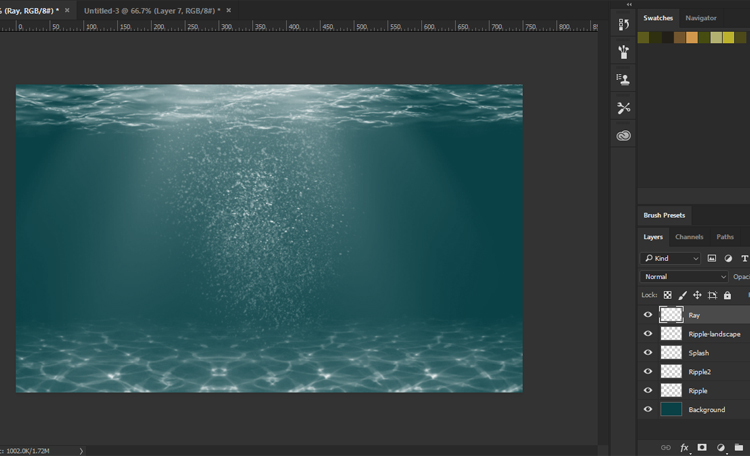
Next, you will create the top of the water using this Ocean Brush (you can find this brush and others in the underwater brushes pack). Create a new layer and name it Ripple. Paint the top of the water with a white color #ffffff using the Ocean Brush. Follow the direction of the waves as you paint.

Step 4

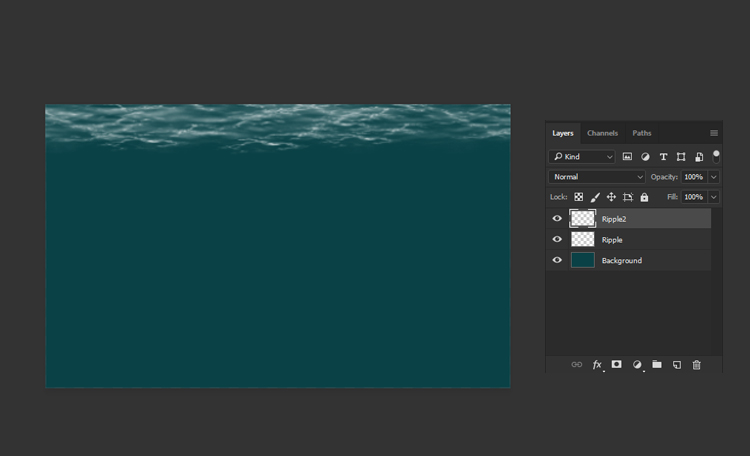
Create another layer and name it Ripple2. Place it above all the other layers. Use this brush to add some ripples to the water surface with a white color #ffffff. This will create a glowing effect for more realism.

Step 5

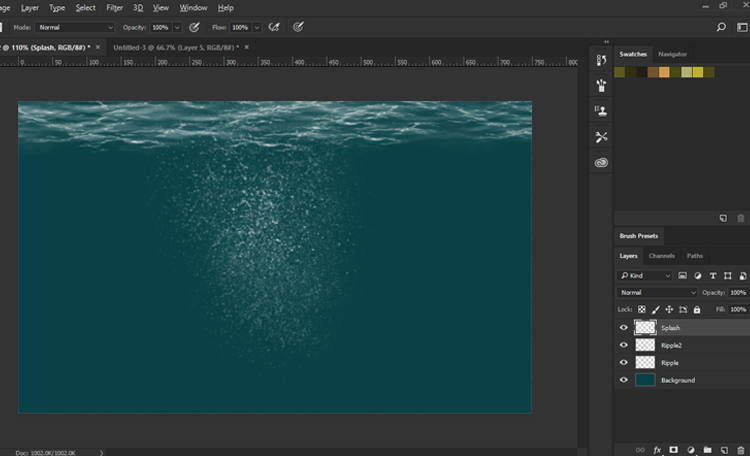
Now, you will create some splash water effects in Photoshop. Create a new layer and name it Splash. Use this Splash Brush to paint some falling water splashes with a white color #ffffff. You can vary the size and opacity of the brush to create different effects.

Step 6

Next, you will create the bottom of the water surface using this brush. Create a new layer and paint it with a white color #ffffff

This will create some highlights and reflections on the water.

Step 7

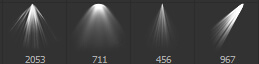
Finally, you will add some light rays to the underwater scene using this Light Brush. You will get 5 different brushes in the pack. You can use any of them. Create a new layer and paint some light rays with a white color #ffffff. You can adjust the size, opacity, and angle of the brush to create different effects.

Congratulations, You’re Done!

I hope you’ve enjoyed this tutorial and learned some new techniques. Enjoy!