How to Change Brush Size in Photoshop
Changing the brush size and hardness quickly can significantly enhance your workflow in Photoshop.
Using shortcuts allows you to adjust these settings without interrupting your creative process.
Additionally, Photoshop brushes are often saved in .abr file formats, which contain custom brushes that you can import and use for your projects.
In this tutorial, we’ll walk you through the most effective methods to change brush size and hardness using shortcuts.
(Insert an image showcasing the brush tool in Photoshop)
Changing Brush Size and Hardness: Normal Methods
Before we dive into shortcuts, let’s look at the traditional methods of changing brush size and hardness.
Access the Brush Panel: Click on the brush icon in the toolbar or press B to select the brush tool.

Now you can change the brush size manually in two ways: by dragging the slider, or by typing the number.
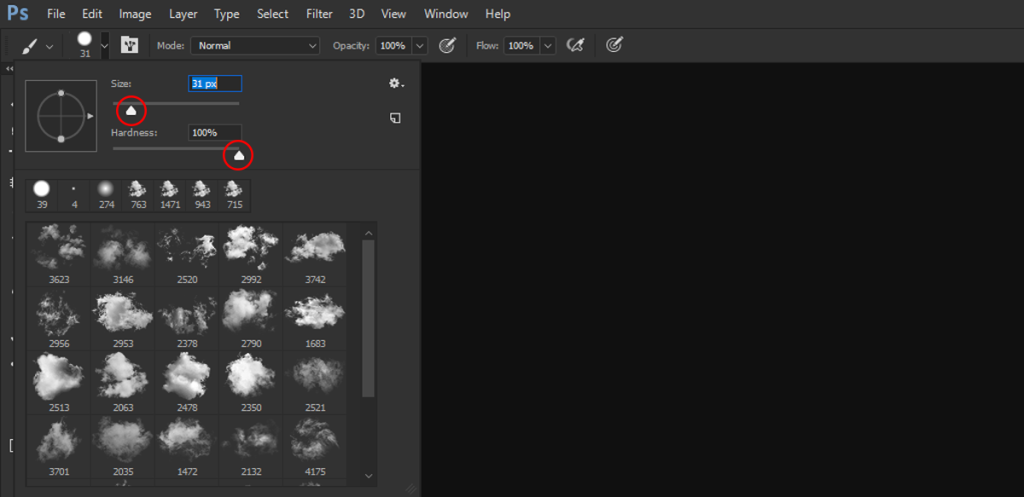
Open Brush Settings: Click on the dropdown menu next to the brush icon in the options bar at the top.

You can also change the brush size the same way in the Brushes panel.
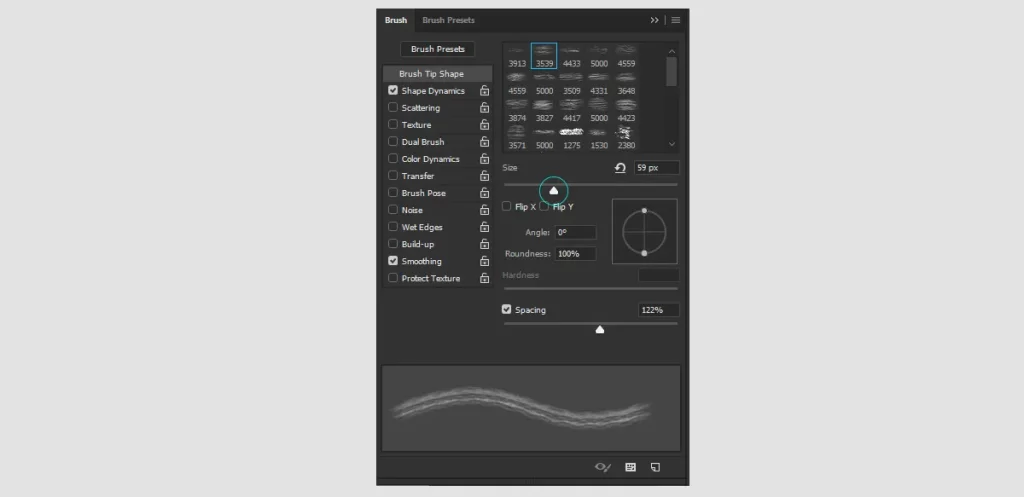
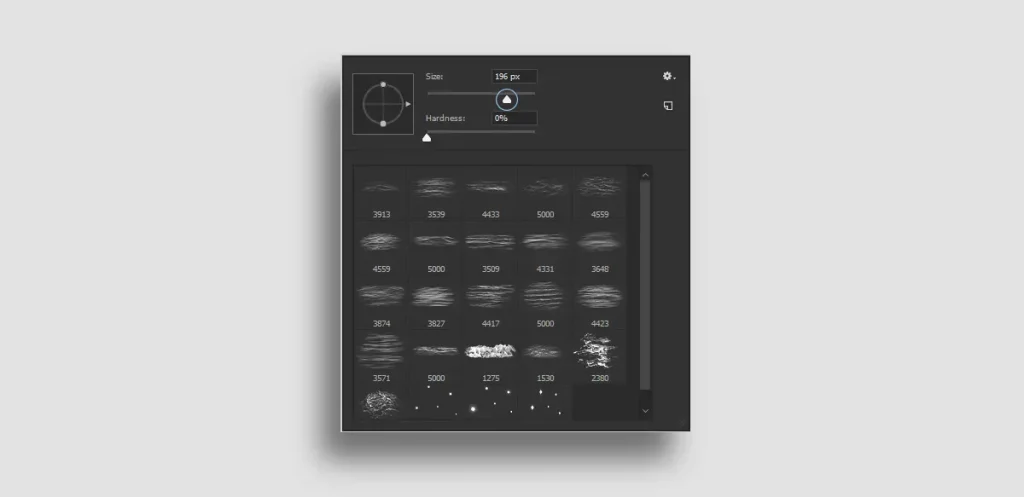
Adjust Brush Size: Use the slider under “Size” to increase or decrease the brush size.
Adjust Brush Hardness: Use the slider under “Hardness” to control the softness or hardness of the brush edges.
Method 1: Using Bracket Keys
How to Change Brush Size in Photoshop using shortcuts.
The simplest way to adjust your brush size is by using the bracket keys on your keyboard.
- Increase Brush Size: Press the right bracket key
]to make your brush larger. - Decrease Brush Size: Press the left bracket key
[to make your brush smaller.

Method 2: Using the Mouse or Trackpad (HUD)
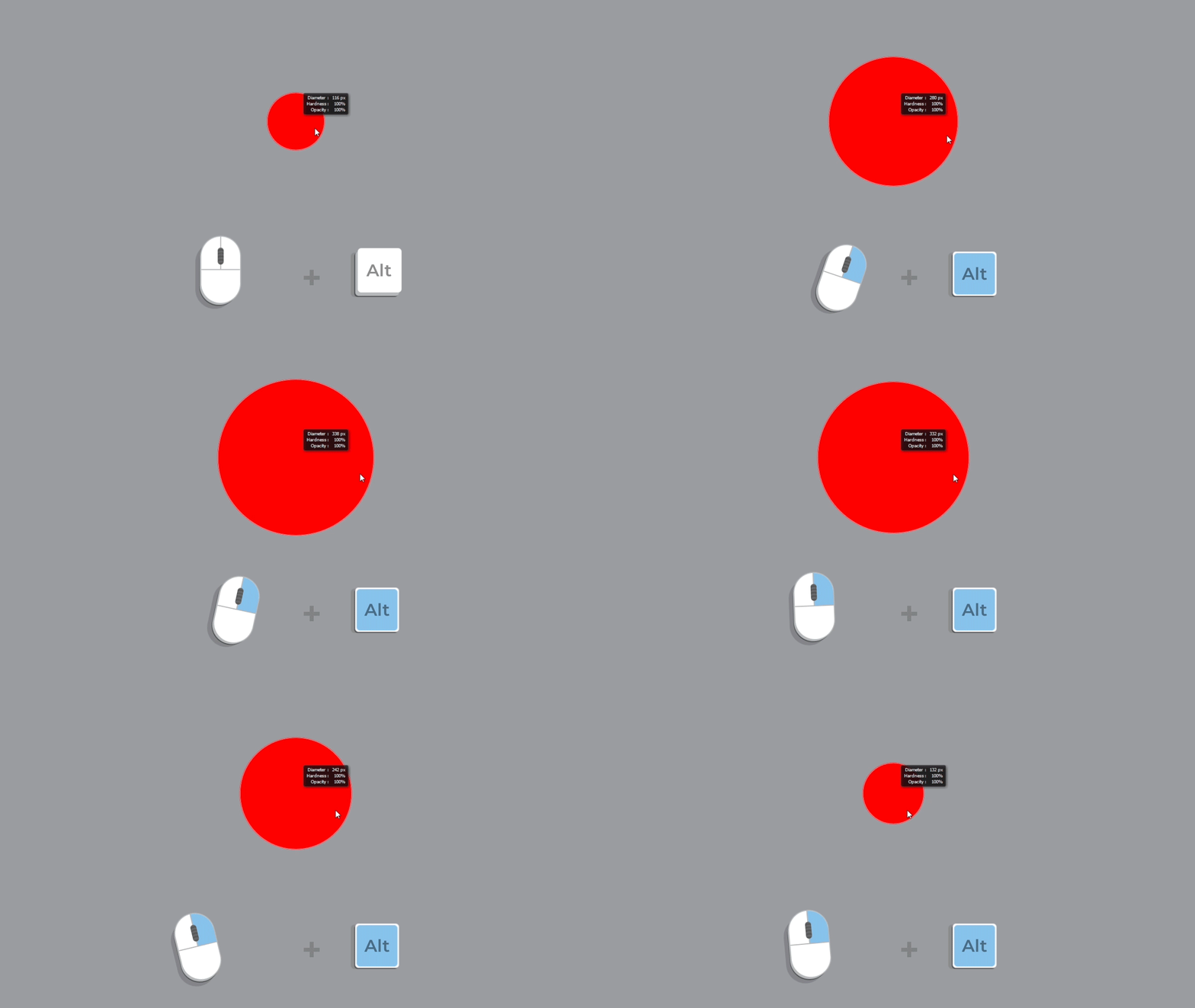
Photoshop also offers a heads-up display (HUD) for changing brush size with a mouse or trackpad.
- Activate the Brush Tool: Press
Bto select the brush tool. - HUD Controls:
- On Windows: Hold
Alt + Right Click(then drag left/right to change size). - On Mac: Hold
Control + Option(then drag left/right to change size).
- On Windows: Hold
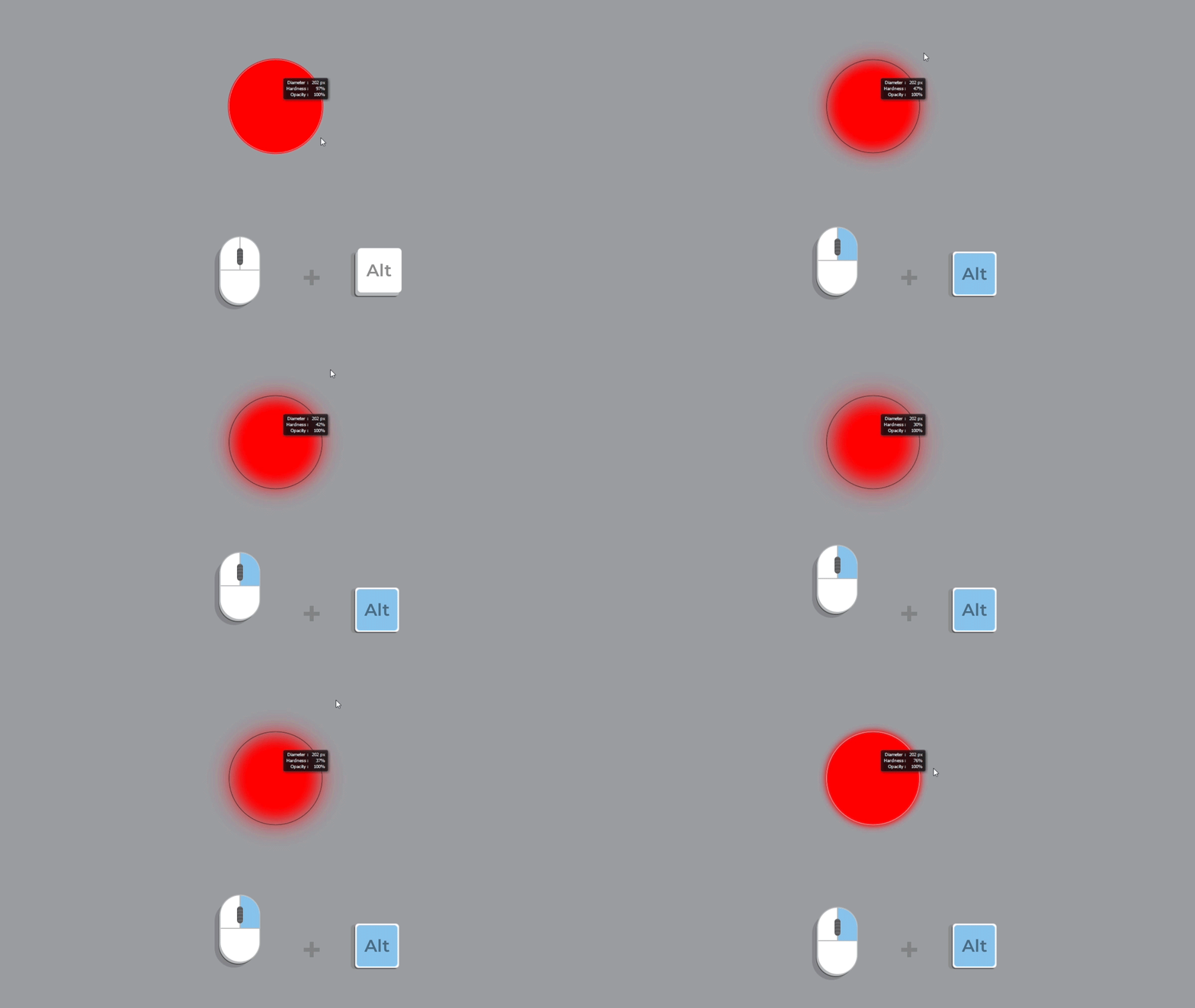
On Windows: Hold Alt + Right Click and drag up/down to change the brush hardness.
On Mac: Hold Control + Option and drag up/down to change the brush hardness.
Method 3: Using Keyboard Shortcuts for Precision
For more precise control, you can use these keyboard shortcuts:
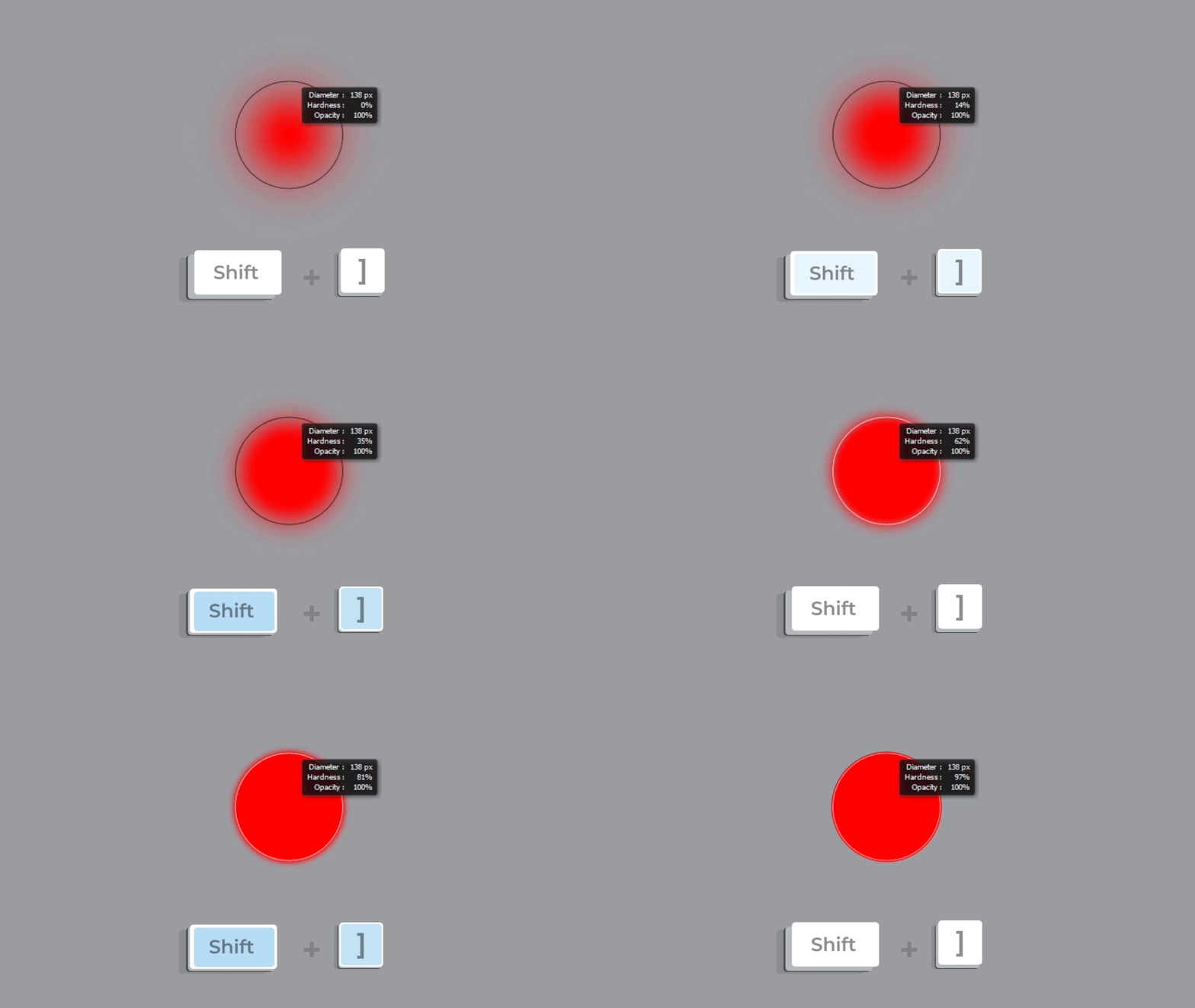
- Change Brush Size Gradually:
- Increase Size: Press
Shift + ]
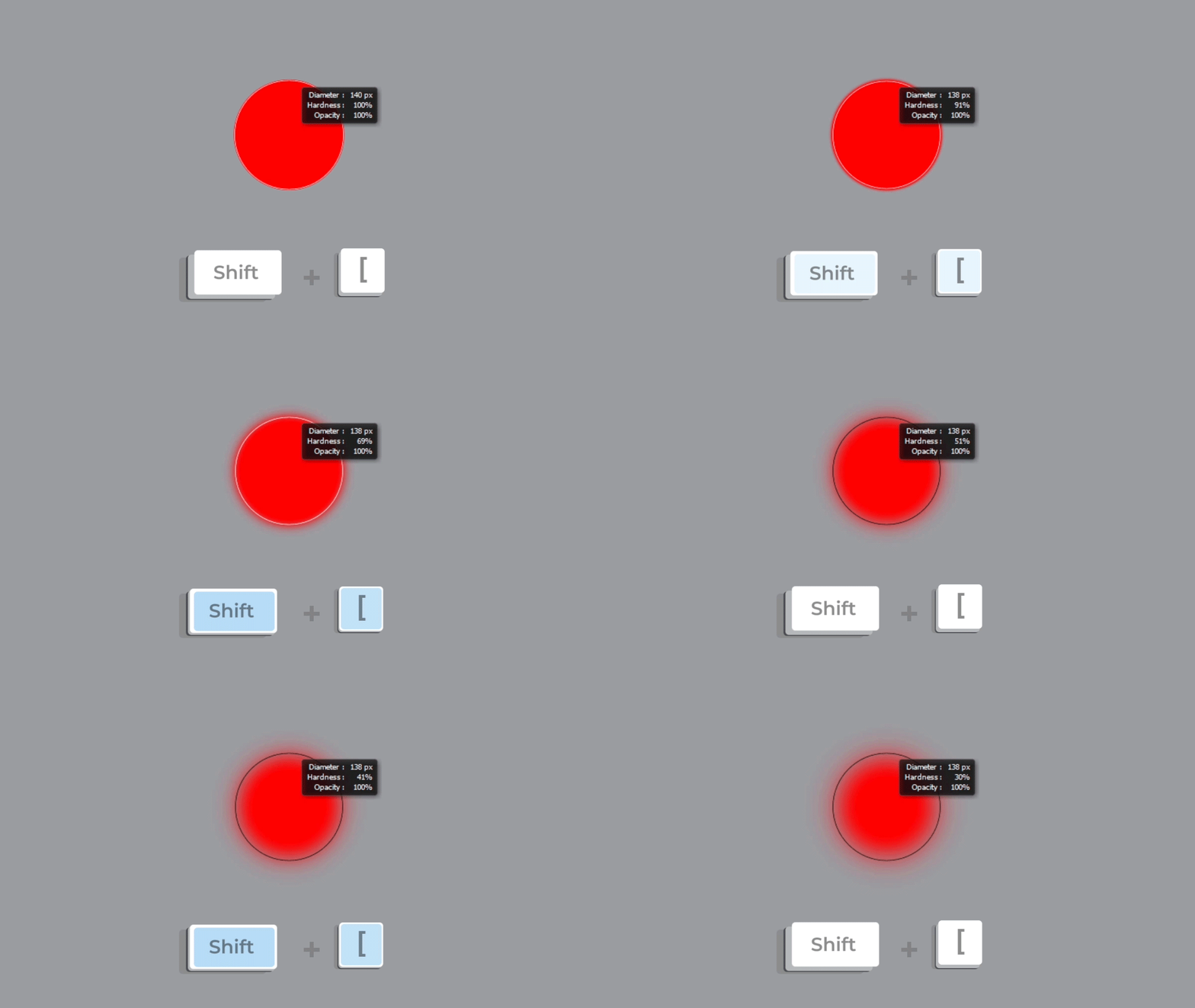
- Increase Size: Press
Decrease Size: Press Shift + [
Wrap-Up
Adjusting brush size and hardness in Photoshop efficiently can revolutionize your creative workflow.
Whether you’re using shortcuts or traditional methods, staying in the zone is key.
Explore our brushes to take your art to the next level.
Dive into a world of endless possibilities and let your creativity shine!