An ABR file is a brush file used primarily in Adobe Photoshop. These files contain various brush presets, which can include shapes, textures, and dynamics, allowing digital artists to create stunning effects with ease. In this article, we will explore what an ABR file is and how to open it in different image editing software, including Adobe Photoshop, Procreate, Photopea, GIMP, and Affinity Photo.
What Is an ABR File?
ABR stands for Adobe Brush. It is a file format created by Adobe to store brush presets for Photoshop. These files can contain a variety of brush tips, from simple shapes to complex textures, enabling artists to paint with different styles and effects. The flexibility of ABR files makes them a favorite among digital artists and designers.
How to Open an ABR File
Opening an ABR file can vary depending on the software you are using. Below, we’ll cover how to open ABR files in several popular image editing programs.
1. Adobe Photoshop
Adobe Photoshop is the native application for ABR files. To install brushes in Photoshop:
- Open Photoshop.
- Go to the Brushes panel.
- Click on the Settings icon and select Import Brushes.
- Navigate to your ABR file and select it.
- The brushes will appear in your Brushes panel.
For a detailed guide, check out our article on How to Install Brushes in Adobe Photoshop.
2. Photopea
Photopea is an online image editor that works much like Photoshop and also supports ABR files:
- Open Photopea in your web browser.
- Go to the Edit menu and select Import Brushes.
- Upload your ABR file.
- The brushes will be available for use in the brush panel.
3. Procreate
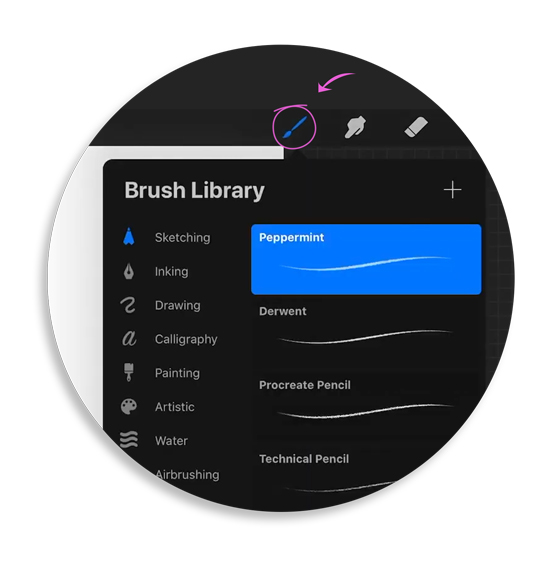
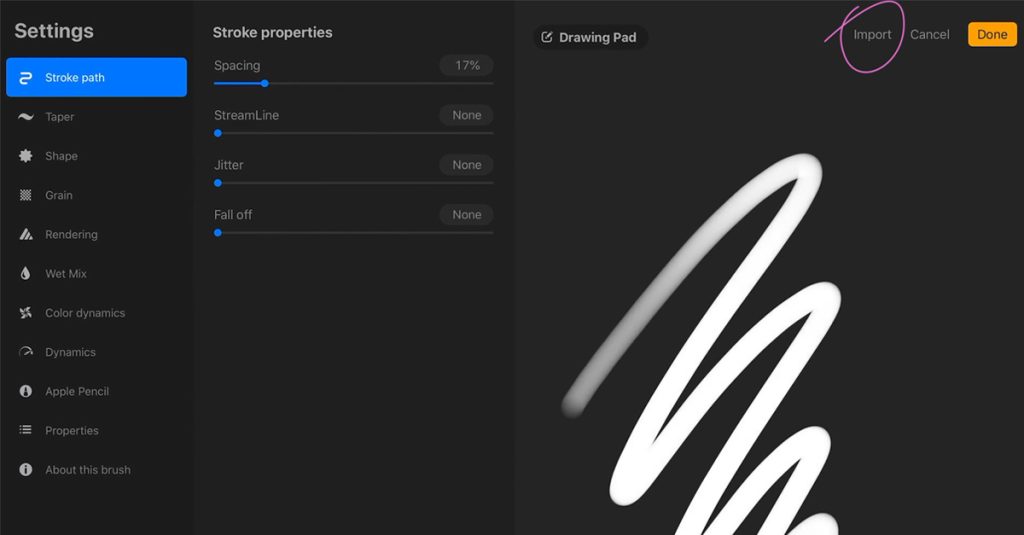
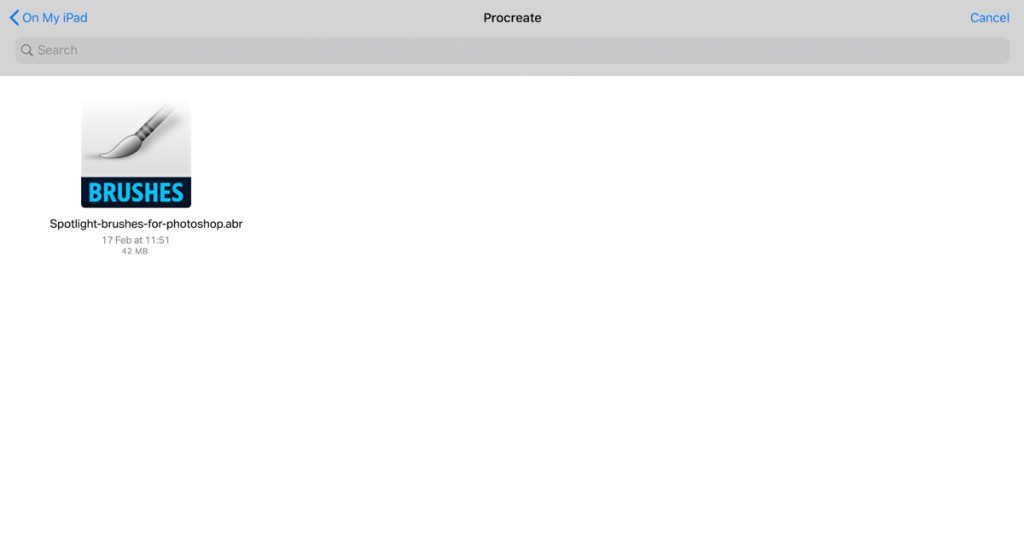
Procreate, a popular iPad drawing app, also supports ABR brushes. To import ABR brushes into Procreate:
- Download the ABR brush file to your iPad or a cloud storage service.
- Open Procreate and create a new canvas.
- Tap the Brush icon to open the Brush Library.
- Create a new brush set by tapping the + symbol at the top right corner.
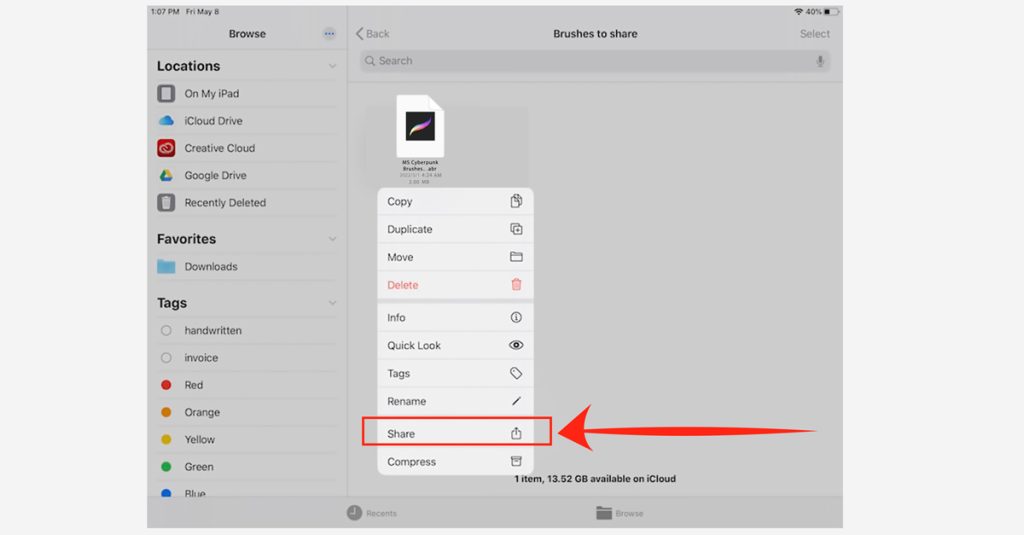
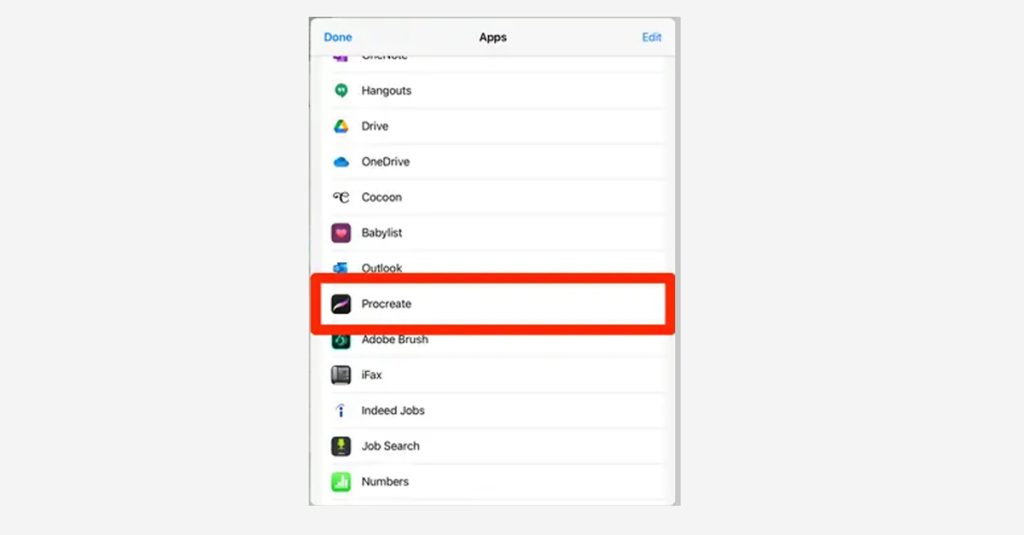
- Hold your finger on the ABR file and select Share, then choose Procreate from the list of apps.
- The brushes will be imported into your new brush set in Procreate.
For more details, refer to our article on How to Install Brushes in Procreate.
4. GIMP
GIMP is a powerful, open-source image editor that also supports ABR files. To install brushes in GIMP:
- Open GIMP and go to Edit > Preferences.
- Navigate to Folders > Brushes and note the directory path.
- Copy your ABR file to the GIMP Brushes folder.
- Refresh the Brushes panel in GIMP.
- Open Affinity Photo.
- Go to the Brushes panel.
- Click on the Menu icon and select Import Brushes.
- Navigate to and select your ABR file.
For more details, refer to our article on How to Install Brushes in GIMP.
5. Affinity Photo
Affinity Photo is another popular image editing software that supports ABR files. To import brushes into Affinity Photo:
For a detailed guide, check out our article on How to Install Brushes in Affinity Photo.