“A luminous tree rises above the clouds—its branches glowing as a bird drifts through the endless sky of wonder.”
Tag: tree
Moonbeam

“A golden tree shines in the dark—its radiant branches guiding a wanderer toward peace and enlightenment.”
Symphony III

“In a forest of shadows, a crescent moon rests upon the earth—its light releasing golden birds, while a lone figure with a guitar listens to the night’s final song.”
How to paint tree trunk in photoshop
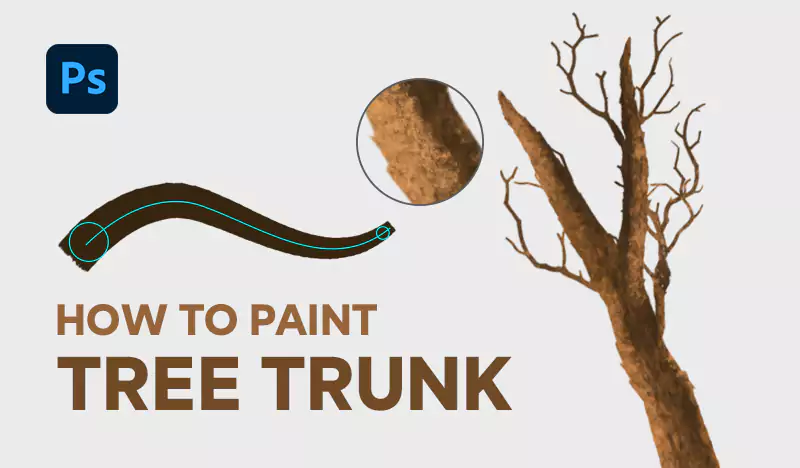
Introduction In this tutorial, we will guide you through the process of painting a realistic tree trunk using our specialized foliage brush pack. These brushes are designed to create authentic textures, helping you achieve stunning results with ease. Whether you’re enhancing a digital forest or adding a single tree to your artwork, this guide will ensure your tree trunk looks lifelike and detailed.
Tutorial Assets
Step 1: Painting the Tree Trunk
start by selecting the tree trunk brush from the foliage brush pack
To use the brushes, you need to load them into Photoshop first.
The difference between the two brushes lies in the edges of the resulting tree trunk: one brush produces softer edges, while the other creates more defined edges.


This brush is designed to create a faded effect, mimicking the natural texture of a real tree trunk. As you start painting, you will notice the brush blends seamlessly, providing a realistic base layer for your tree.


Step 2: Drawing Sub-Trunks
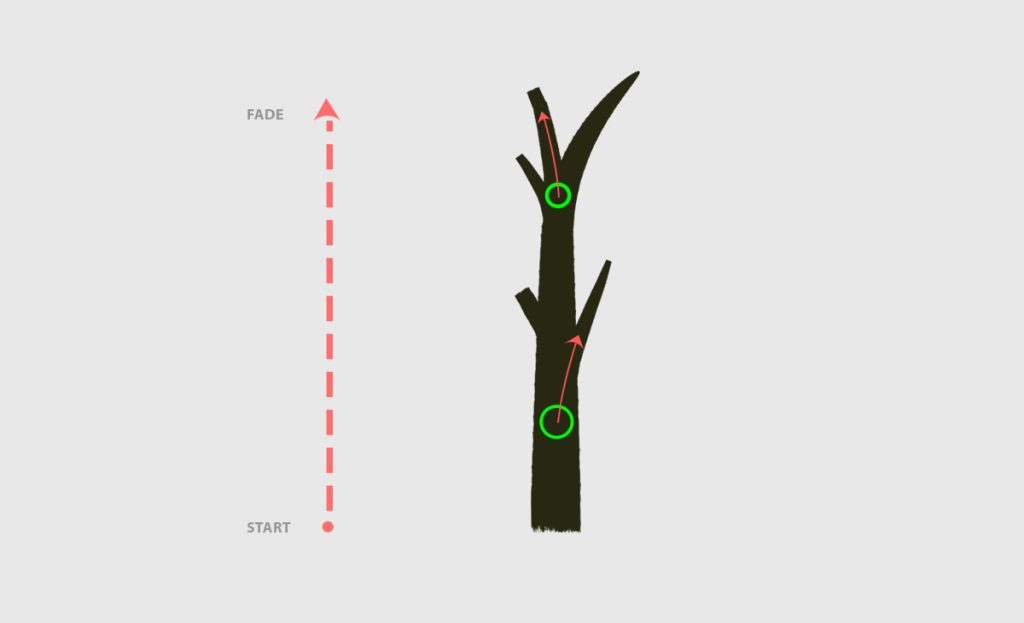
- Keep the same brush to draw the sub-trunks of the tree.
- When you want to create a smaller trunk, start at the bottom of the tree, as shown in the green circle. This technique works realistically since trees grow from the bottom up.
Step 3: Drawing Tree Branches
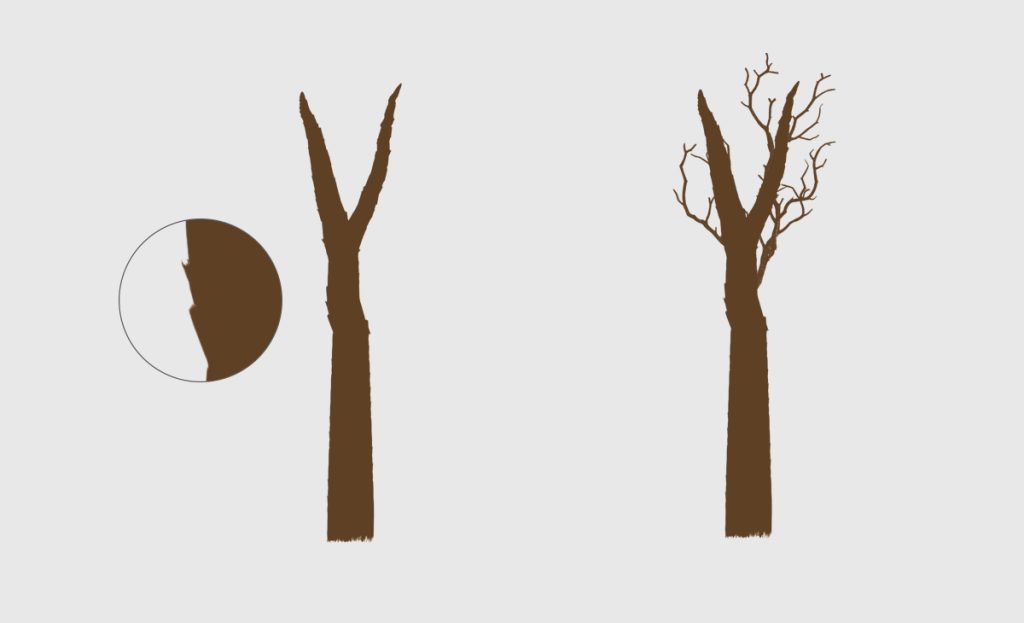
At this point, we’re going to draw the branches. Use any of the brushes from the foliage brush pack to create them.
Just practice with these brushes; they are designed to be easy to use.
Keep the same color as the tree trunk to ensure consistency.
Notice that the dark color should be under the texture layer to add depth and realism to your branches.


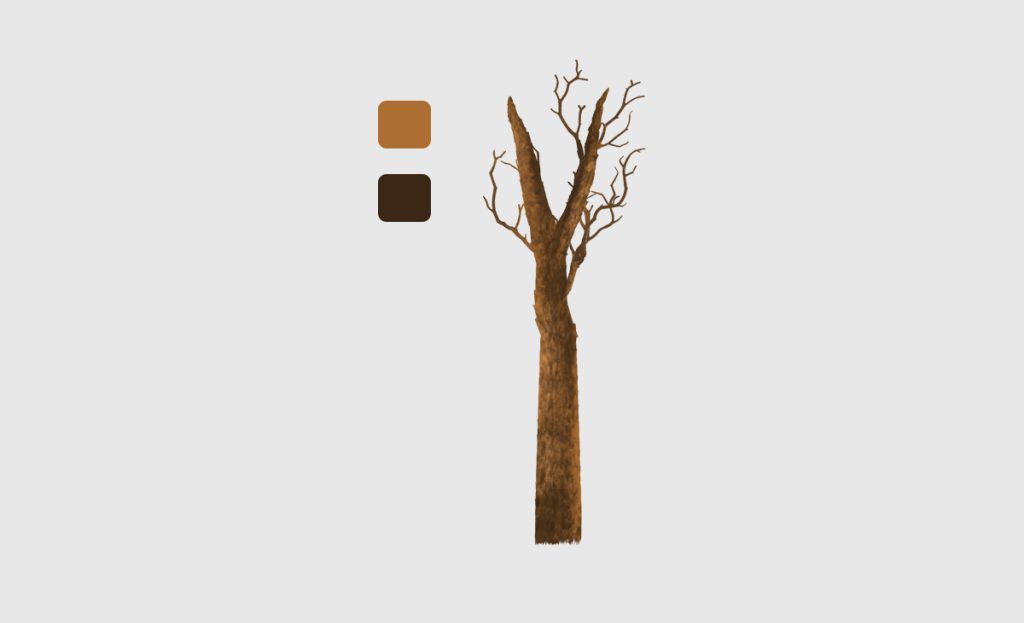
write step 4 : paint tree trunk texture use tree trunk texture brushes and 3a2715 for dark colors and ac6e33 for light color a
Here’s the next step for painting tree trunk texture:
Step 4: Painting Tree Trunk Texture
- Use the tree trunk texture brushes from your foliage brush pack to add detailed textures to the trunk.
- For the dark areas, select the color
#3a2715. This will add depth and shadow to the trunk. - For the lighter areas, use the color
#ac6e33. This will highlight the raised parts of the texture, adding a realistic effect. - Carefully apply the texture, blending the dark and light colors to mimic the natural variations found in real tree bark.
Step 5: Adding Foliage
- To complete your tree, you’ll want to add foliage to your branches.
- For detailed instructions on how to paint realistic foliage, please read our comprehensive article on How to Paint Realistic Foliage in Photoshop Using Custom Brushes.
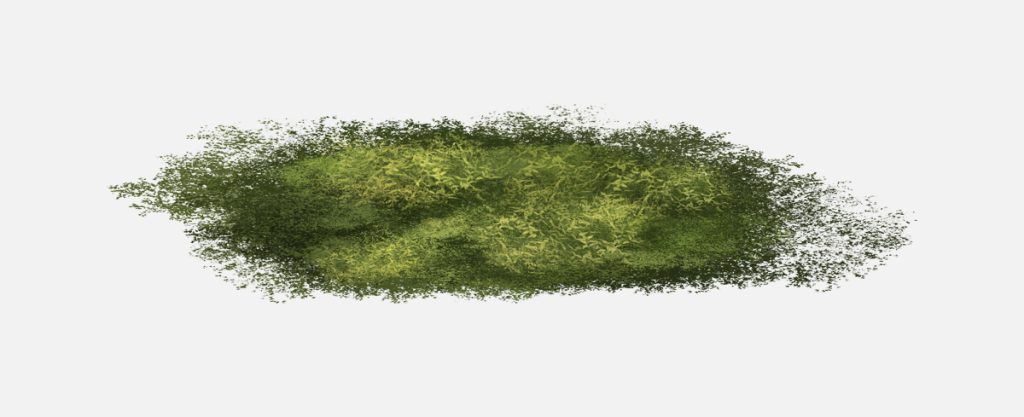
How to paint foliage in photoshop
How to paint foliage in photoshop
Creating realistic foliage in Photoshop can significantly enhance the depth and vibrancy of your digital artwork. This tutorial will guide you through the process, step by step, using custom brushes designed specifically for painting foliage. Whether you’re just starting out or looking to refine your skills, this guide will help you achieve stunning results.
Before you begin, ensure you have the following:
- Adobe Photoshop installed
- Custom foliage brush set (download our specialized set here)
Selecting the Right Brushes
Using the right brushes is crucial for creating realistic foliage:
- Open the Brushes panel and import brushes.
Choosing Colors
Choosing the right colors is essential for a natural look. Here’s a suggested palette:
- Leaf Base Color:
#2E8B57 - Leaf Highlight Color:
#76C84E - Leaf Shadow Color:
#154734
To use the brushes, you need to load them into Photoshop.
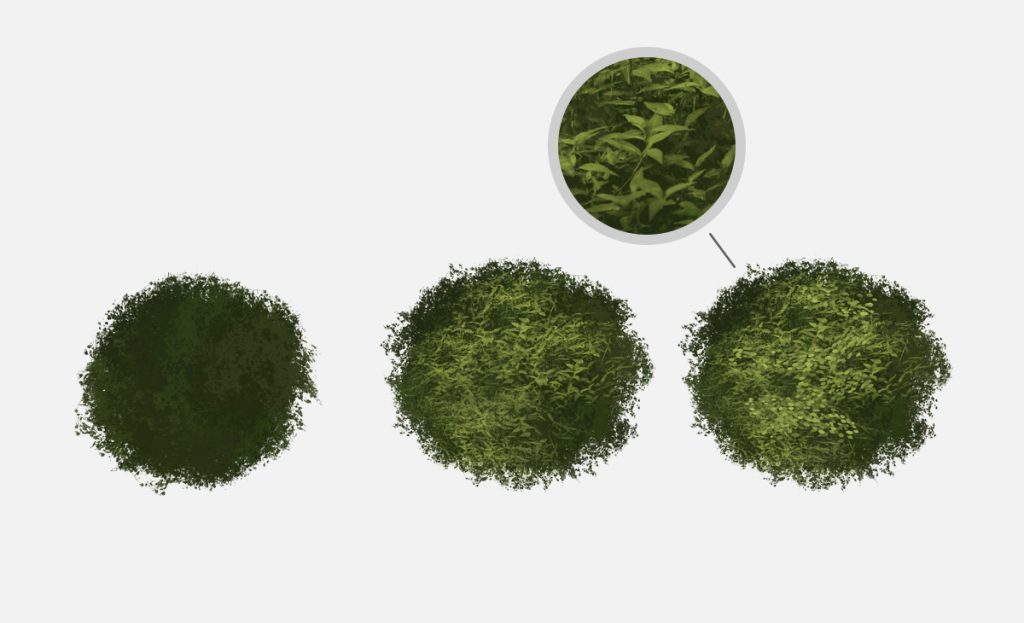
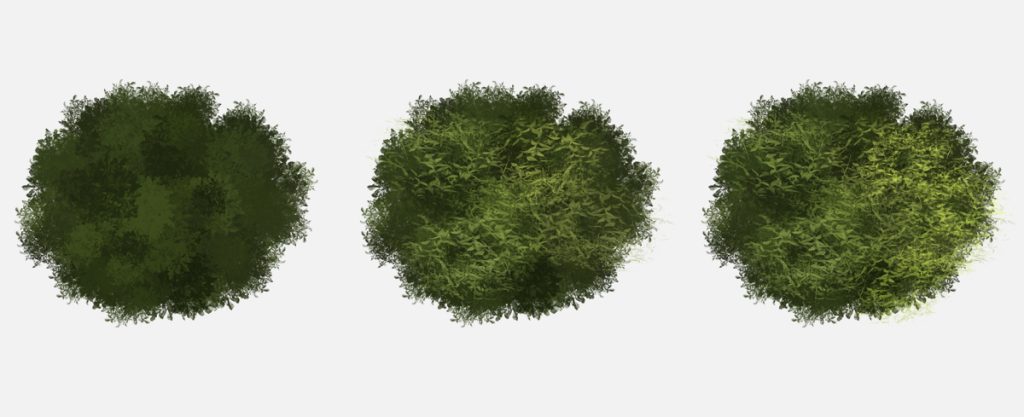
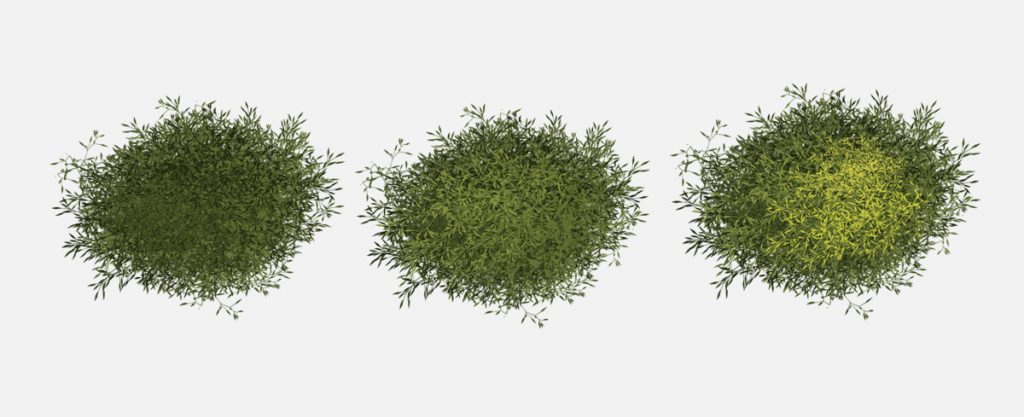
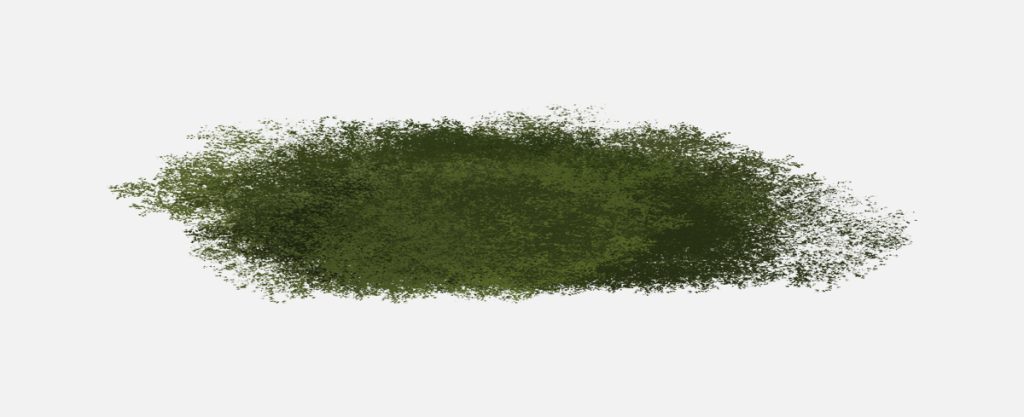
In this package, you will find a set of tree brushes designed to help you paint foliage just the way you envision it
Using these brushes, you can paint with two colors: a foreground color and a background color.
Start by setting the darker color as the foreground color for your initial painting.
Then, switch to the lighter color as the foreground color by pressing ‘X’ in Photoshop and painting Leaves for added depth and realism.