

“A towering lattice rises in the night—its form echoing Egypt’s pigeon coops, where geometry and tradition meet in quiet majesty.”
Tag: grass
Hypnogate

“A radiant gate opens in the night—its light pulling the soul toward dreams beyond the veil.”
How to paint foliage in photoshop
How to paint foliage in photoshop
Creating realistic foliage in Photoshop can significantly enhance the depth and vibrancy of your digital artwork. This tutorial will guide you through the process, step by step, using custom brushes designed specifically for painting foliage. Whether you’re just starting out or looking to refine your skills, this guide will help you achieve stunning results.
Before you begin, ensure you have the following:
- Adobe Photoshop installed
- Custom foliage brush set (download our specialized set here)
Selecting the Right Brushes
Using the right brushes is crucial for creating realistic foliage:
- Open the Brushes panel and import brushes.
Choosing Colors
Choosing the right colors is essential for a natural look. Here’s a suggested palette:
- Leaf Base Color:
#2E8B57 - Leaf Highlight Color:
#76C84E - Leaf Shadow Color:
#154734
To use the brushes, you need to load them into Photoshop.
In this package, you will find a set of tree brushes designed to help you paint foliage just the way you envision it
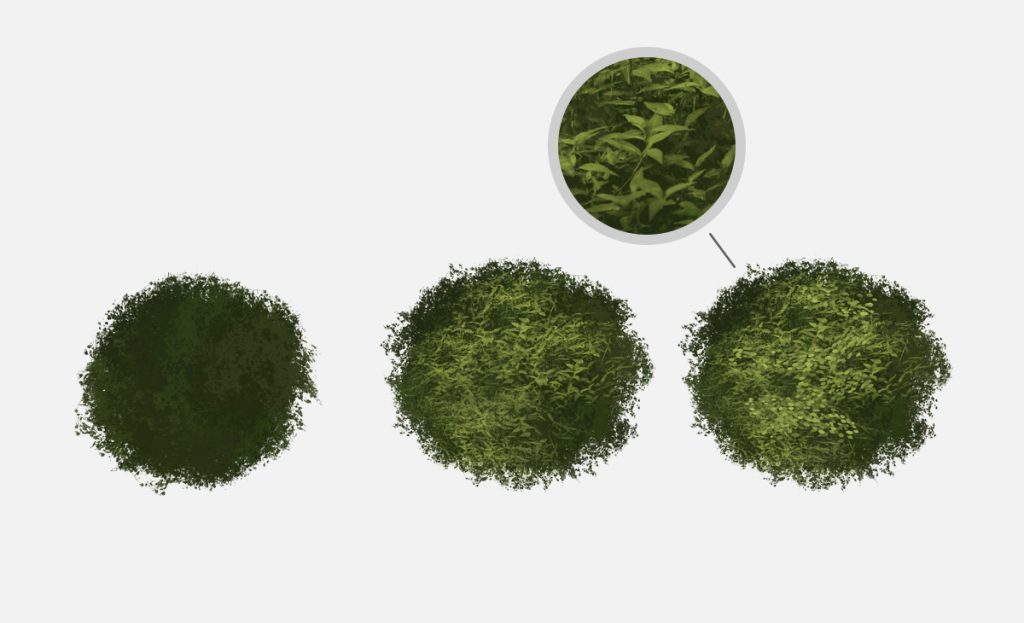
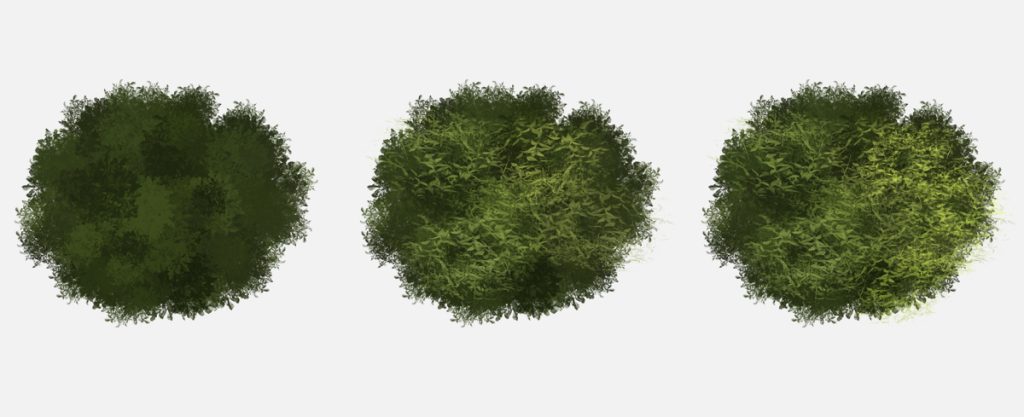
Using these brushes, you can paint with two colors: a foreground color and a background color.
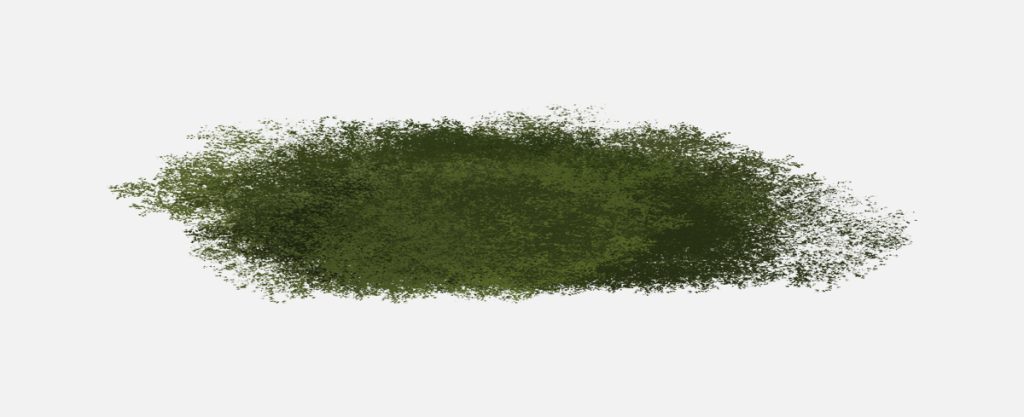
Start by setting the darker color as the foreground color for your initial painting.
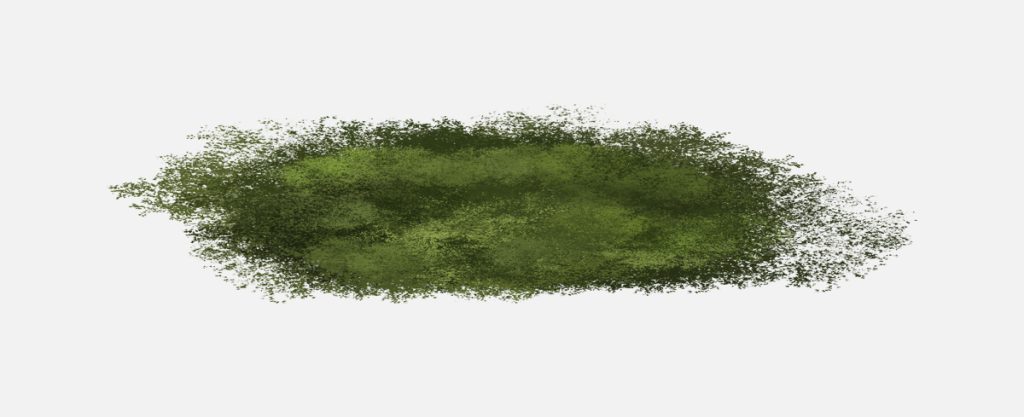
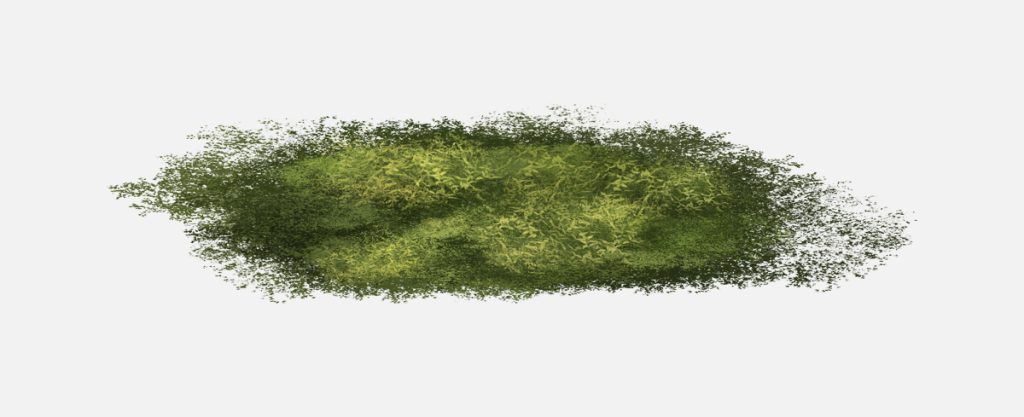
Then, switch to the lighter color as the foreground color by pressing ‘X’ in Photoshop and painting Leaves for added depth and realism.


How to Paint Realistic Grass in Photoshop
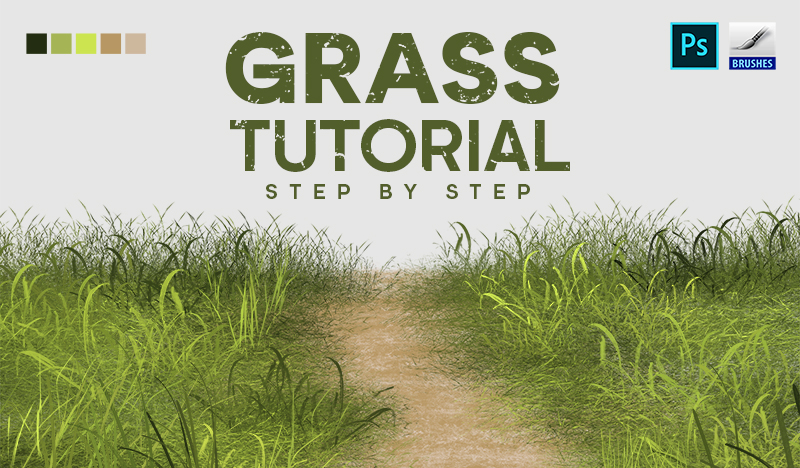
Introduction Grass tutorial Photoshop can add depth and realism to your digital artwork. In this tutorial, we’ll guide you through the steps to paint grass using custom brushes
Tutorial Assets
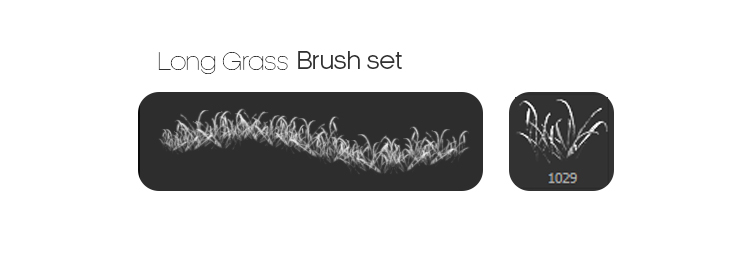
- Grass Brushes: Download our specialized brush set here for the perfect tools to create lifelike grass textures.
Step 1: Selecting the Color of Grass
Begin by choosing the appropriate colors for your grass. Here’s the palette used in this tutorial:
- Shadow Color:
#232d11 - Base Color:
#a5b555 - Highlight Color:
#cbe450
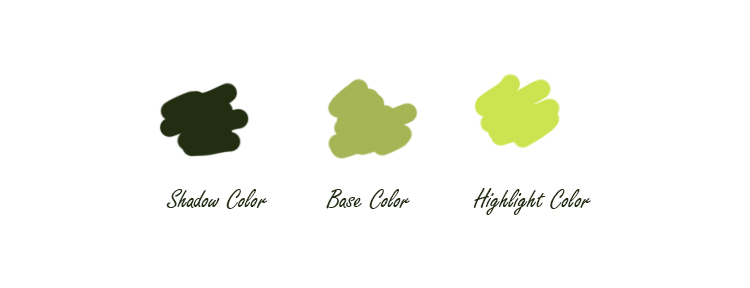
Selecting the right colors is essential to achieving a realistic look. Start with a base color that represents the overall tone of your grass. Use lighter shades for highlights and darker shades for shadows to add depth and dimension.
To use the brushes, you need to load them into Photoshop first, you need to create a new layer above the background layer.
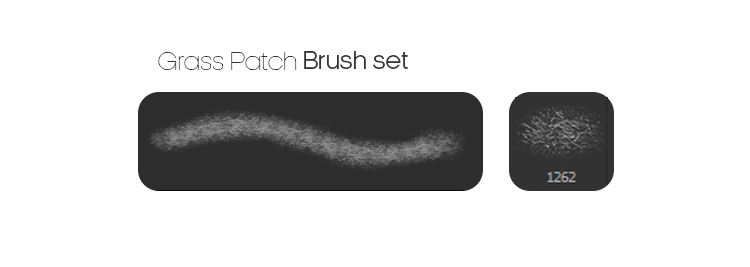
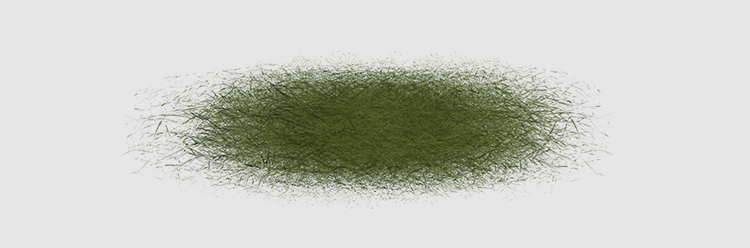
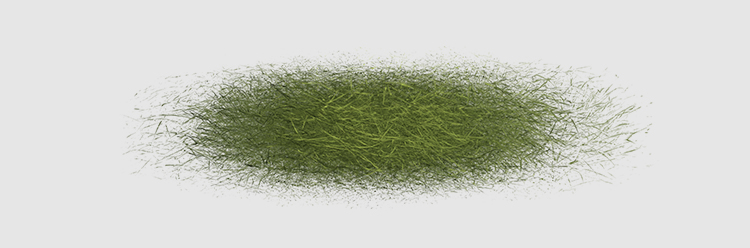
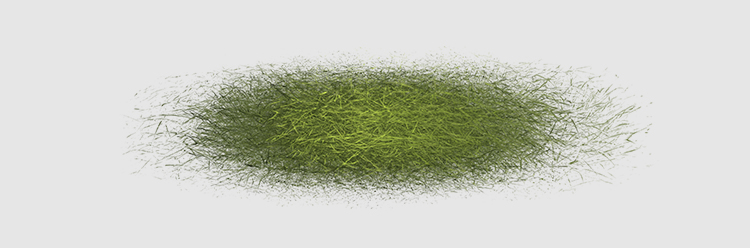
Step 2: Selecting the Color of Grass
First, create a new document in Photoshop by pressing Ctrl + N or navigating to File > New. Set the dimensions to 5000 x 3000 pixels at 300 dpi to ensure high-quality output.
Next, choose the appropriate colors for your grass. Here’s the palette used in this tutorial:
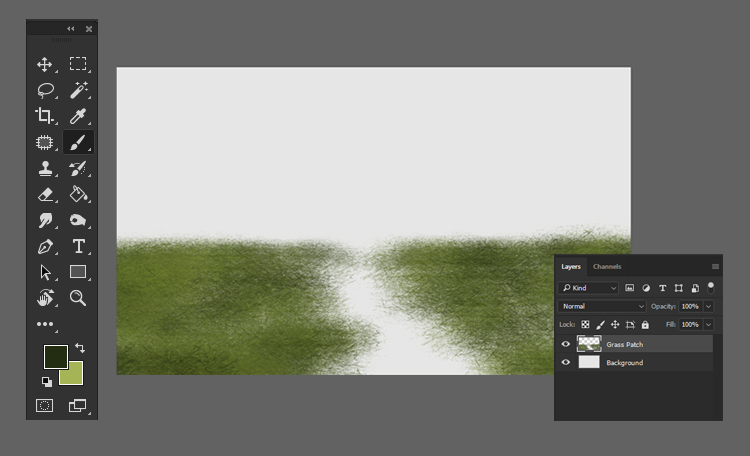
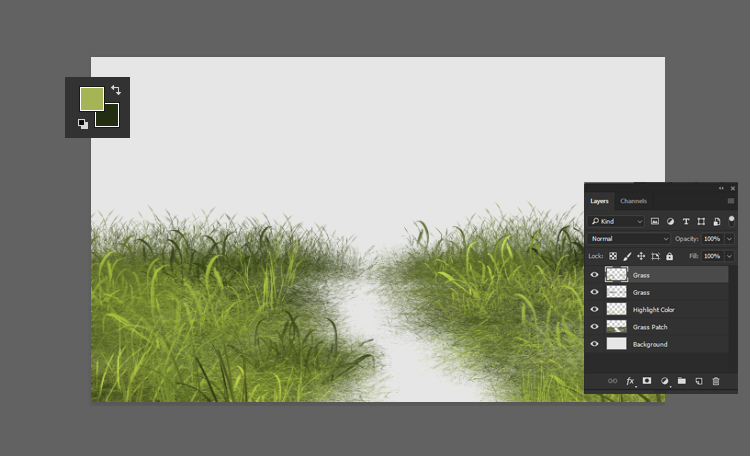
Set the base color as your background color and the Shadow color as your foreground color.
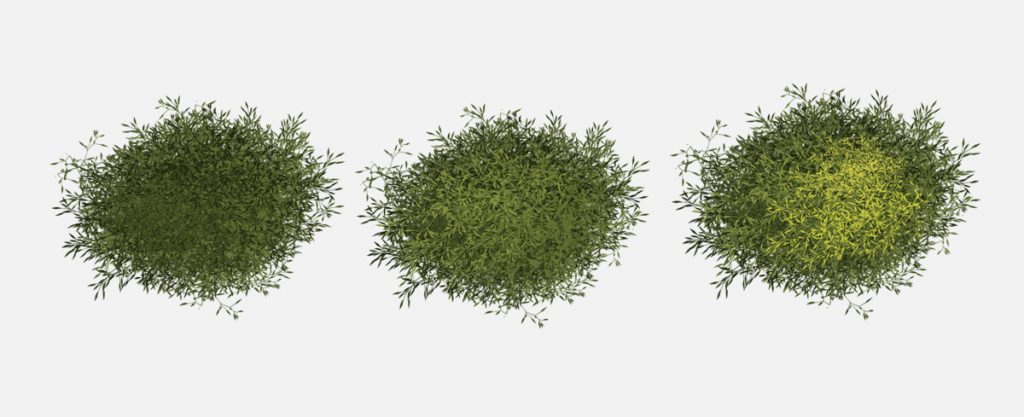
Using the custom grass brushes, paint a patch of grass. Start with the Shadow color, then add the highlight color to create variations.
Step 3: Paint Long Grass
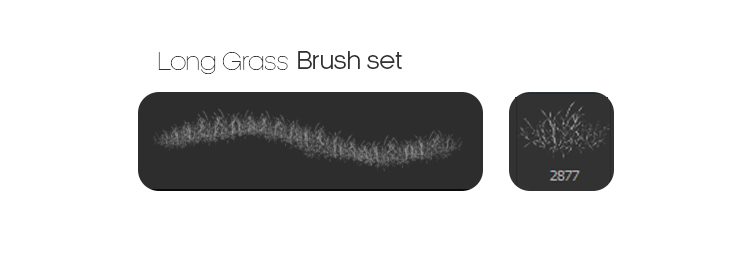
Select a variety of grass brushes from your custom set.
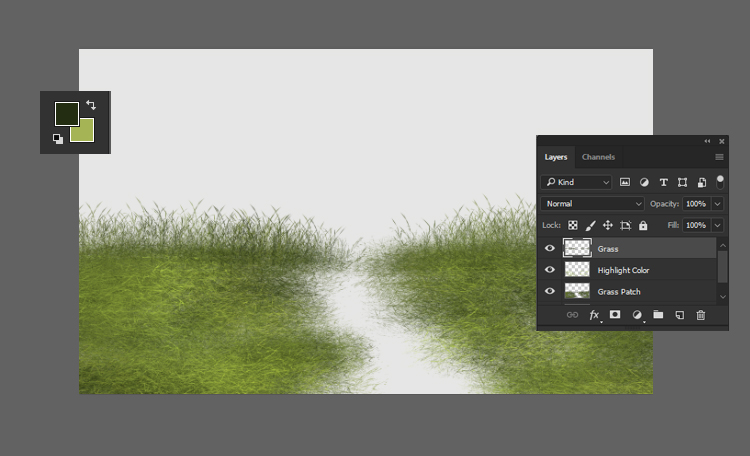
Paint long grass by layering different brush strokes. This will add texture and natural variations to your grass.
Step 4: Paint Long Grass Highlights
Continue painting the long grass with the highlight color. This will create a more dynamic and realistic look.
Step 5: Paint Mud
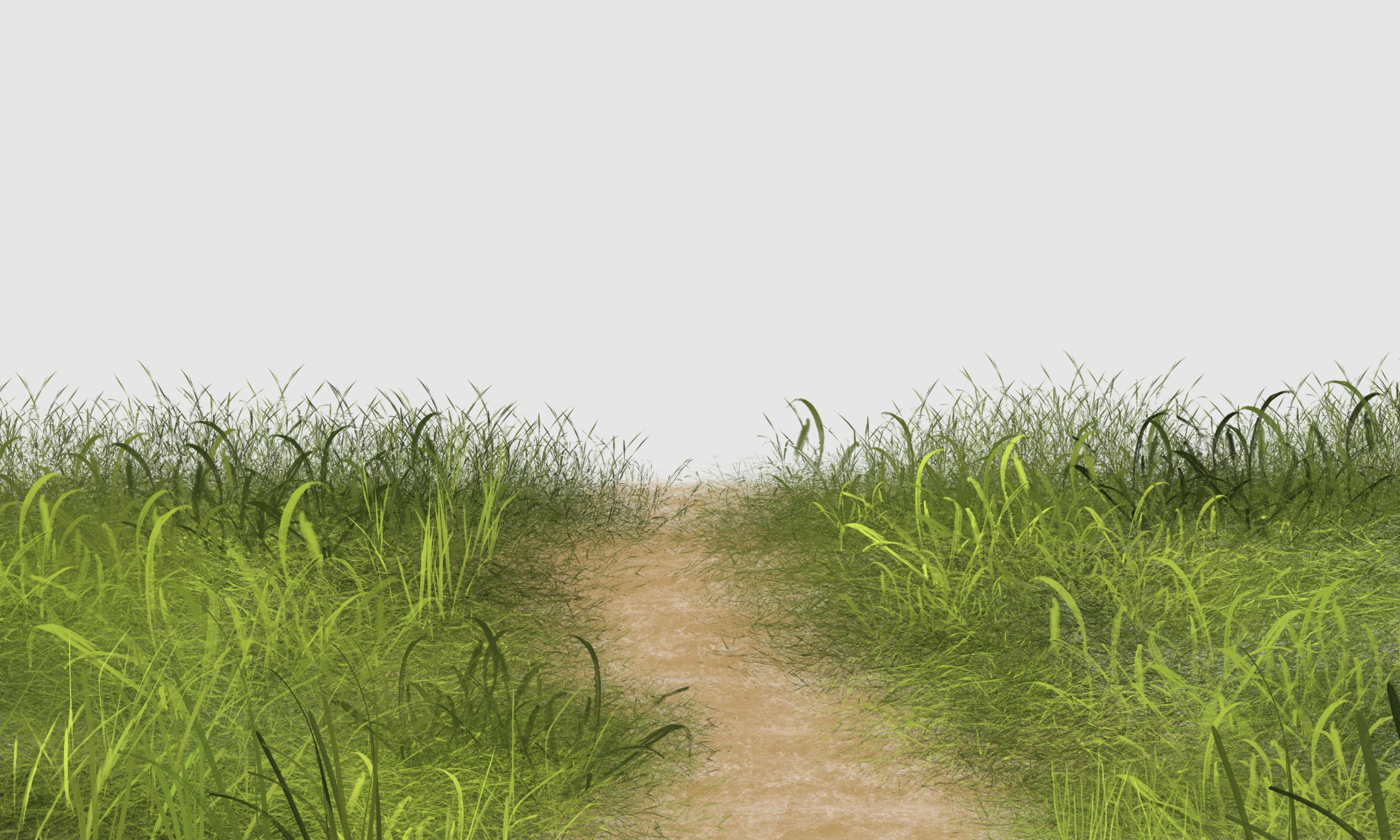
Before starting, you can refer to our detailed article on how to paint mud or download our custom mud brushes here.
Use the following colors to paint mud in the background or foreground:
- Mud Base Color:
#b79764 - Mud Highlight Color:
#cdb89d
Finishing Touches
Once you have completed painting the grass and mud, take a step back and review your work. Make any necessary adjustments to ensure that the colors blend well and the textures look natural. Experiment with additional brush strokes or layers to enhance the realism of your grass.