

Hey there, space lovers!

Tutorial Resources

Do you want to learn how to create amazing nebula in Photoshop?
If so, you are in the right place. In this blog tutorial, I will teach you how to use my space brushes to paint beautiful and realistic nebula in photoshop.
My space brushes are specially designed to help you create stunning space scenes with ease. They have different shapes, sizes, and textures to suit your needs and preferences. You can use them to paint Nebula, stars, shooting star, black holes.
In this tutorial, I will give you some tips and tricks on how to blend the colors, add effects, and make your nebula look awesome.
You will see some examples of how I used these brushes in my own artworks as well.
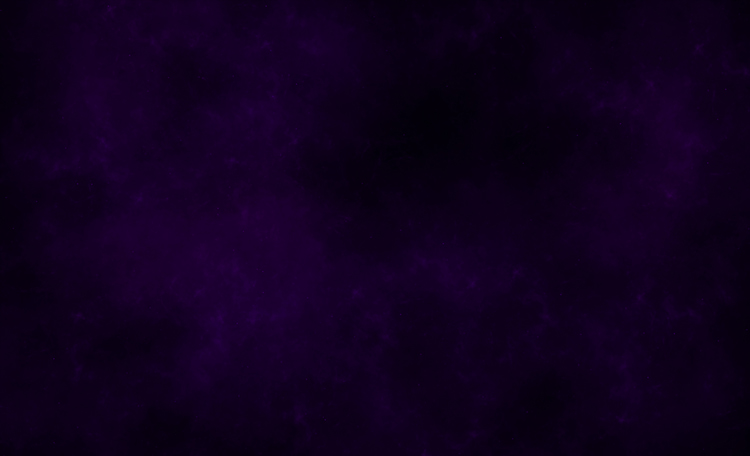
Step 1: Create a new file and fill in a dark background.
The first thing you need to do is to create a new file in Photoshop.
Go to File > New and choose the size and resolution you want. I recommend using a large size and a high resolution for better quality. For this tutorial, I used 2500 x 1605 pixels and 300 dpi. Next, you need to fill in the background with a dark color #010006
.
This will create contrast and make your nebula stand out. You can use any dark color you like, but I suggest using a dark blue.
To fill in the background, go to Edit > Fill and choose the color you want. Alternatively, you can use the Paint Bucket Tool (G)
and click on the canvas.

Step 2: Paint with any nebula brush
Now comes the fun part. You can start painting your nebula with any of the space brushes.
These brushes are dynamic and realistic, so you don’t need to worry about the details. Just let your imagination run wild and enjoy the process.
To use the brushes, you need to load them into Photoshop first, you need to create a new layer above the background layer.
Go to Layer > New > Layer and name it “Nebula”. Then, select the Brush Tool (B) and choose any of the nebula brushes from the panel. Next, you need to choose a color for your nebula. You can use any color you want, but I suggest using a light or bright color to contrast with the dark background.
You can use the Color Picker Tool (I) to pick a color from an image or use the Color Panel to choose a color manually. Then, you can start painting on the canvas. You can use different brushes and colors to create different shapes and effects.
Step 3: Paint another nebula with purple
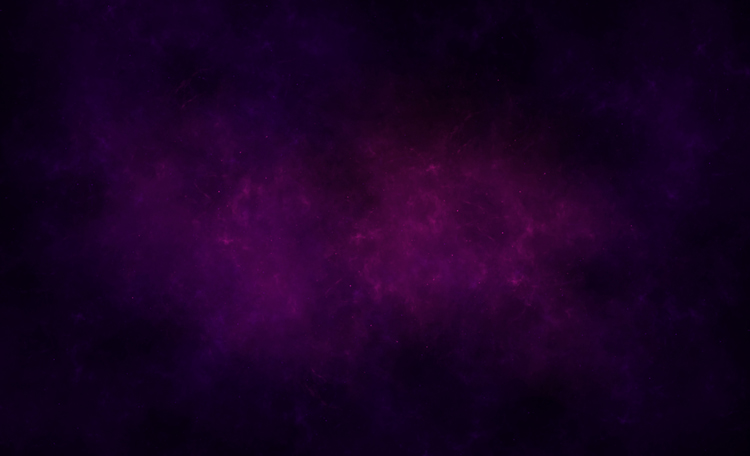
To make your space scene more interesting, you can paint another nebula with a different color. For this tutorial, I chose purple, but you can use any color you like. To paint another nebula, you need to create another layer above the previous one.
Go to Layer > New > Layer and name it “Nebula 2”. Then, select the Brush Tool (B) and choose another space brush from the panel.
You can use a different brush as before. Next, you need to choose a purple color #7a0c65
for your nebula in photoshop.
Step 4: Paint stars
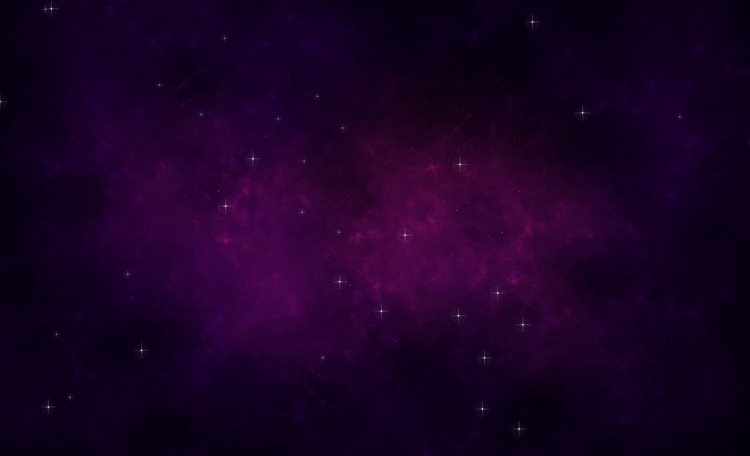
To complete your space scene, you need to add some stars. You can find dynamic stars in this pack that will help you create realistic stars.
To paint stars, you need to create another layer above the previous one. Go to Layer > New > Layer and name it “Stars“. Then, select the Brush Tool (B) and choose any of the star brushes from this brush pack.
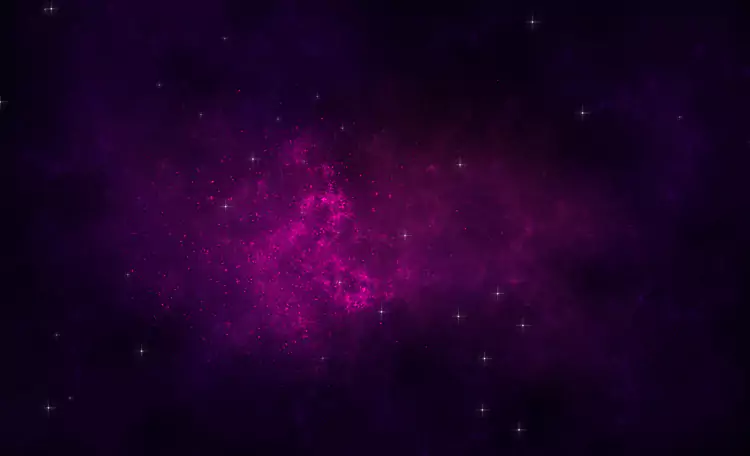
Step 5: Add some contrast with a linear nebula.
create a new layer and name it “Linear Nebula”. Then, select a nebula brush and a color for your nebula. I chose a purple color #ff00b8
Next, paint on the canvas with the brush. You can use different brushes and colors to create different shapes and effects.
However, instead of using Linear Light as the blending mode. This will make your nebula brighter and more intense.
You can also change the blending mode of the layer to get different results, but you can experiment with other modes as well.
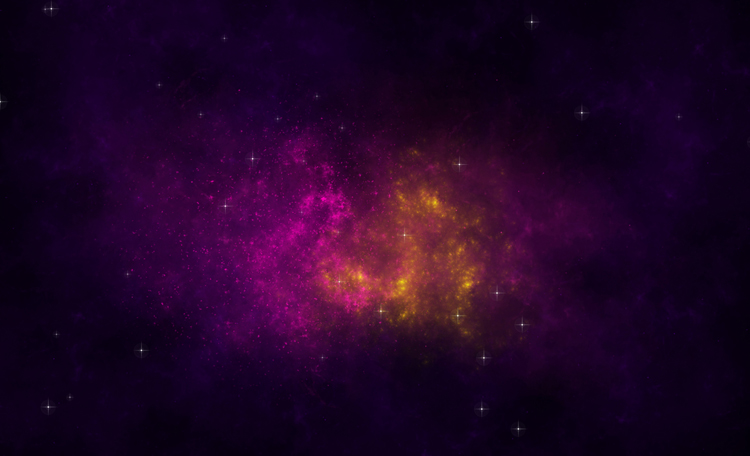
Step 6: Add some warmth with a yellow nebula.
To make your space scene more colorful, you can add some warmth with a yellow nebula.
You should have something like this:
I hope you enjoyed this tutorial and found it useful to create nebula in photoshop. If you did, please share it with your friends. I would love to see your creations and hear your feedback.
Thank you for reading and happy painting!